

When a confirmed Sales Order does not generate the expected Manufacturing Order, check the replenishment rule assigned to the sold product before changing the Manufacturing Order configuration.
For an MTO + Manufacture workflow, Odoo uses the confirmed Sales Order as the demand trigger and creates the related MO for the manufactured product. If that MO is missing, inspect the product route, MTO/Manufacture route combination, BoM applicability, warehouse, and replenishment rules that determine how the demand is fulfilled.
The critical diagnostic path is:
Confirmed Sales Order → Product Route → MTO Replenishment → Manufacture → Applicable BoM → Manufacturing Order If the chain breaks before the MO is generated, identify the first configuration point where Odoo stops generating the expected replenishment demand
What Causes an Odoo Sales Order Not to Create a Manufacturing Order?
A confirmed Odoo Sales Order will not generate a Manufacturing Order unless the sold product is configured with the route and replenishment logic required to trigger production.
For an MTO manufacturing workflow, the key configuration chain is:
Sales Order Confirmation → MTO → Manufacture Route → Applicable BoM → Manufacturing Order
If any required configuration in this chain is missing or does not apply to the sold product, Odoo may not generate the expected MO.
The Product Is Not Configured for the Expected Manufacturing Route
Check the product’s Inventory configuration and verify that the required Manufacture route is enabled for the product or product variant.
For manufacturing workflows, Odoo requires the appropriate manufacturing route and an applicable Bill of Materials (BoM). If the product is configured with a different replenishment method, confirming the Sales Order may not result in the expected Manufacturing Order.
The first check should therefore be the product’s route configuration rather than the Manufacturing Order itself.
MTO and Manufacture Are Not Configured Together
If the workflow is intended to manufacture products specifically against Sales Order demand, check whether the required MTO and Manufacture routes are configured together.
MTO uses the confirmed demand to trigger replenishment. For a manufactured product, that replenishment can result in a Manufacturing Order. If MTO is enabled without the corresponding manufacturing route, the Sales Order may not produce the expected production order.
In this workflow, verify the complete route combination rather than checking MTO in isolation.
The Product Does Not Have the Required BoM
A Manufacturing Order for a manufactured product requires an applicable Bill of Materials (BoM). In an MTO manufacturing workflow, verify that Odoo can identify the correct BoM for the demand being generated.
A Manufacturing Order for a manufactured product requires an applicable Bill of Materials (BoM). In an MTO manufacturing workflow, verify that Odoo can identify the correct BoM for the demand being generated.
Check whether the BoM exists for the exact product or product variant used on the Sales Order and whether its configuration applies to the current manufacturing workflow.
A BoM that exists for a different product variant or does not apply to the sold product can prevent the expected manufacturing flow from being completed.
The Sales Order Is Using a Different Product or Configuration
The product selected on the Sales Order may not have the same configuration as the product previously tested in Manufacturing.
- Product configuration
- Product variant
- Routes
- BoM
- Warehouse
- Company
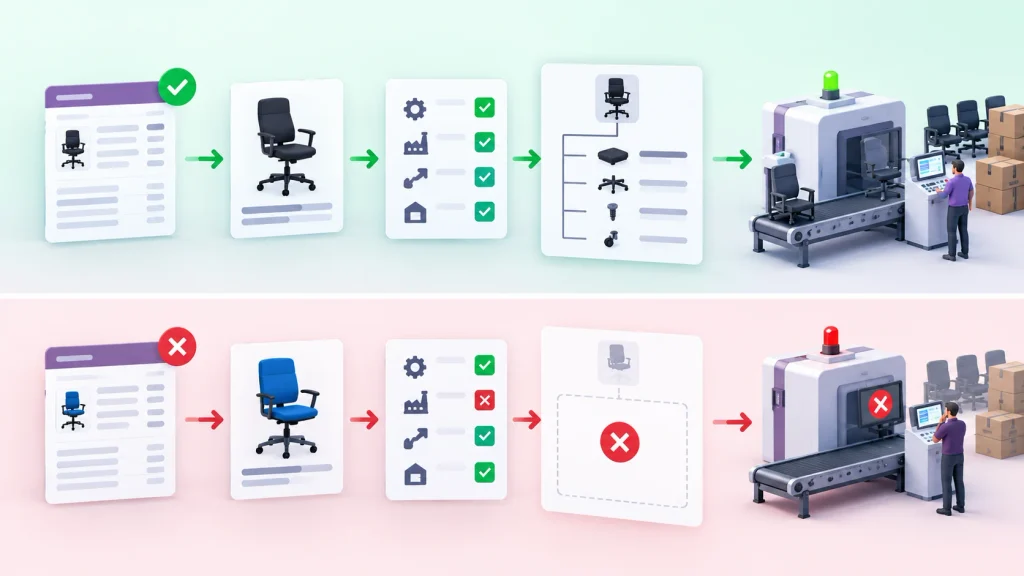
A difference in any of these settings can change how Odoo determines the replenishment and manufacturing flow.
The Warehouse or Route Configuration Does Not Match the Expected Flow
The manufacturing workflow can depend on the warehouse and route configuration associated with the demand.
Odoo supports different warehouse manufacturing flows, including one-step, two-step, and three-step manufacturing. If the Sales Order uses a different warehouse or route from the configuration used during testing, the replenishment flow can behave differently.
Check the warehouse assigned to the Sales Order and verify that its route configuration matches the manufacturing workflow expected for the product.
Common Odoo Sales Order to Manufacturing Problems
The same Sales Order → Manufacturing failure can appear in different ways. Identify the observed symptom first, then compare the configuration responsible for that specific workflow.
Sales Order Is Confirmed but No Manufacturing Order Appears
The Sales Order is confirmed successfully, but no related Manufacturing Order is generated.
Start by checking whether the sold product is configured with the route and replenishment logic required to trigger manufacturing.
Do not assume that confirming every Sales Order should automatically create an MO. The expected result depends on the product’s configured replenishment and manufacturing workflow.
Some Products Create Manufacturing Orders but Others Do Not
If one product generates an MO while another does not, compare the two products before changing the overall manufacturing configuration.
Check:
- Product routes
- MTO configuration
- Manufacture route
- BoM
- Product variant
- Warehouse
This comparison can identify a product-level configuration difference without disrupting a workflow that is already working for other products.
The product can be manufactured manually, but the Sales Order Does Not Trigger Production
A product may be manufactured successfully from the Manufacturing application while still failing to generate an MO from a Sales Order.
This indicates that the manufacturing configuration can support production, but the Sales → replenishment → manufacturing trigger is not behaving as expected.
Investigate the Sales Order product, routes, MTO configuration, applicable BoM, and warehouse context rather than assuming the Manufacturing application itself is misconfigured.
The Workflow Works in One Environment but Not Another
If Sales Orders generate MOs in one environment but not another, compare the relevant configuration and customizations between the environments before repeatedly changing the product setup.
An Odoo Forum case describes a situation where MTO and Manufacture routes appeared correctly configured, but Sales Order confirmation still did not generate the expected MOs. The investigation in that case identified duplicated route rules as the cause.
How to Check Why Your Odoo Sales Order Is Not Creating a Manufacturing Order
Do not manually create an MO before identifying why the expected trigger failed. Start with one affected Sales Order and trace the configuration that should connect the sales demand to manufacturing.
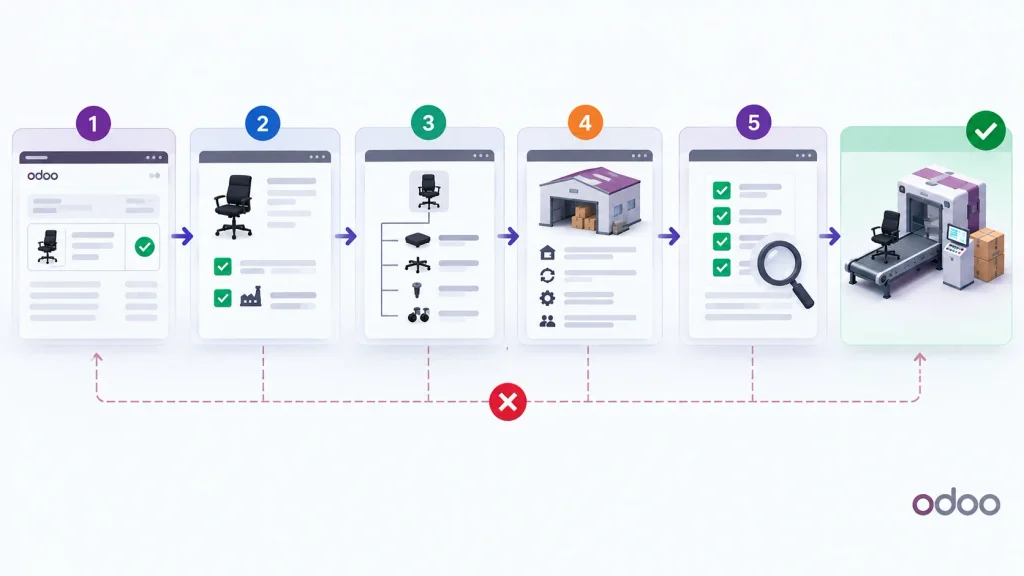
Step 1: Confirm the Sales Order and Product
Open the affected Sales Order and verify:
- Sales Order is confirmed
- Correct product is on the order line
- Correct product variant is selected
- Ordered quantity is correct
- Expected warehouse is being used
Then check whether the same product can generate an MO from another tested Sales Order.
This helps determine whether the problem is specific to the Sales Order or follows the product configuration.
Step 2: Check the Product Routes
Open the product and review its Inventory configuration.
For an MTO manufacturing workflow, verify the route combination required for the intended replenishment flow, particularly:
MTO → Manufacture
MTO requires another replenishment route to determine how the product is supplied. When the product is configured for manufacturing, the applicable manufacturing route allows the replenishment demand to result in an MO.
If the product does not have the expected route combination, confirming the Sales Order may not generate the manufacturing demand you expect.
Step 3: Check the Bill of Materials
Open the product’s BoM and verify:
- BoM exists
- Correct product or variant is selected
- BoM applies to the product being sold
- Required components are defined
- BoM matches the intended manufacturing workflow
Odoo’s documentation identifies a BoM as a required part of the manufactured-product setup.
If the product has multiple BoMs, verify that the applicable BoM corresponds to the product or variant used on the Sales Order and the intended manufacturing configuration.
Step 4: Check the Warehouse and Replenishment Context
If the product, route, and BoM appear correct, check the configuration associated with the Sales Order’s warehouse.
Verify:
- Sales Order warehouse
- Applicable warehouse routes
- MTO configuration
- Manufacture route
- Company
- Relevant replenishment configuration
The warehouse can determine how manufacturing operations are organized, including one-step, two-step, and three-step manufacturing workflows. If the Sales Order uses a different warehouse from the configuration used during testing, the resulting workflow may differ.
Step 5: Compare With a Working Product or Sales Order
If another product or Sales Order creates an MO correctly, use it as the reference configuration.
Compare:
Sales Order → Product → Product Variant → Routes → MTO → Manufacture → BoM → Warehouse → Manufacturing Order
Change one configuration at a time rather than modifying several settings simultaneously.
If the working and affected configurations appear identical, investigate differences in route rules, customizations, environment configuration, or recent configuration changes.
Odoo Sales Order to Manufacturing Troubleshooting Checklist
| Check | What to Verify |
| Sales Order | Confirmed order, correct product, variant, and quantity |
| Product | Correct product/variant and expected manufacturing configuration |
| Routes | Expected MTO and Manufacture route combination |
| BoM | Applicable BoM for the sold product or variant |
| Warehouse | Correct warehouse and operational configuration |
| Replenishment | Expected replenishment route is configured |
| Company | Product, routes, BoM, and Sales Order use the expected company |
| Working Example | Compare with a Sales Order that successfully creates an MO |
| Environment | Compare staging and production when behavior differs |
The goal is not to change every setting. Identify the first point where the affected workflow differs from the working configuration.
How to Prevent Missing Manufacturing Orders From Sales Orders
Before releasing a manufactured product for Sales, validate the exact configuration that should convert Sales Order demand into an MO.
For each new product or product variant, verify:
- MTO + Manufacture routes are configured as intended
- The BoM applies to the exact product or variant
- The Sales Order uses the intended warehouse and company
- The replenishment configuration matches the required manufacturing flow
- A confirmed Sales Order actually generates the expected Manufacturing Order
After changing a route, BoM, product variant, warehouse, or replenishment configuration, retest an actual Sales Order instead of validating the product only from the Manufacturing application.
For multi-warehouse or multi-variant operations, test the combinations actually used by Sales. A configuration that works for one product, variant, or warehouse does not automatically prove that the other Sales-to-Manufacturing flows are configured correctly.
The key prevention check is simple: verify that the actual Sales Order trigger produces the expected MO—not merely that Odoo can manufacture the product manually.
Frequently Asked Questions
Check the product’s MTO and Manufacture routes, applicable BoM, warehouse, company, and replenishment configuration. The key is whether the confirmed Sales Order is triggering the expected manufacturing replenishment flow.
For a manufactured product, MTO combined with the appropriate Manufacture route can generate a Manufacturing Order from the confirmed Sales Order. The result depends on the product, route, BoM, warehouse, and related configuration.
Yes. A BoM is required for the manufactured-product workflow because it defines how the product is produced.
Compare the products’ routes, MTO configuration, BoM, product variants, warehouse, and company. A difference in product-level configuration can cause one Sales Order to trigger manufacturing while another does not.
Conclusion
When an Odoo Sales Order does not create the expected Manufacturing Order, trace the workflow from the confirmed Sales Order through product configuration, replenishment routes, BoM, and warehouse configuration.
The objective is to identify exactly where the manufacturing trigger stops rather than manually creating an MO or changing multiple settings without finding the underlying cause.

