

In Odoo 19, the ability to trace a record change depends on which fields and operations were captured by the available tracking features. When a change or deletion was not recorded, the database may not contain enough history to establish which user performed the action.
The tracking method depends on the requirement: Chatter displays tracked changes on supported records, the Accounting Audit Trail records relevant accounting changes, and a configured audit-log module can capture selected create, update, and delete operations across supported models.
This guide explains what each method records, how to investigate missing history, and which approach suits your Odoo 19 database.
Why Can’t You Always Identify Who Changed or Deleted an Odoo Record?
Odoo’s available record history depends on what was tracked, which model was involved, and whether an appropriate audit mechanism was active when the operation occurred.
Field changes were not tracked
Chatter can display tracked field changes on supported records, including previous and updated values when those changes are recorded. However, not every field on every Odoo model is automatically tracked.
If the relevant field was not configured for tracking, its previous value may not be available in Chatter.
The record was deleted without audit logging
Once a record is deleted, you cannot rely on its normal record view to investigate the operation. If deletion activity was not captured by an appropriate audit mechanism, the available evidence may not identify the responsible user or preserve the deleted values.
A database backup may help recover the record, but it does not necessarily identify who deleted it. Recovery and audit logging serve different purposes.
Accounting records require specific controls
Odoo 19’s Accounting Audit Trail records relevant accounting changes. The Restrictive Audit Trail setting also provides accounting-specific controls that restrict deletion of tracked accounting records.
These features do not constitute a universal audit log for every Odoo application or model.
Before investigating a record, establish whether you need tracked field history, deletion-event logging, accounting-specific controls, or a combination of these.
Method One: Use Odoo Chatter to Investigate Record Changes
Use Chatter to inspect recorded field changes on an existing Odoo record.
How to check a record’s history
- Open the relevant record in Odoo.
- Locate its Chatter panel.
- Review the messages and tracked-change entries.
- Check the user, timestamp, and previous and updated values when available.
The available history depends on whether the relevant fields and operations were tracked.
What if the change does not appear?
Check these four areas:
- Field tracking: Was the field configured to track changes?
- Model support: Does the model support the relevant Chatter tracking behaviour?
- Change source: Was the update performed manually, through an import, by an automated process, or through custom code?
- Available history: Does Chatter contain an entry for the specific change?
If an automated operation appears under a system user, investigate the automation or integration that initiated it. The displayed user alone may not identify the person who triggered the process.
Can Chatter identify who deleted a record?
Do not rely on Chatter as your sole deletion-tracking mechanism. Once a record is deleted, its normal record view may no longer be available, and its associated messages may not provide a recoverable history.
If you need to identify who deleted a record, verify whether a suitable audit mechanism captured the deletion before it occurred.
Method Two: Use the Accounting Audit Trail in Odoo 19
For changes involving accounting records, use Odoo’s built-in Accounting Audit Trail to inspect the recorded history of relevant changes.
The report tracks changes to fields that affect accounting. Entries can show the date and time, the user, the type of change, the previous value, and the updated value.
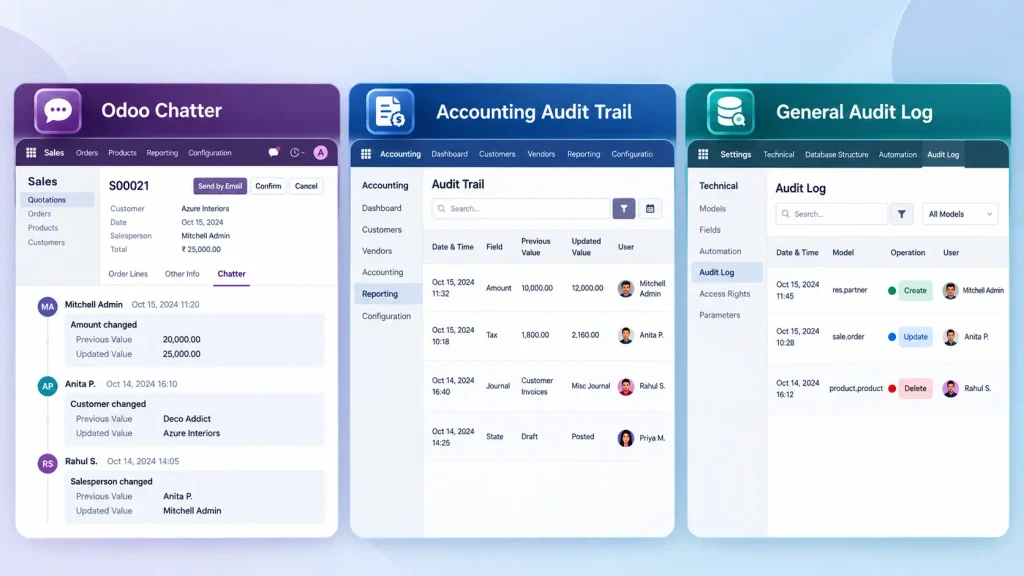
How to access the Accounting Audit Trail
In Odoo 19, navigate to:
Accounting → Review → Audit Trail
Review the entries and identify the changes relevant to the accounting record under investigation.
What is Restrictive Audit Trail?
Odoo 19 also provides an optional Restrictive Audit Trail mode that limits deletion of tracked accounting records.
To find the setting, navigate to:
Accounting → Settings → Configuration → Reporting → Restrictive Audit Trail
When this mode applies, tracked records cannot simply be deleted; they can instead be cancelled or archived, depending on the workflow.
Check the setting and its implications before changing the configuration in a production database. Requirements may also depend on the applicable accounting localization.
The distinction matters: the Audit Trail provides a history of relevant accounting changes, while Restrictive Audit Trail adds controls to help preserve tracked records.
Preventing deletion is not the same as logging a deletion that has already occurred. If you need to investigate deletions across non-accounting models, assess a separate audit-logging solution.
Use the Accounting Audit Trail when: You need to review recorded changes to accounting-related fields or apply stronger deletion controls to tracked accounting records.
Method Three: Use a General Audit Log for Broader Record Tracking
If you need to investigate who created, updated, or deleted records across multiple Odoo applications, a configurable audit log may be more suitable than relying on Chatter or the accounting-specific Audit Trail.
One available option is the Odoo Community Association’s (OCA) Audit Log module, which has a version for Odoo 19.
It supports configurable logging of these operations:
- Create: Records when a record is created.
- Write: Records when an existing record is updated.
- Delete: Records when a record is deleted.
- Read: Supports record-access logging, although the documentation notes limitations for some models.
The operations and information captured depend on the audit rules and configuration. Read logging, in particular, should be tested against the models you need to monitor.
How to configure the Audit Log module
- Install the compatible Audit Log module in an environment that supports third-party server modules.
- Open Settings → Technical → Audit → Rules.
- Create a rule for the data model you want to monitor.
- Select the operations to log.
- Subscribe to the rule to enable it.
- Open Settings → Technical → Audit → Logs to review the recorded operations.
The logs can be grouped by user session, date, data model, or HTTP request, helping you narrow down the activity under investigation.
What should you configure before enabling audit logging?
Start with the models and operations relevant to your investigation requirements. Logging every operation without evaluating its purpose can increase the volume of audit data and make reviews more difficult.
Also review the module’s log-retention configuration. The documented scheduled action can delete logs older than 180 days, but it is not enabled by default. If your business requires longer retention, configure and test an appropriate policy.
Is OCA Audit Log part of standard Odoo?
No. OCA Audit Log is a third-party module maintained by the Odoo Community Association, separate from Odoo’s built-in Accounting Audit Trail.
Hosting compatibility matters:
- Odoo Online: Does not support arbitrary third-party server modules.
- Odoo.sh: Supports custom modules, subject to compatibility and deployment requirements.
- Self-hosted Odoo: Can support additional modules when the server environment and Odoo installation are configured appropriately.
Before deploying the module, verify compatibility with your Odoo 19 environment and test the configuration in a staging database. For complex audit requirements involving custom models or workflows, an Odoo implementation specialist can help assess the appropriate configuration.
Use a general audit-log module when: You need configurable logging of selected create, update, or delete operations across multiple Odoo models.
What Should You Do If a Record Has Already Been Deleted?
If an Odoo record has already been deleted, the available recovery options depend on whether the deletion was logged and whether a suitable backup exists.
Step 1: Check the available audit logs
If a general audit-log module was configured to capture deletions for the relevant model, search its logs.
Check the timestamp, user information, model, and recorded values available for the operation. Confirm that the relevant audit rule was active when the deletion occurred.
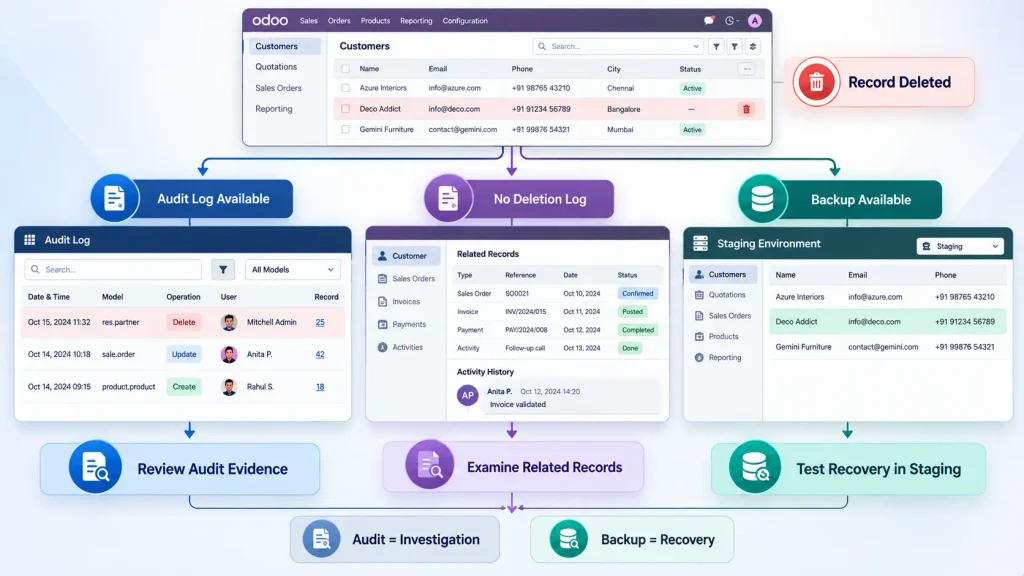
Step 2: Review related records and workflows
If no direct deletion log is available, examine related business records, activities, messages, and other available evidence.
These sources may help reconstruct the sequence of events, but indirect evidence does not necessarily establish who performed the deletion.
Step 3: Check whether a backup is available
A database backup from before the deletion may help recover the missing record or its information.
However, restoring an older backup can affect data created or modified afterward. Test the recovery process in a separate environment before considering any production restoration.
Step 4: Prevent the same problem from recurring
If deletion history is important to your business, configure appropriate audit logging before another deletion occurs.
For records that should remain available, review access rights and consider whether archiving is more appropriate than allowing deletion.
Important: If no audit log or other reliable evidence captured the deletion, you may not be able to establish conclusively who deleted the record.
How to Configure Reliable Record-Tracking Controls
Reliable record tracking depends on what you log, who can access the logs, how long they are retained, and whether the configuration captures the evidence your business needs.
Choose the records that require monitoring
Identify the Odoo models and operations that present the greatest risk if a change or deletion goes undetected.
Priorities may include customer records, sales orders, inventory data, financial information, and custom business models. Select the scope according to the operational impact of an unauthorised or accidental change.
Restrict access to audit logs
Audit logs may contain sensitive business information, including previous field values.
Limit access to authorised administrators, auditors, or designated personnel. Review who can view, modify, or delete audit entries, and verify that the configuration protects the integrity of the records.
Define a retention policy
Determine how long audit logs must be retained to support investigations, operational needs, and applicable compliance requirements.
For the OCA Audit Log module, review the scheduled-action configuration discussed in Section 4. Do not assume that logs will be retained indefinitely or that the module’s available retention settings automatically meet your requirements.
Test before deploying
Use a staging database to verify that the selected rules capture the intended operations.
Test record creation, field updates, deletion, and relevant automated or integration-driven operations. Confirm that the logs contain useful timestamps, user information, and operation details. For automated processes, imports, and integrations, verify whether the recorded information is sufficient to identify the operation’s source and investigate the change.
Also verify that access restrictions work as intended before deploying the configuration to production.
Review storage and operational impact
Logging additional operations increases the volume of audit data and can increase storage requirements. The operational impact depends on the scope of logging and the volume of activity.
Start with the required models and operations, monitor the impact, and expand the configuration when necessary.
For complex requirements involving custom models, integrations, or sensitive workflows, an Odoo developer may need to assess the configuration and verify that it captures the required evidence.
Troubleshooting: Why Is the Audit History Still Missing?
If you cannot find the activity you expected, use this checklist to identify what to investigate.
| Problem | What to investigate |
| A field change is missing from Chatter | Check field tracking, model support, and how the change was performed. |
| A deleted record has no visible history | Check whether an appropriate deletion-audit rule was active before the operation. |
| Accounting changes are missing from the Audit Trail | Verify whether the field or operation falls within the Accounting Audit Trail’s scope and review the relevant configuration. |
| A general audit log contains no entry | Confirm that the module was installed, the correct model and operation were configured, and the rule was enabled when the activity occurred. |
| Automated changes show OdooBot | Investigate the operation’s execution context and relevant automation or integration logs. The displayed user alone may not identify who initiated the process. |
| Users can modify audit settings or logs | Review technical permissions and restrict audit administration to authorised personnel. |
| Old audit entries have disappeared | Check the retention policy and scheduled cleanup configuration. |
If an expected entry is missing, do not immediately conclude that a particular user performed the action. First establish whether the relevant activity was configured to be recorded and whether the available logs cover the operation.
Frequently Asked Questions
Yes, when the relevant activity has been recorded. Chatter can show tracked field changes on supported records, while the Accounting Audit Trail records relevant accounting changes. To track deletions across other models, you may need a suitably configured audit-log solution.
No. Tracking depends on the model, field configuration, and audit mechanism. You should not assume that every field change or deletion is recorded automatically. If you need broader coverage, configure and test an appropriate audit-log solution.
An audit log may preserve information about a deleted record, depending on its configuration, but it is not a complete recovery mechanism. A suitable database backup may be needed to restore the record. Test recovery in a separate environment before attempting a production restoration.
Conclusion
Identifying who changed or deleted an Odoo 19 record depends on what was tracked before the incident occurred.
- Chatter: Review tracked changes on supported records.
- Accounting Audit Trail: Investigate relevant accounting changes and deletion controls.
- General audit log: Record configured operations across selected models, including deletions.
Odoo does not automatically provide a complete audit history for every field and deletion. Define your tracking requirements, verify the available audit evidence, and test the configuration before deploying it to production.
If your business needs broader record tracking or custom audit controls, the Odoo ERP implementation team can help assess your requirements and determine an appropriate implementation.

