
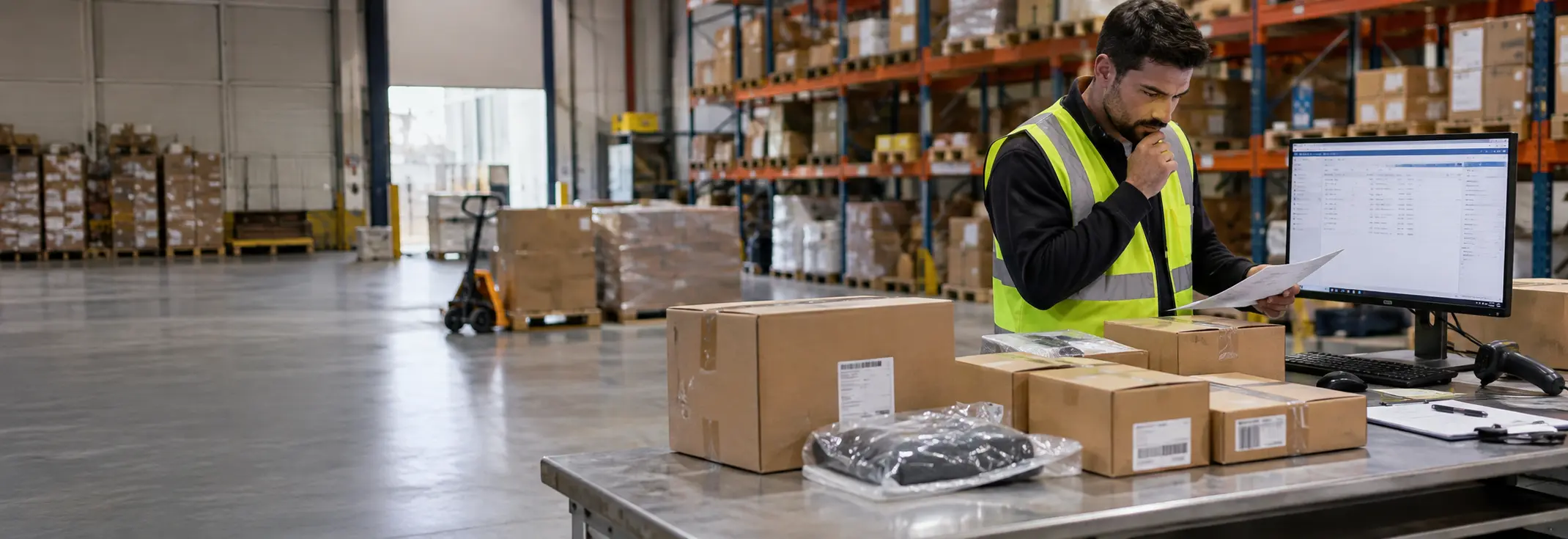
The product is present on the Odoo Purchase Order, but the linked receipt does not contain the expected product line. The warehouse team cannot process the planned quantity correctly, and the purchase order can remain partially received even though the product is clearly listed as ordered.
The missing line can be related to the product configuration, purchase order line, linked receipt operation, warehouse receiving flow, route, or previous receipt activity. Checking only the PO or only the receipt will not show where the discrepancy starts.
The investigation should trace the affected product through:
Purchase Order → Receipt → Product Line → Demand → Received Quantity → Inventory
How Should You Investigate a Product Missing From an Odoo Receipt?
The first check is whether the product line on the Purchase Order is present on the linked receipt and whether the expected quantity carried through to the receiving operation.
Compare the affected product at each stage:
PO Product Line → Confirmed PO → Linked Receipt → Receipt Operation → Received Quantity
Check the product, ordered quantity, receipt status, and linked transfer to identify where the product or expected quantity stops appearing in the receiving flow.
The objective is to find the first point where the receipt differs from the Purchase Order requirement. This helps separate a product configuration issue from a receipt workflow, route, or transfer issue.
Could the Product Type Prevent It From Appearing on the Receipt?
Check the product type before investigating the receipt workflow itself.
Odoo treats goods and services differently in Inventory. Services are not physical inventory items, while goods can be involved in inventory movements and receipts.
If the Purchase Order line contains a Service, it should not be investigated as a normal stock receipt line because there is no physical quantity to receive into inventory.
For a product that should be physically received, check:
Product → Product Type → Inventory Configuration
Confirm that the product is configured as a physical good and that its inventory behavior matches the intended receiving process.
This distinction matters because a product can appear correctly on a Purchase Order without being an item that should generate a normal inventory receipt movement.
Do not change the product type simply to make the receipt show the expected line. First confirm that the product is actually a physical item that should be received into inventory.
Does the Purchase Order Line Match the Linked Receipt?
A Purchase Order represents the purchasing requirement, while the receipt represents the inventory operation used to receive those products. For a missing product, both records need to be checked together.
Compare the affected product through:
Product → Ordered Quantity → Receipt Demand → Received Quantity
Check whether:
- the same product appears on the PO and linked receipt,
- the ordered quantity is reflected in the receipt demand,
- the receipt is still open,
- the product has already been received, or
- the remaining quantity is being handled through another transfer or receipt.
This becomes particularly important when a PO contains many product lines but only one or a few products are missing from the receipt.
Do not immediately create another receipt. First determine whether the expected product is already included in an existing transfer, has already been received, or whether the original receipt no longer contains the expected demand.
The objective is to identify where the PO requirement and receipt operation first stop matching.
Could the Warehouse Receiving Flow Be Affecting the Receipt?
The warehouse configuration determines how incoming products move through receiving locations and operations.
Odoo supports one-step, two-step, and three-step receiving flows. Depending on the configuration, incoming products may move directly into stock or pass through additional receiving locations before reaching their final destination.
This matters when the product is present on the Purchase Order but the warehouse team cannot find the expected product line in the receipt they are checking.
Check:
Warehouse → Incoming Shipment Configuration → Operation Type → Source Location → Destination Location
For multi-warehouse environments, confirm that the Purchase Order is using the intended warehouse and receiving flow.
A product may be moving through a different receiving operation or transfer than the one the warehouse user is inspecting. Checking the operation type and locations helps determine whether the expected product is actually part of that receiving flow.
Could a Route Be Sending the Product Through a Different Receiving Flow?
The product route can determine which inventory operation handles the incoming movement.
This matters when a business uses different purchasing and fulfillment methods, such as standard receiving, multi-step receiving, or dropshipping.
For example, a dropship route does not follow the normal warehouse receiving flow because the product moves from the supplier toward the customer instead of being received into the company’s stock.
Check the relevant configuration:
Product Routes → Warehouse → Operation Type → Source/Destination Location
The key question is not only:
“Is the product on the Purchase Order?”
It is:
“Which inventory operation is Odoo using to move this product?”
If the product is following a different route, the expected product may not appear in the standard receipt the warehouse team is checking.
Could a Partial Receipt or Backorder Be Hiding the Missing Product?
A product may appear to be missing because the original receipt has already been partially processed.
When only part of an incoming quantity is received, Odoo can create a backorder for the remaining quantity, depending on the operation type configuration.
Check the receipt history before creating another transfer:
Original Receipt → Validated Quantity → Remaining Quantity → Backorder
Then compare the affected product’s:
Demand → Done Quantity → Remaining Quantity
If the receipt was only partially processed, investigate the original receipt and its related backorder before creating or modifying another transfer.
This helps determine whether the product is actually missing from the receiving flow or whether its unreceived quantity is already being handled by a backorder.
What Should You Check Before Changing the Purchase Order?
Do not modify the PO simply to make the receipt display the expected product.
First establish where the discrepancy occurs:
Product Configuration → PO Line → Receipt → Warehouse Flow → Route → Backorder
Changing quantities, deleting lines, or creating manual transfers before identifying the cause can make it harder to determine which part of the receiving flow caused the discrepancy.
A useful comparison is:
Working Product Line → Working Receipt
versus
Affected Product Line → Affected Receipt
If other products on the same PO are receiving correctly, compare their product configuration, quantities, receipt lines, and linked operations with the affected product.
The goal is to identify the first difference, rather than changing the receipt or Purchase Order before the cause is known.
How Should You Validate the Purchase Order Receipt?
The final check is whether the Purchase Order, receipt, and inventory movement agree.
For the affected product, verify:
PO Product = Receipt Product
PO Quantity = Receipt Demand
Received Quantity = Actual Received Quantity
Receipt Status = Correct Processing State
Source/Destination = Correct Warehouse Flow
Then confirm that validating the receipt produces the expected inventory movement.
Odoo records stock movements when products move between inventory locations, and a validated receipt moves goods from the vendor location into stock in the standard receiving process.
This final validation is important because a receipt can look correct on screen while the resulting inventory movement does not follow the intended warehouse process.
The Purchase analysis tools also provide Qty Ordered and Qty Received measures, which can help identify differences between purchasing demand and received quantities.
When Does This Require Odoo Configuration Support?
Professional support becomes relevant when the missing-product issue repeatedly affects purchase orders, multiple warehouses, specific products, or particular receiving workflows.
Common signs include products consistently missing from receipts, incorrect warehouse operations, route-related receiving problems, repeated backorder inconsistencies, or product configurations that do not match the actual purchasing process.
At that point, the issue should be reviewed across Purchase, Inventory, product configuration, warehouse operations, routes, and receipt relationships rather than corrected manually on individual Purchase Orders.
A recurring receiving problem may require a broader review of the Odoo configuration and business workflow to determine why the expected product is not consistently reaching the intended receipt operation.
Frequently Asked Questions
Check the product type, PO line, linked receipt, warehouse operation, route, and receipt history. The product may not be configured as a physical inventory item, may be following a different receiving flow, or its remaining quantity may already be handled through another transfer or backorder.
Different products can have different product configurations, routes, receiving flows, or receipt histories. Compare the missing product with a product from the same Purchase Order that appears correctly on the receipt. The first difference can help identify where the receiving flow diverges.
Yes. After a partial receipt, the remaining quantity may be handled through a backorder or related transfer, depending on the operation type configuration. Check the original receipt, done quantity, remaining quantity, and related backorder before creating another transfer.
Conclusion
A product missing from an Odoo Purchase Order receipt should be traced through the purchasing and inventory flow rather than corrected directly on the receipt.
The main diagnostic path is:
Product Configuration → PO Line → Receipt → Warehouse Flow → Route → Backorder → Inventory Movement
This helps identify whether the issue comes from the product configuration, Purchase Order, receiving workflow, or inventory operation.
When the issue repeatedly affects Purchase Orders, review the underlying Purchase and Inventory configuration instead of correcting each order manually.

