
Static UPI QR Payments in Odoo 20 Point of Sale

A customer scans the shop's UPI QR code and pays. The question that decides whether this works as a POS payment method is what happens next: how the transaction is recorded against the order, and how the cashier knows the money actually arrived.
Odoo 20 adds support for static UPI QR payments in Point of Sale. This covers the payment method configuration, what the checkout flow does and does not confirm, and the accounting records to check before a session is closed.
What static UPI QR adds to Odoo 20 POS
Odoo 20 POS supports a reusable static UPI QR code for merchant payments. The same merchant QR is used across checkouts rather than generating a new payment code for every order.
That is different from Odoo's order-specific self-ordering QR, which a customer scans to reach the ordering workflow and pay afterwards. Odoo 20 also introduces order-specific QR generation for self-ordering, but it is separate POS functionality.
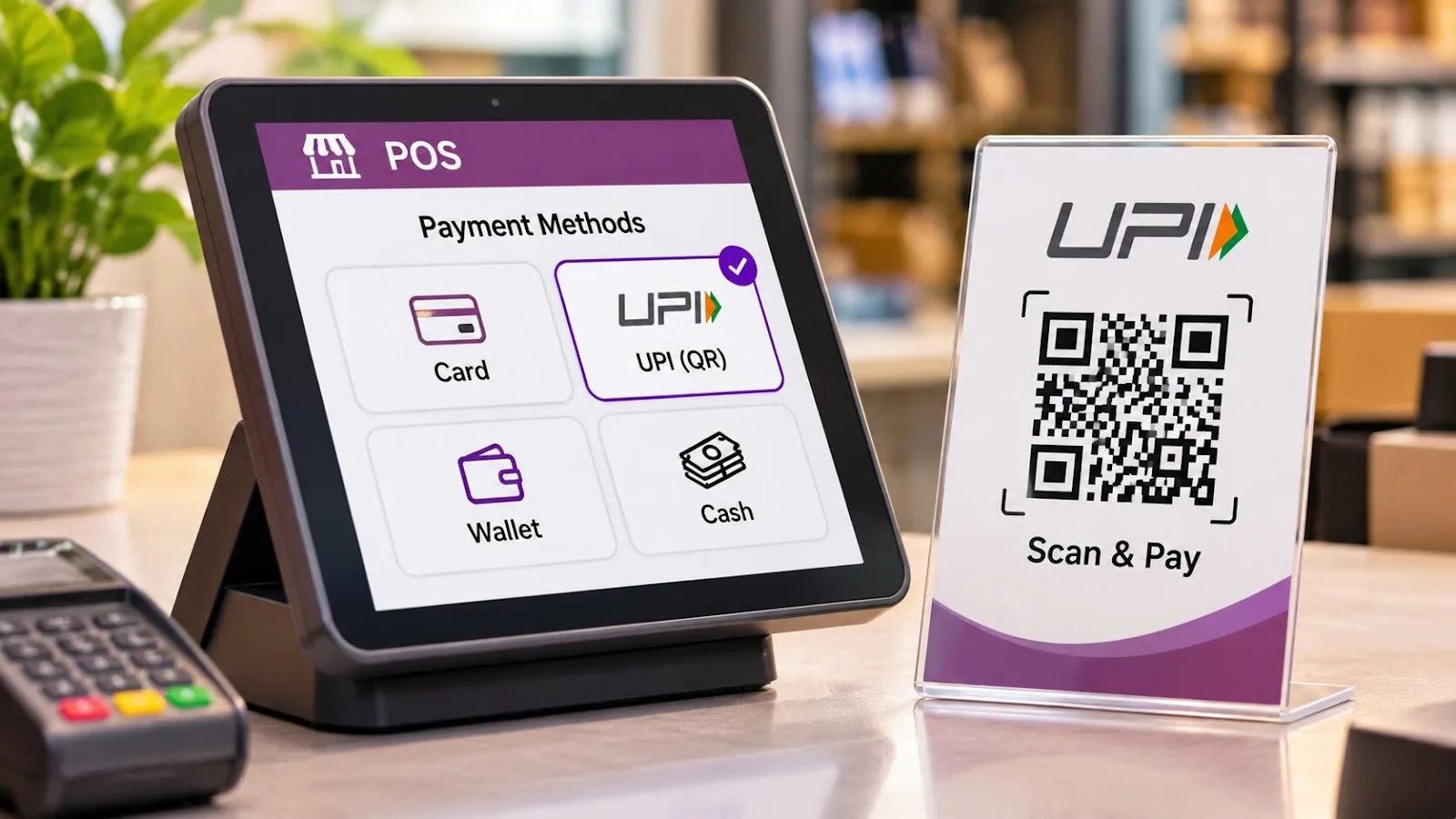
The distinction that matters operationally is payment identification. A reusable merchant QR does not identify the individual POS order being paid. The received UPI transaction has to be matched to the correct order and recorded in the right payment journal, and nothing in the QR itself does that for you.
Configuring the POS payment method
Go to Point of Sale → Configuration → Payment Methods → New and set:
- Name — a payment method name for UPI.
- Journal — the relevant Bank journal.
- Point of Sale — the POS where the method should appear.
- Integration — the documented QR-payment integration is Bank App (QR Code).
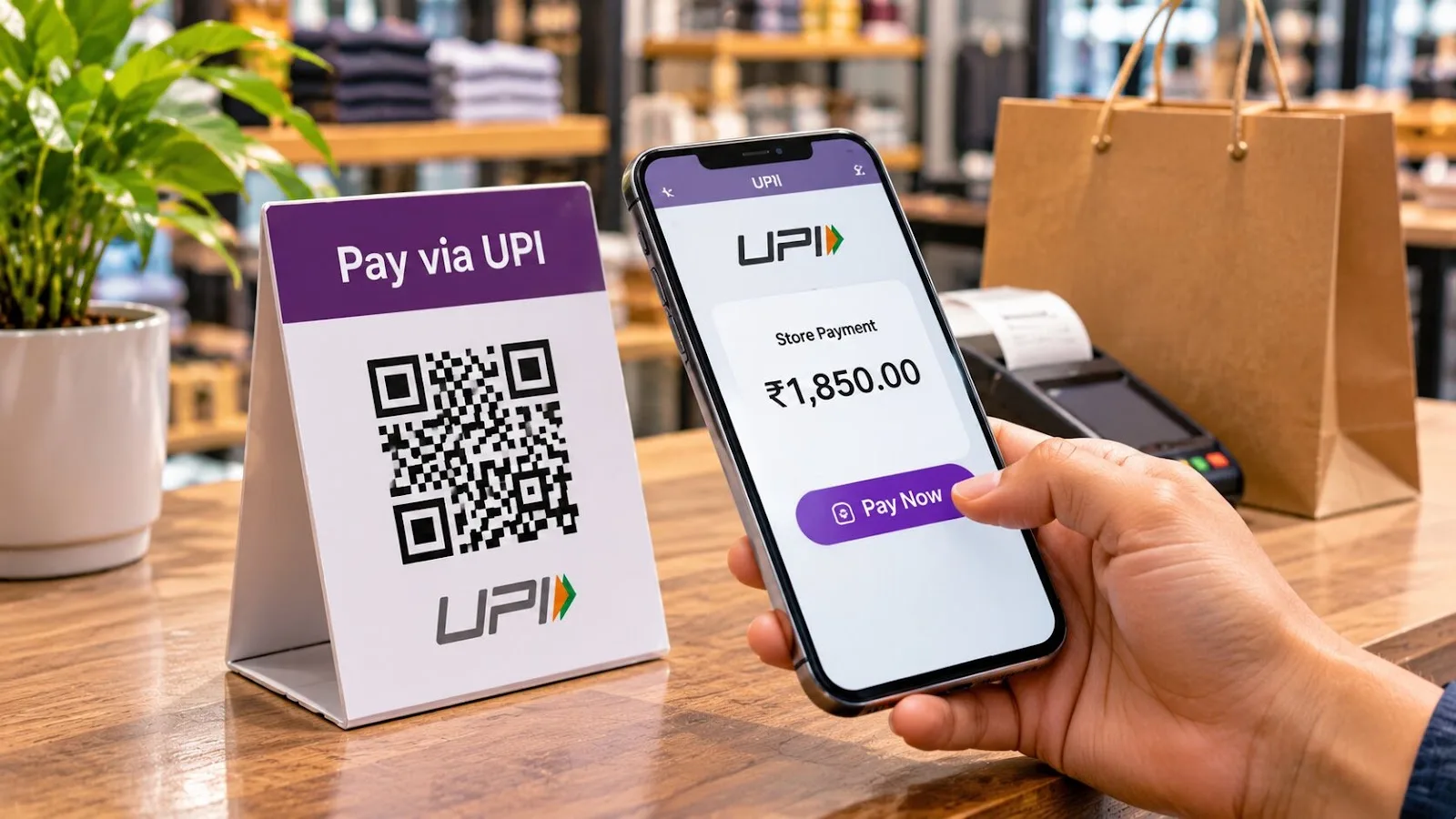
The selected Bank journal needs at least one bank account configured for QR payments. Save the method and confirm it appears in the POS configuration under Payment Methods.
One compatibility note worth respecting: the Odoo 20 release notes confirm static UPI QR support, while the published configuration documentation describes the general Bank App QR integration. Verify the static UPI configuration in the build you have actually installed rather than assuming the generic QR Code Format settings carry over.
What happens at checkout
A static UPI QR identifies the merchant's payment destination, not a particular order. The checkout sequence is:
- The cashier selects the configured UPI payment method.
- The merchant's static QR is shown to the customer.
- The customer scans it in a UPI app and authorises the transfer.
- The merchant verifies the received transaction and matches it to the POS order.
- The order is completed through the configured payment workflow.
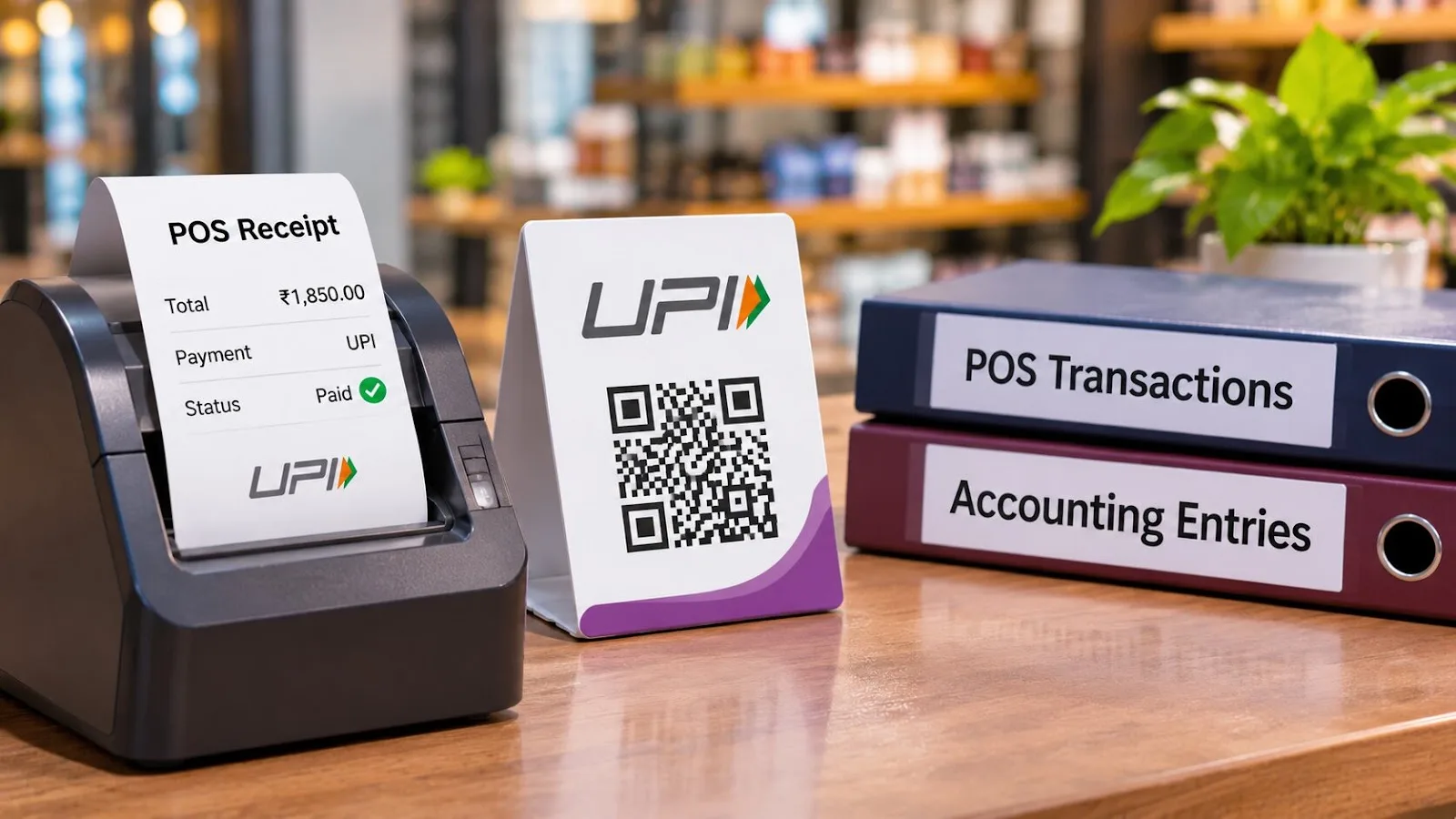
Scanning the code is not confirmation of payment. A screenshot on a customer's phone is not confirmation either. Check the transaction status, the merchant account and the received amount before treating the order as paid. Confirm the exact behaviour in the installed Odoo 20 static UPI workflow rather than inferring it from the general Bank App QR integration.
Where the payment is recorded
The POS payment method decides which journal records the UPI payment, and a wrong journal or account makes the transaction hard to trace later. Three areas are worth checking:
- POS payment journal — under Point of Sale → Configuration → Payment Methods, confirm the journal assigned to the UPI method. Odoo records the POS payment transactions against it.
- Intermediary and outstanding accounts — with Accounting installed, set the Intermediary Account when payments need tracking through a specific receivable account. An Outstanding Account can also be set on the journal where required.
- Bank reconciliation — compare the recorded UPI payments against the bank statement lines and investigate unmatched transactions, amount differences and settlement timing before completing reconciliation.
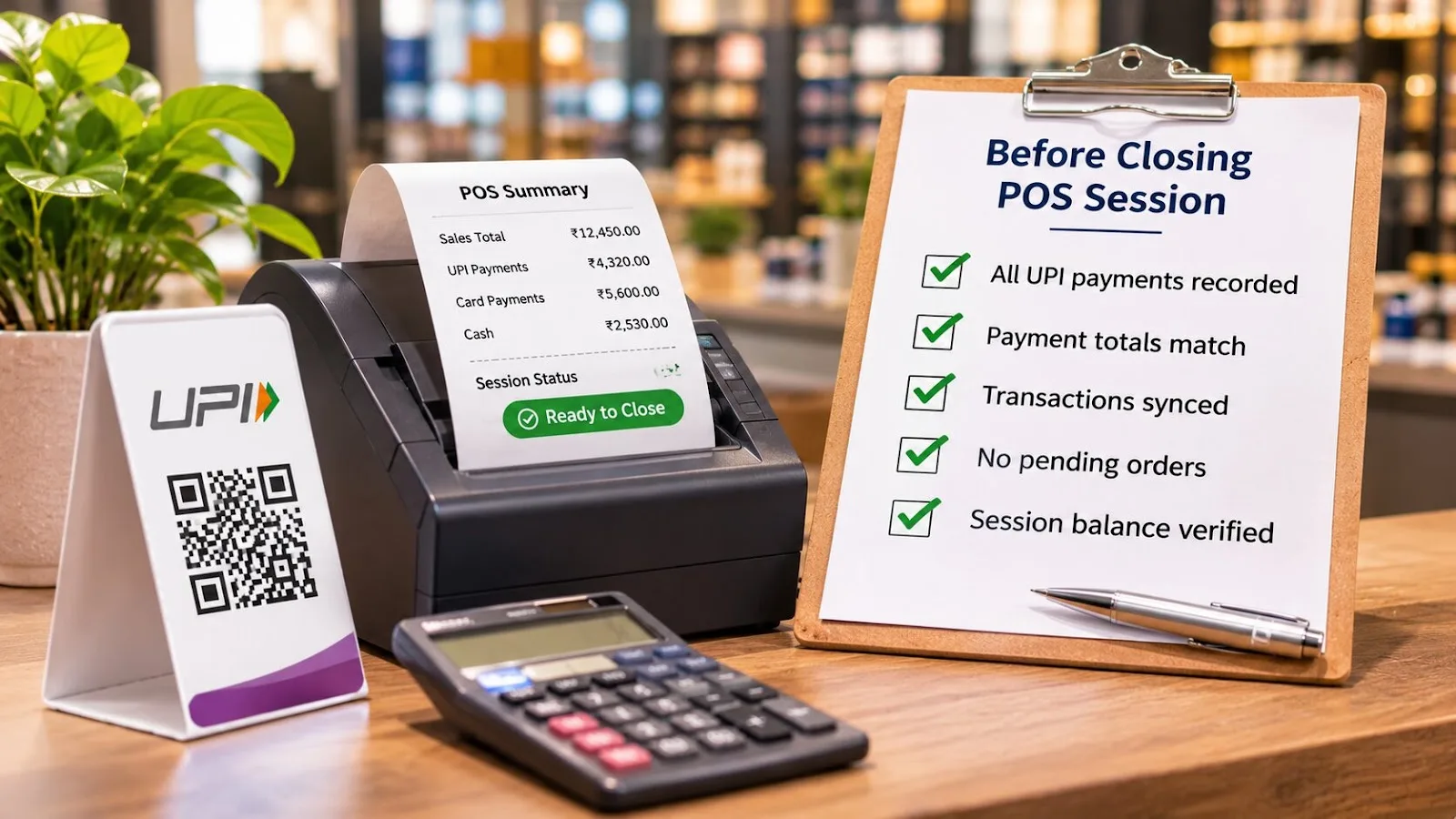
The POS payment entry and the matching bank statement transaction are two separate records. Both have to be verified; agreement on one of them is not agreement on both.
Checks before closing a POS session
- Payment method — the UPI method is available in the active POS.
- Bank journal — it points at the journal you intended.
- Payment receipt — each received UPI transaction is verified against the merchant account and the POS order it belongs to.
- Accounting records — the payment sits in the correct journal and matches the corresponding bank transaction.
For a shop running a reusable QR across a busy counter, this matching is the work. The configuration takes minutes; keeping the UPI transfer, the POS payment record and the accounting entry in agreement is the part that needs a routine.
Why a static QR is harder to reconcile than a dynamic one
This is the trade-off to understand before rolling a static QR out to a busy counter, and it is not a configuration setting — it is a property of the code itself.
A dynamic QR is generated per transaction and carries the amount and a reference. The settlement line that comes back can be tied to one order without ambiguity. A static QR carries only the merchant's payment address. The customer types the amount themselves, and the bank statement line arrives with an amount and a timestamp and nothing else to identify the order.
In practice that means reconciliation is by amount and time. It works until two customers pay the same total within the same minute, or a customer mistypes the amount, or a transfer settles late and lands on the next day's statement. Each of those produces a statement line that looks like it could belong to two different orders, or to none.
Three habits keep that manageable:
- Record the UPI reference on the order. If the cashier captures the transaction reference at the counter, the later match is exact rather than inferred.
- Reconcile daily, not weekly. Same-amount collisions are easy to resolve against one day of orders and nearly impossible against a month of them.
- Treat underpayments as underpayments. A customer-typed amount can be short. The POS order total, not the received amount, is what the order should be closed against.
None of this is a reason to avoid static QR. It is cheaper and simpler to run, and for most counters the volume never reaches the collision case. It is a reason to decide in advance who checks the match, and when.
Frequently asked questions
Conclusion
Static UPI QR payments give Indian retailers another POS payment option in Odoo 20, with a reusable merchant code instead of a per-order one.
The implementation requirement that comes with it is consistency: the customer's UPI transfer, the POS payment record and the accounting entry all have to agree. Verify the workflow and the journal configuration in your own build before taking static UPI QR payments in production.