
Why Aren't Odoo 19 Project Attachments Added to Documents?
Uploading a file to an Odoo project task does not necessarily mean it will appear automatically in the Documents app. This can create confusion for teams that previously accessed task attachments directly through Documents without performing an additional step.
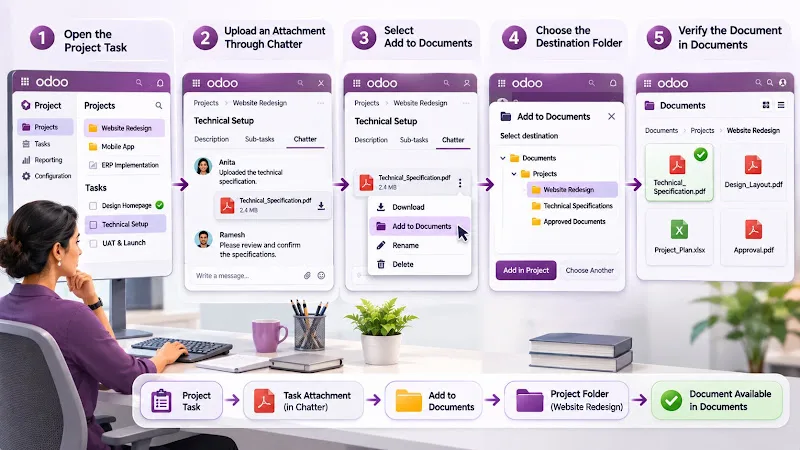
In Odoo 19, project task attachments can be added to Documents on demand. After uploading a file through the task chatter, users can select Add to Documents and choose the appropriate project folder or another destination.
The change affects how teams organize and retrieve project files. Understanding the relationship between task attachments, the Documents app and file centralization helps prevent misplaced documents and unnecessary duplicate uploads.
Why Aren't Project Attachments Automatically Added to Documents in Odoo 19?
The behaviour changed in the way project task attachments are organized.
An Odoo Community discussion reports that, in earlier versions, files uploaded through a project task's chatter appeared in the Documents app with a link to the associated task. In the newer workflow, including Odoo 19, users need to add the attachments to Documents when required.
Odoo's community response confirms that project task attachments are now added to Documents on demand rather than being automatically listed as before.
What changed?
| Area | Earlier workflow | Odoo 19 workflow |
|---|---|---|
| Uploading an attachment | Upload through task chatter | Upload through task chatter |
| Documents availability | Appeared automatically in Documents in the reported earlier workflow | Add to Documents when required |
| Folder selection | Previously followed the existing project-document arrangement | Users can select the destination |
| Document organization | Automatically associated with the task's project folder | Can be organized under the project or another folder |
What this means for your team: The attachment can remain available through the task chatter even when it has not been added to the Documents app. These are two different ways of accessing and organizing files.
If your team expects every uploaded attachment to appear in Documents, the additional step needs to be included in your document-management workflow.
How to Add Project Task Attachments to Documents in Odoo 19
You do not need to upload the same file again through the Documents app. Odoo provides an action for saving an existing chatter attachment into Documents. Follow these steps:
- Open the Project application.
- Select the project containing the relevant task.
- Open the task.
- Upload the required file through the chatter.
- Hover over the uploaded attachment thumbnail.
- Click the Add to Documents icon.
- Select Add in Project to use the suggested project location, or choose another destination if required.
Odoo's community response explains that the default project destination is a folder under Projects matching the project name. Users can also select another location.
What happens after selecting Add to Documents?
The attachment becomes available through the Documents app in the selected location. This makes it easier for project teams to organize files without relying exclusively on the chatter of individual tasks.
For example, a project team can organize approved specifications, technical documents and customer-provided files within the relevant project folder.
The important distinction is that adding an attachment to Documents is an organization step. It does not replace the task record or the communication history maintained through its chatter.
What Is the Difference Between Task Attachments and Documents?

Task attachments and Documents serve related but different purposes.
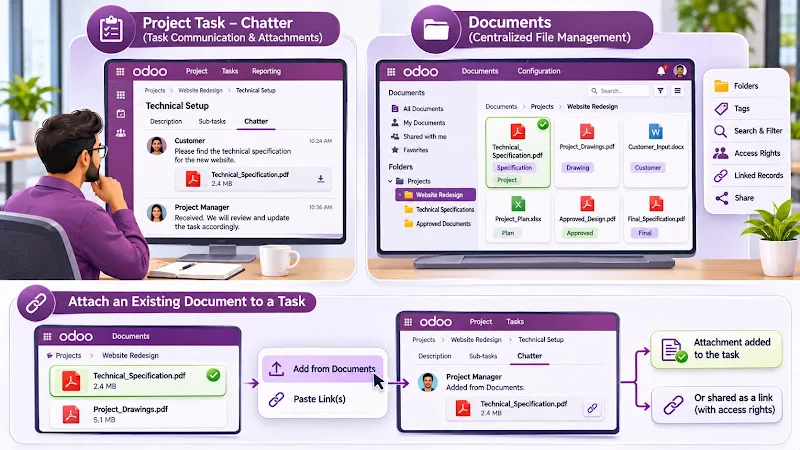
The chatter is associated with an individual project task and supports communication, updates and file attachments. Documents provides a centralized interface for storing, organizing, searching and managing files. Understanding this distinction helps teams decide where each file should be maintained.
Task chatter
The task chatter is useful when a file belongs to a particular discussion or project activity. For example, a customer may upload a technical specification while discussing a project requirement. The attachment remains associated with that task's communication history.
Documents app
Documents provides additional file-management capabilities, including:
- Organizing files into folders.
- Applying document tags.
- Searching and filtering files.
- Managing file access rights.
- Viewing document details and linked records.
- Sharing files with permitted users.
The Documents app can also connect files back to their associated Odoo records.
Can you attach an existing Document to a task?
Yes. Odoo also supports the reverse workflow. From the record's chatter:
- Click Add from Documents.
- Select the required document.
- Choose Add from Documents to insert the file, or Paste Link(s) to insert a link while preserving the document's access rights.
This is useful when multiple project tasks need access to an existing document without unnecessarily uploading separate copies.
How Does File Centralization Work in Odoo 19?
File centralization is a separate Documents configuration feature. It allows files associated with supported applications to be organized automatically into dedicated folders.
To review this configuration, navigate to Documents → Configuration → Settings → File Centralization and inspect the available application-specific settings and their destination folders.
Odoo 19 documentation explains that file centralization is enabled by default for each app upon installation. It also allows administrators to modify the destination folder and associated tags.
What should administrators verify?
- Whether file centralization is available for the relevant application.
- Which folder is configured as its destination.
- Which tags are applied to incoming documents.
- Whether the required users have access to the destination folder.
One important limitation concerns existing files. Changing the configured folder or tags affects new files; existing files remain unchanged. Therefore, changing a centralization setting does not automatically reorganize all previously uploaded attachments.
For the specific project-task chatter workflow, verify the behaviour in your installed Odoo 19 build. Use Add to Documents when an individual attachment needs to be placed in a selected Documents folder. Do not assume that changing a general centralization setting will restore every aspect of the earlier automatic workflow.
How to Troubleshoot Project Attachments Missing From Documents
If an uploaded task attachment does not appear in Documents, identify whether the file is missing from the task itself or simply has not been added to the Documents app.
Check 1: Verify the task attachment
Open the affected project task and inspect its chatter. Confirm that the uploaded file is visible and can be opened or downloaded. If it is available in the chatter, the upload has succeeded. Its absence from Documents does not necessarily indicate that the file was lost.
Check 2: Look for Add to Documents
Hover over the attachment thumbnail and check whether the Add to Documents action is available. Use this action to organize the existing attachment instead of uploading another copy.
Check 3: Verify the destination folder
Open Documents and navigate to the folder selected during the Add to Documents operation. If you selected Add in Project, inspect the corresponding folder under Projects. Also check whether the file is listed under another destination if a different folder was selected.
Check 4: Inspect access permissions
If the attachment was added successfully but a user cannot access it, inspect the document and folder permissions. The Documents app provides access controls for internal users and external contacts. A file being present in Documents does not automatically mean every user has permission to view or edit it.
Check 5: Distinguish a Documents issue from an attachment-display issue
A separate Odoo 19 GitHub issue reported a problem in which files attached to scheduled activities were saved but not displayed correctly after the activity was saved. That is different from the project-task attachment organization behaviour discussed in this article.
If a file is missing directly from an activity after saving, investigate that specific issue rather than treating it as a Documents synchronization problem.
How Should Project Teams Manage Documents After the Change?
The most effective approach is to decide where project files should be accessed and how they should be organized. Do not require every attachment to be placed in Documents without considering its purpose.
Use task chatter for task-related discussions
Keep files in the task's communication history when they are primarily relevant to a specific discussion, update or activity.
Use Documents for centralized project files
Add important files to the appropriate Documents folder when they need centralized access, organization or document-level permissions. Examples include:
- Approved project specifications.
- Technical drawings and reference documents.
- Customer-approved deliverables.
- Project agreements and supporting files.
- Documents used across multiple project tasks.
Define a consistent filing process
For teams handling many project attachments, document the filing rules. Specify which files should be added to Documents, the destination folder, the required tags and the users responsible for document organization.
If the business requires a different automated workflow, define the expected behaviour before developing a customization. A custom solution should account for the project and task relationship, destination-folder rules, existing attachments, duplicate handling and document access permissions.
Frequently asked questions
Why are Odoo 19 task attachments not automatically appearing in Documents?
In the reported Odoo 19 project-task workflow, attachments are added to Documents on demand. Upload the file through the task chatter and use the Add to Documents action to select its destination.
Can I add an existing project attachment to Documents without uploading it again?
Yes. Hover over the attachment thumbnail in the chatter and click Add to Documents. Select the project folder or another destination.
Can I attach an existing Documents file to a project task?
Yes. Use Add from Documents in the task chatter, select the file and choose whether to add the file or paste a link.
Will changing File Centralization move my existing attachments?
No. Odoo documentation states that changes to file-centralization folders and tags affect new files. Existing files remain unchanged. Existing attachments can be organized separately using the available Documents actions.
Conclusion
Odoo 19 changes how project task attachments are organized in the Documents app. Instead of assuming that every chatter upload will appear automatically in Documents, users can add the required attachments on demand and choose where they should be stored.
For project teams, the priority is to distinguish task communication files from centrally managed project documents. Applying a consistent filing process helps maintain document accessibility, organization and record traceability without unnecessary duplicate uploads.