
Why Is Odoo 19 Skipping Billing Details for Event Tickets?
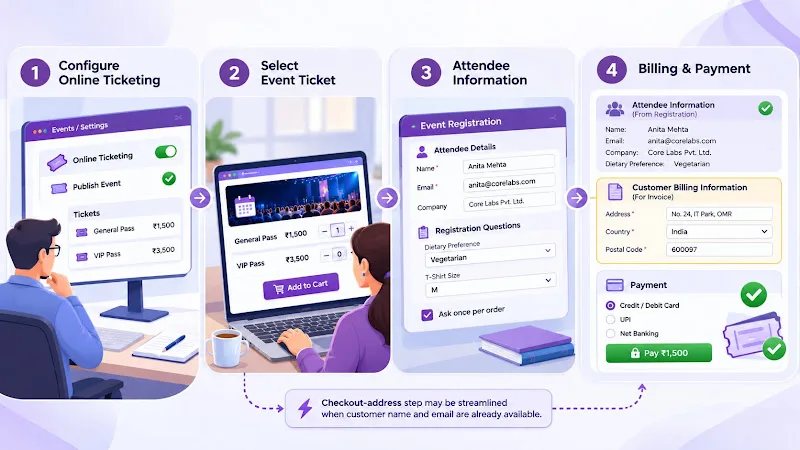
Customers purchasing event tickets through an Odoo 19 website may be redirected from the shopping cart directly to the payment page without seeing the usual billing-address form. This behaviour can become a problem when the business needs complete customer details for invoices, tax calculations or payment-provider validation.
Odoo 19 introduced a streamlined checkout flow for event tickets and paid appointments. When the customer's name and email information are already available, the address checkout step can be skipped. However, having contact details does not necessarily mean the billing information required by your business or payment provider is complete.
Understanding this distinction is essential before changing checkout configuration or developing a customization.
Why Is Odoo 19 Skipping Billing Details During Event Ticket Checkout?
The behaviour is related to changes in the Odoo 19 checkout process for event-ticket purchases.
In the previous workflow, customers generally moved through a separate checkout-address step before reaching payment. Odoo 19 can shorten this process when the customer's name and email are already available.
According to an Odoo Community discussion explaining the checkout improvement, event-ticket and paid-appointment customers can be redirected directly to the payment page when these details are present. This is an intended workflow change, not automatically an installation error.
What changes during checkout?
Checkout stage
Previous workflow
Odoo 19 streamlined workflow
Event selection
Select event tickets
Select event tickets
Attendee information
Enter configured details
Enter configured details
Customer information
Proceed through address checkout
May use information already available
Billing step
Separate checkout-address page
Can be skipped under the streamlined conditions
Payment
Continue to payment
Proceed directly to payment
The exact flow depends on the customer information available during registration and the checkout implementation.
What this means for your business: If customers can pay successfully but the resulting customer or invoice records lack required billing information, the problem needs investigation. Restoring the old checkout appearance alone does not guarantee that the correct billing data will be stored.
How Does Event Ticket Checkout Work in Odoo 19?
Odoo Events connects event registration with ticket sales and website payments. The registration process collects information about attendees, while the sales and payment workflow handles the commercial transaction.
- Understanding these responsibilities helps identify where information is missing.
Step 1: Configure online ticketing
Open the Events application and navigate to:
Events → Configuration → Settings
- Enable Online Ticketing in the Registration section and save the settings.
- This allows event tickets to be purchased through the integrated website.
Step 2: Configure event tickets
- Open the relevant event and review its ticket configuration.
Check the ticket names, prices, availability dates and maximum registration quantities where applicable. Confirm that the event is published and available for online registration.
Step 3: Collect attendee information
When visitors select tickets and continue registration, Odoo displays the questions configured for the event.
These questions can collect information such as:
- Attendee name and contact details.
- Company information.
- Registration-specific answers.
- Other details required by the event organiser.
Odoo also supports the Ask once per order option for questions that should be completed once rather than separately for every attendee.
Important: Attendee information and customer billing information serve different purposes. Do not assume that an answer collected through an event-registration question automatically updates the invoice address or all fields on the customer's contact record.
Step 4: Continue to payment
After the required attendee information is entered, the visitor selects Go to Payment.
The subsequent flow includes billing confirmation and payment confirmation. However, the checkout-address step may be streamlined when Odoo already has the necessary customer name and email information.
The official Odoo documentation describes the event-ticket purchasing process and its billing and payment confirmation stages. The checkout improvement is explained separately in the Odoo Community discussion.
What Happens When Billing Information Is Missing?

The absence of a separate address page does not automatically mean that payment will fail. The important question is whether the resulting transaction contains the information required by the payment provider and the business's invoicing process.
- Three areas deserve particular attention.
Billing contact information
A customer record may contain a name and email address without a complete billing address.
For example, a transaction might have a valid contact name but no country or postal address. This distinction matters when the business needs to issue an invoice or validate customer details.
Review the invoice address associated with the sales order instead of relying only on the attendee information displayed during registration.
Payment-provider validation
- Payment providers can require specific customer and billing information when processing transactions.
An Odoo 19 GitHub issue documented a PayPal event-ticket payment failure involving this response:
- Country 'False' is unknown.
- The reported transaction reached the payment stage without a valid country value.
The issue was subsequently marked completed on 3 December 2025 after fixes were associated with the Odoo 19 payment modules, including handling missing country information in PayPal address formatting and providing a default shipping address for Stripe.
This historical issue is useful for understanding the risk, but it should not be presented as an unresolved defect in every current Odoo 19 installation.
If the same error appears in your environment, first verify that the installed build includes the relevant fixes.
Fiscal-position and tax calculation
Customer location can influence fiscal-position mapping and the taxes applied to a transaction.
When billing-country information is missing or incorrect, the transaction may not receive the expected tax treatment.
Check the resulting sales order, its invoice address, country and applied taxes. Do not assume that a successful payment proves that the accounting and tax information is correct.
How to Troubleshoot Odoo 19 Event Ticket Checkout
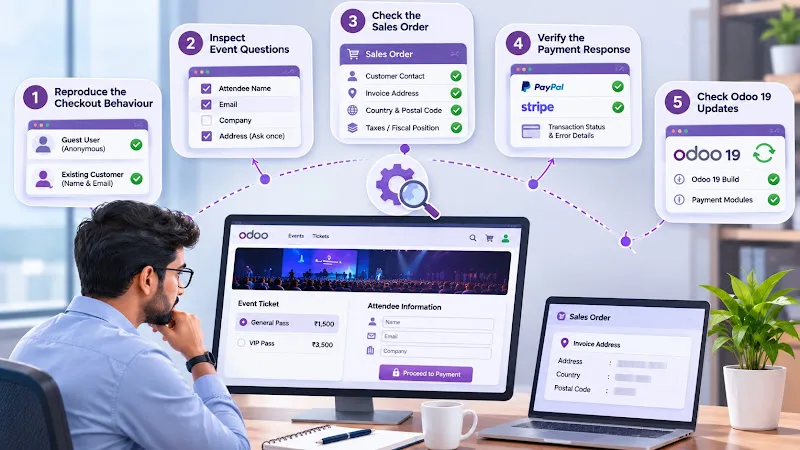
When customers are redirected directly to payment, investigate the available customer information and the resulting sales order before modifying the checkout workflow.
Check 1: Reproduce the checkout behaviour
- Test the same published event using different customer sessions.
Start with an anonymous visitor, then test an existing website customer whose name and email are already available.
Record whether the checkout-address page appears in each case and whether the behaviour changes when customer information is present.
This helps establish whether the direct payment redirect is related to the streamlined checkout conditions.
Check 2: Inspect event-registration questions
- Open the event configuration and review its Questions tab.
Check which questions are mandatory and which are configured with Ask once per order.
Confirm that the questions collect the attendee information required for registration. Separately determine whether the billing contact information required by your business is being collected and stored.
Adding an attendee-address question should not be treated as proof that Odoo has populated the invoice partner's address.
Check 3: Inspect the sales order's invoice address
- After reproducing the transaction, open the resulting sales order in the backend.
Inspect:
- Customer contact.
- Invoice address.
- Country and postal information.
- Email and contact details.
- Applied taxes and fiscal position.
For developers, the relevant sales-order relationship includes partner_invoice_id. Check the associated partner record rather than relying only on the event registration details.
Check 4: Verify the payment-provider response
- Reproduce the transaction with the payment provider used by your website.
Review the transaction status and available error details. Pay attention to missing country information, invalid address values and provider-specific validation requirements.
Compare the results with another configured payment provider when possible. A successful transaction with one provider does not establish that another provider receives all the information it requires.
Check 5: Verify the installed Odoo 19 updates
Before developing a workaround, check the Odoo 19 build and payment-module updates installed in your environment.
This is particularly important when investigating historical PayPal country-code or Stripe address-handling problems.
Avoid applying old forum workarounds without checking whether the relevant issue has already been addressed in the installed version.
What Developers Should Check in Custom Checkout Workflows
When standard checkout behaviour does not meet the business requirements, developers should identify which part of the flow controls the address requirement and payment redirection.
Start with the relevant Odoo modules:
website_event_sale
website_sale
event
- The installed payment-provider modules.
Review the checkout logic
Inspect the Python logic responsible for determining whether customer-address information is required before payment.
The community discussion indicates that this behaviour is controlled in the Python checkout flow. Changing only a QWeb template may not restore the previous address step because the redirect decision can happen before the checkout template is rendered.
Consequently, modifying a template variable such as same_shipping should not be assumed to force the address page to appear.
Review customer and invoice-partner relationships
Check how the website visitor, event registration, sales order and invoice partner are connected.
Verify that:
- The correct customer contact is assigned to the order.
- The invoice partner contains the required billing information.
- The country is available when required by the payment provider.
- Event registration answers are not being incorrectly treated as invoice-address data.
Check custom controller and template overrides
If your website contains custom checkout controllers or inherited templates, inspect their interactions with the standard Odoo 19 flow.
Pay particular attention to overrides that change address requirements, customer creation, invoice-partner assignment or payment preparation.
Do not introduce a second checkout process without understanding the existing controller behaviour. Unnecessary overrides can create inconsistencies during future upgrades.
How to Validate the Checkout Before Going Live
A checkout customization should be tested across different customer conditions and payment outcomes.
Use a controlled environment and validate the following scenarios:
Test scenario
What to verify
Anonymous visitor
- Registration and customer details are handled correctly.
Existing website customer
- Available contact information is used correctly.
Missing billing country
- The required information is collected or handled correctly before payment.
Multiple event tickets
- Attendee information is associated with the correct registrations.
Different payment providers
- Transactions are created and processed without missing required address values.
Invoice generation
- The invoice uses the intended billing partner and address.
Tax calculation
- The applicable fiscal position and taxes are correct.
After testing, compare the website checkout result with the resulting sales order, event registrations and invoice.
Do not deploy a customization merely because the payment confirmation page appears. The customer, billing information and accounting records must also be consistent.
If your business needs changes to the standard event-registration or website-payment workflow, an experienced Odoo developer should inspect the existing implementation before introducing custom logic. Our Odoo ERP implementation company page explains our implementation services.
Frequently asked questions
Why does Odoo 19 skip the billing-address step for event tickets?
Odoo 19 introduced a streamlined checkout flow for event tickets and paid appointments. When the customer's name and email information are already available, the address checkout step can be skipped before payment.
Can I force Odoo 19 to display the billing-address page before payment?
The standard checkout behaviour does not necessarily provide a simple configuration switch for restoring the previous flow. Review the installed Odoo 19 implementation and business requirements before considering a custom controller or checkout modification.
Does skipping the address step affect payment processing?
It can, depending on the customer information available and the payment provider's requirements. Missing country or billing information may affect transaction validation, invoicing or tax calculations. Verify the actual transaction and installed payment-module updates before applying a fix.
Conclusion
Odoo 19 can streamline event-ticket checkout by sending customers directly to payment when their name and email information are already available. The important consideration is whether the resulting transaction still contains the billing information required by your business.
Before modifying the checkout flow, inspect the invoice partner, customer country, tax calculation and payment-provider response. Test both anonymous and existing-customer registrations to distinguish expected behaviour from an actual data or payment problem.
The objective is not simply to restore an address page. It is to ensure that every event-ticket purchase produces accurate customer, billing and transaction records.