
Why Is Odoo 19 Welcome Flow Not Triggering?
A visitor subscribes to your website newsletter, the contact appears in the mailing list, but no welcome email arrives. Meanwhile, your existing subscribers receive campaign emails without any problem.
This creates a confusing situation: the website subscription works, the contact is created, and the Welcome Flow campaign appears to be running. Yet the new subscriber does not receive the expected email.
In Odoo 19, these operations involve different stages. Creating a mailing-list contact does not automatically confirm that the contact has entered a Marketing Automation campaign or that its email activity has been executed.
To identify the problem, examine the subscriber's mailing-list membership, campaign eligibility, participant records and activity traces separately.
Why Is Odoo 19 Welcome Flow Not Triggering?
Odoo 19 includes a predefined Marketing Automation campaign called Welcome Flow. Its purpose is to send a welcome email to new subscribers and remove addresses that bounce.
However, an Odoo 19 Community discussion reports a problem where the standard Welcome Flow processed existing subscribers after campaign activation but did not trigger the welcome email for newly registered website subscribers.
The reported configuration had:
- Odoo 19 with the standard Welcome Flow template.
- An email activity configured with a zero-hour delay.
- A website newsletter subscription form.
- New contacts appearing in the mailing-list filter results.
- No corresponding welcome email for new subscribers.
The user also reported that an older Odoo 17 filtering approach using Subscription = True was unavailable in their Odoo 19 interface.
This discussion identifies a specific campaign-enrollment problem, but it does not establish that every Odoo 19 installation has the same defect.
What is happening?
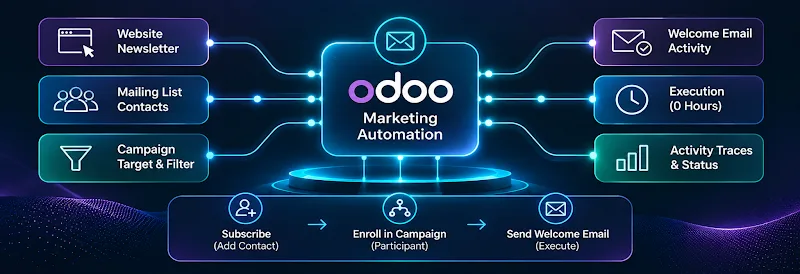
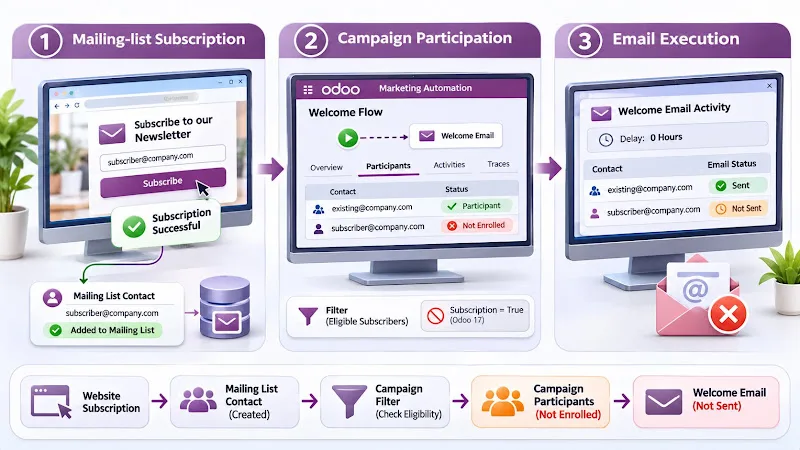
The important distinction is between three separate operations:
- Mailing-list subscription: The website creates or updates a mailing contact and associates it with the selected list.
- Campaign participation: Marketing Automation identifies eligible records and engages them in the campaign.
- Email execution: The campaign's email activity is scheduled and processed.
A successful website subscription confirms the first operation. It does not, by itself, prove that the second and third operations have completed. This is where troubleshooting should begin.
How Does Odoo 19 Welcome Flow Work?
Odoo Marketing Automation creates campaigns using target records, filters and workflow activities. Each component determines which contacts are included and what actions they receive.
Understand the campaign structure
The Welcome Flow uses the Marketing Automation framework to manage subscriber communication. A typical workflow involves:
- Selecting the appropriate target model.
- Defining the records eligible for the campaign.
- Applying filters to identify the intended subscribers.
- Creating an email activity.
- Defining when that activity should execute.
- Tracking campaign participation and activity results.
The campaign's Target and Filter fields determine which records are eligible for the workflow.
Records versus participants
This distinction is particularly important when investigating missing welcome emails.
| Term | Meaning |
|---|---|
| Records | Contacts that match the campaign's configured filter. |
| Participants | Records actually engaged in the campaign. |
| Activities | Emails, SMS messages or server actions performed by the campaign. |
| Traces | Execution records showing the status of individual campaign activities. |
A subscriber appearing in the campaign's record count does not necessarily mean that the subscriber has become a campaign participant. Therefore, do not rely exclusively on the filter's record count when investigating the Welcome Flow.
Understand the email activity trigger
Open the Welcome Flow campaign and inspect its email activity. The activity configuration includes a trigger and an execution delay.
For example, setting the delay to 0 Hours means the activity is eligible to execute immediately after its trigger occurs. However, Odoo documentation explains that execution takes place at the next scheduled run of the Mail: Email Queue Manager cron.
Why Are New Website Subscribers Not Entering the Campaign?
When a website subscription succeeds but the Welcome Flow does not process the contact, inspect the relationship between the newsletter form, mailing list and campaign filters.
Check the website newsletter configuration
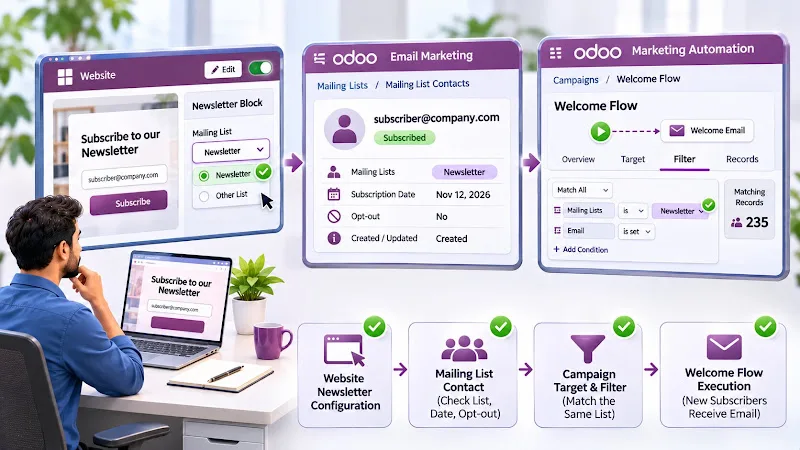
Open your website frontend and activate editing mode. Select the Newsletter block or newsletter subscription element used on the page. Inspect its configuration and confirm that the correct mailing list is selected. Save the website changes and perform a fresh subscription test.
Odoo's website newsletter block adds visitors to the mailing list configured in its settings. The subscription creates a mailing-list contact in the Email Marketing application.
Verify the mailing contact
Navigate to Email Marketing → Mailing Lists → Mailing List Contacts and search for the email address used during testing. Open the contact and inspect:
- Email address.
- Associated mailing lists.
- Subscription date.
- Opt-out status.
- Whether the contact belongs to the intended newsletter list.
A contact associated with the wrong mailing list will not match a campaign that targets a different list.
Also check whether an existing contact was updated instead of a new mailing contact being created. This distinction matters when investigating automation rules that respond only to record creation.
Review campaign targeting
Open Marketing Automation → Campaigns → Welcome Flow and inspect the target and Filter configuration. Check that the selected model and filter rules identify the subscribers who should receive the welcome email.
If the campaign contains a mailing-list condition, confirm that it matches the actual list associated with the new subscriber. Odoo 19 allows administrators to inspect the number of records matching a filter and open the selected records for verification.
Do not copy the old Odoo 17 Subscription = True filter into Odoo 19 without checking whether the field exists in your installed version. Use the available Odoo 19 fields and inspect their technical names when developer mode is enabled.
How to Troubleshoot Odoo 19 Welcome Flow
Once the website subscription and campaign filters are verified, investigate whether the new contact has entered the workflow and whether the email activity is being executed.
Check 1: Confirm the campaign is running
Open the Welcome Flow campaign and inspect its status. The campaign should be in the Running state. A campaign that has only been created or tested is not necessarily processing subscribers through its active workflow.
If you modified the campaign while it was running, check whether Odoo displays a workflow-modified warning and whether the required update has been applied.
Check 2: Inspect the campaign's Participants
Open the Welcome Flow campaign and click its Participants smart button. Search for the email address used in the website subscription test. Interpret the result carefully:
- If the contact appears in the mailing list but not in Participants, investigate campaign eligibility and enrollment.
- If the contact appears in Participants, continue to the activity traces.
- If the contact is excluded or rejected, inspect the applicable filters and activity conditions.
This prevents you from treating a campaign-enrollment problem as an email-delivery problem.
Check 3: Inspect Marketing Automation Traces
Navigate to Marketing Automation → Reporting → Traces. Find the relevant campaign activity and inspect its execution status. Odoo uses different statuses to indicate what happened:
| Trace status | Meaning |
|---|---|
| Scheduled | The activity is waiting for execution. |
| Processed | The activity has been processed. |
| Error | An execution error occurred. |
| Cancelled | The activity was cancelled. |
| Rejected | The record was not accepted for the activity. |
If the trace is missing, investigate whether the contact entered the campaign and whether the activity was scheduled. If the trace shows an error, inspect the available error details.
If the trace shows that the email activity was processed but the recipient did not receive the message, move to email delivery checks instead of changing campaign filters.
Check 4: Verify the email activity configuration
Open the campaign's Workflow section. Inspect the email activity and verify:
- The correct email template is selected.
- The recipient field resolves to the intended mailing contact.
- The activity trigger is configured correctly.
- The execution delay is appropriate.
- Any activity-specific filters include the subscriber.
A campaign-level filter can include a contact while an individual activity filter excludes that same contact. Review the combined filter conditions before changing the campaign.
Check 5: Investigate email delivery separately
When an email activity has been processed, inspect the technical email queue if necessary. Activate developer mode and navigate to Settings → Technical → Email → Emails. Search for the recipient's address and inspect the email status.
For failed messages, review the available error details. If the email was processed but delivery failed, investigate the outgoing mail configuration, sender domain authentication and recipient-side rejection.
SPF and DKIM checks belong to this stage. They will not solve a contact that never entered the campaign.
Should You Use Automated Actions Instead of Marketing Automation?
An Odoo Community discussion suggests using an Automated Action on the mailing.contact model when a welcome email must be sent immediately after subscription. The proposed configuration uses Settings → Technical → Automation → Automated Actions.
| Configuration | Suggested value |
|---|---|
| Model | Mailing Contact (mailing.contact) |
| Trigger | On Create |
| Apply To | Filter for the intended mailing list |
| Action | Send Email |
| Email Template | Welcome email template |
This can be suitable for a simple notification workflow, provided the trigger correctly matches the actual subscription operation.
An important limitation
An Automated Action that sends one email is not automatically a replacement for a Marketing Automation campaign. A marketing campaign can contain multiple activities and conditional follow-ups based on recipient interactions. For example:
- Send the initial welcome email.
- Schedule another message after a delay.
- Send a different follow-up if the recipient opens the email.
- Trigger another activity when a link is clicked.
- Handle bounced messages.
A standalone Automated Action does not automatically recreate this campaign participant and activity workflow.
There is another implementation detail to consider: an existing mailing contact may be updated when added to another mailing list. An automation configured only for record creation should not be assumed to handle that operation.
Before implementing it, test both a completely new subscriber and an existing contact joining another mailing list. Also prevent duplicate welcome emails and respect the contact's subscription and opt-out status.
Our recommendation: keep Marketing Automation when you need a complete welcome sequence with interaction-based follow-ups. Consider an Automated Action only when the requirement is a simple immediate email and the subscription trigger has been validated.
How to Verify the Welcome Flow Before Going Live
After adjusting the campaign, validate the complete subscriber journey. Use an internal test email address and a controlled test subscription.
| Test scenario | What to verify |
|---|---|
| New website subscriber | Contact is created and associated with the correct mailing list. |
| Existing contact joining a list | Subscription membership is updated correctly. |
| Campaign targeting | Contact matches the intended target and filter. |
| Campaign participation | Contact appears in Participants. |
| Welcome email activity | Correct template and trigger are configured. |
| Campaign trace | Activity shows the expected execution status. |
| Email delivery | Message is successfully processed and accepted by the mail system. |
| Follow-up activities | Subsequent messages follow the configured interaction conditions. |
Odoo also provides a Launch a Test option for checking campaign workflows before running them. Its documentation notes that campaign testing should be performed on a production database because duplicate and trial databases have limited email-sending capabilities. Use a controlled internal test contact and avoid sending test campaigns to actual subscribers.
Do not consider the problem resolved merely because the email appears in the technical email queue. The final verification should confirm that the website subscription, mailing-list membership, campaign participation, activity execution and delivery all behave as intended.
Frequently asked questions
Why does Odoo 19 Welcome Flow process existing subscribers but not new subscribers?
A contact may match the campaign's filter without becoming a participant in its workflow. Check the target model, campaign filter, participant records and activity traces to identify where processing stops.
Can an Automated Action send an immediate welcome email in Odoo 19?
Yes. An Automated Action on mailing.contact can be configured to send an email when the relevant contact record is created. However, test how the rule behaves when an existing contact joins another mailing list. It does not automatically replace a multi-step Marketing Automation workflow.
Does setting the welcome email delay to zero send it instantly?
No. Zero hours makes the activity eligible for execution without an additional time delay. Odoo processes the email through its scheduled queue mechanism, so actual execution depends on the relevant scheduled action.
Conclusion
When Odoo 19 Welcome Flow does not trigger for new website subscribers, begin by checking whether the contact was added to the correct mailing list and whether it became a campaign participant.
If the contact is missing from Participants, investigate campaign targeting and enrollment. If the participant exists but the email has not been processed, inspect the activity trigger and traces. Only investigate SMTP and email-delivery configuration when the campaign has actually generated the email activity.
This separation makes troubleshooting more precise and prevents unnecessary changes to a working email configuration.