

Odoo POS orders created during offline operation may remain unsynchronized after connectivity is restored.
Odoo POS uses locally available browser data to support basic offline order processing. Offline-created orders are expected to synchronize with the Odoo backend when the connection is restored.
The synchronization workflow is:
POS Order → Offline Storage → Reconnection → Synchronization → Odoo Backend
When synchronization fails, the order may remain pending, fail to reach the backend, or appear unavailable in the expected Odoo POS records. The cause can be related to the offline transaction state, browser storage, connection recovery, POS session state, or customized POS functionality.
The key diagnostic point is:
Where does the offline POS order synchronization fail?
This article explains how to identify the failure point, investigate the affected transaction, and verify that the offline POS order has been correctly synchronized with the Odoo backend.
What Happens to an Odoo POS Order When the POS Goes Offline?
Odoo POS can continue basic order processing during a temporary internet outage. Required POS data is available in the browser cache, and offline-created orders are stored locally until the connection is restored. Odoo then synchronizes those orders with the backend.
POS Online → Connection Lost → Offline Order → Local Storage → Reconnection → Synchronization → Odoo Backend
However, not every POS operation works offline. Features that depend on the Odoo backend, such as real-time stock synchronization and payment terminals, require an active connection.
So the first check is simple: was the order created successfully offline, or did the operation itself require an active connection? That distinction determines whether the issue is an order-creation problem or a synchronization problem.
Why Are Odoo POS Orders Not Syncing After Reconnection?
When an offline POS order does not reach the Odoo backend after connectivity returns, identify whether synchronization is still pending, the local offline data was affected, or the POS workflow is preventing the order from being sent.
The POS Has Not Resumed Synchronization
Check whether the POS has returned from offline mode and whether the synchronization process has resumed.
Odoo displays an offline-mode indicator in the POS interface when the connection is lost. Offline-created orders are expected to synchronize with the backend when connectivity is restored.
The key check is:
Connection Restored → POS Online → Order Synchronization
A restored internet connection does not by itself confirm that the affected order has reached the Odoo database.
The Offline Order Is Still Pending Locally
An order created while offline can remain stored in the browser until it is synchronized with the backend. Therefore, an order that is not yet visible in the backend should not immediately be treated as a lost transaction.
Check whether the affected order is still pending synchronization before creating another order manually.
Creating a duplicate transaction can cause problems if the original offline order later reaches the backend successfully. Odoo confirms that offline-created orders are stored in the browser cache and synchronized after reconnection.
Browser Data Was Cleared or the POS Was Reloaded Before Synchronization
Offline POS data depends on browser storage. Odoo specifically advises users not to close or reload the browser or clear the browser cache until the POS is back online and synchronized with the backend.
Check whether anyone:
- Reloaded the POS while orders were pending
- Closed the browser
- Cleared browser data or cache
- Changed the device before synchronization completed
These actions should be investigated before attempting to recreate the affected transaction.
Custom POS Code or Integrations Are Interfering With Synchronization
If offline orders synchronize correctly in a standard POS environment but fail in a customized database, investigate the custom layer rather than changing standard POS settings blindly.
Check whether the problem started after:
- Custom POS modules were installed
- POS JavaScript was modified
- Third-party integrations were added
- Payment or order workflows were customized
A failure that affects only a customized workflow points toward a configuration, module, or integration-level investigation.
How Should You Investigate an Odoo POS Offline Sync Problem?
Investigate the affected transaction in sequence to determine whether the failure occurred during offline order creation, reconnection, local storage, synchronization, or backend visibility.
Step 1: Confirm the Order Was Created
Verify that the POS transaction was completed and record:
- Order reference
- Products and quantities
- Total amount
- Payment method
- Customer, if applicable
- POS session
First establish that the order exists as an offline transaction before investigating downstream records.
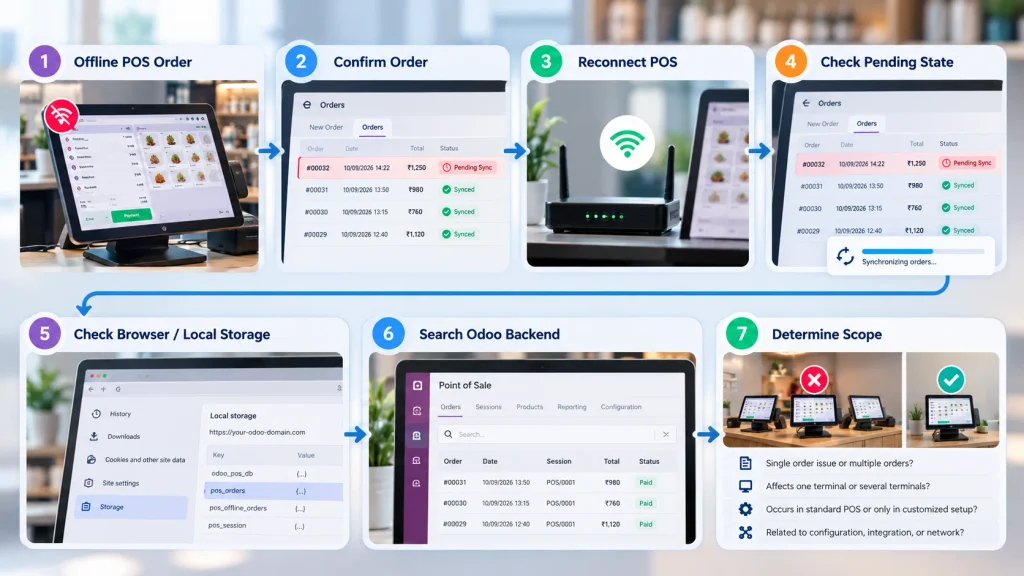
Step 2: Confirm the POS Reconnected
Check whether the POS returned from offline mode after the internet connection was restored.
If the POS remains offline, the order cannot synchronize with the Odoo backend.
Step 3: Check Whether the Order Is Still Pending
Determine whether the order remains locally stored and unsynchronized.
The key question is:
Was the order created successfully but not yet transferred to the Odoo backend?
Do not recreate the transaction while its synchronization state is still unclear.
Step 4: Check for Browser or Local-Storage Changes
Determine whether the POS was reloaded, the browser was closed, browser data was cleared, or the transaction was moved to another device while the order was pending.
These actions can affect the local state containing offline POS information.
Step 5: Search the Odoo Backend
Search for the affected order in the backend using its order reference.
Compare:
Order Reference → Products → Quantity → Customer → Payment → POS Session
If the order exists, distinguish a synchronization delay or visibility issue from an order-creation failure.
Step 6: Determine the Scope of the Problem
Identify whether the failure affects:
One Order → One Session → One Terminal → Multiple Terminals → Multiple Locations
A single affected order points toward a transaction-specific issue. Repeated failures across terminals or locations require investigation of the shared POS configuration, connectivity, deployment, customization, or integration.
What Should You Check Before Refreshing or Closing the Odoo POS?
When an offline order has not synchronized, do not immediately reload or close the POS or clear browser data. Preserve the local transaction state until the synchronization status is understood.
Record the POS session, order reference, transaction time, products, quantities, payment method, connection status, and whether the order is still visible locally.
Also avoid recreating the same sale while the original order’s synchronization status is unclear. The original transaction may still synchronize after connectivity is restored, creating a duplicate if it is manually entered again. Odoo’s documentation specifically advises keeping the POS open and avoiding browser reloads or cache clearing until offline orders have synchronized.
How Do You Verify That an Offline Odoo POS Order Reached the Backend?
A POS returning online does not by itself confirm that an offline order was successfully synchronized. Verify the resulting backend record before treating the issue as resolved.

Order Verification
Confirm that the POS order exists in the Odoo backend and that its reference matches the offline transaction.
Product Verification
Check the synchronized products, quantities, and order total against the original POS transaction.
Payment Verification
Verify that the payment recorded on the backend order matches the completed POS transaction. Connected payment terminals require an active internet connection and do not operate offline, so distinguish payment-processing issues from the offline order synchronization itself.
Session Verification
Confirm that the order belongs to the correct POS session.
Downstream Verification
Once the POS order exists correctly in the backend, verify the expected downstream processing such as inventory or invoicing where applicable. Do not treat a later inventory or accounting difference as proof that the original POS synchronization failed.
The verification chain is:
Offline POS Order → Backend POS Order → Downstream Processing
When Does an Odoo POS Offline Sync Problem Require Odoo Support?
An offline POS synchronization problem needs broader investigation when the failure is repeated, affects multiple terminals, or continues after basic transaction and connection checks are correct.
Support or system-level investigation is appropriate when:
- Multiple offline orders remain unsynchronized.
- The same problem affects several POS terminals or locations.
- Synchronization fails repeatedly after network interruptions.
- The problem occurs only with a specific POS configuration.
- The issue started after custom development or a third-party integration.
- Orders remain visible locally but repeatedly fail to reach the Odoo backend.
- Standard POS works correctly in another environment, but the affected database continues to fail.
These patterns indicate that the problem may extend beyond an individual transaction. The investigation should then cover the POS configuration, browser environment, custom modules, integrations, network behavior, and database workflow rather than repeatedly recreating individual orders.
Frequently Asked Questions
Offline-created POS orders are stored locally and are expected to synchronize with the Odoo backend after connectivity is restored. Check the POS connection state, pending order status, browser/local-storage changes, POS session, and backend record before recreating the transaction.
Offline-created POS orders are stored in the browser cache until they can be synchronized with the Odoo backend after connectivity is restored.
Yes. Odoo advises against closing or reloading the POS or clearing the browser cache before offline orders have synchronized, because the affected transaction may still depend on locally stored data.
A restored connection does not confirm that the order reached the backend. Check whether the order was created successfully offline, whether synchronization completed, and whether the corresponding POS order exists in the Odoo backend.
Conclusion
An Odoo POS offline synchronisation problem should be investigated from the offline order state through reconnection and backend synchronization, rather than by immediately recreating the missing transaction.
Offline Order → Reconnection → Synchronization → Backend Order
The key is to identify the exact point where the synchronization workflow stops and verify that the original POS transaction reached the Odoo backend correctly.

