
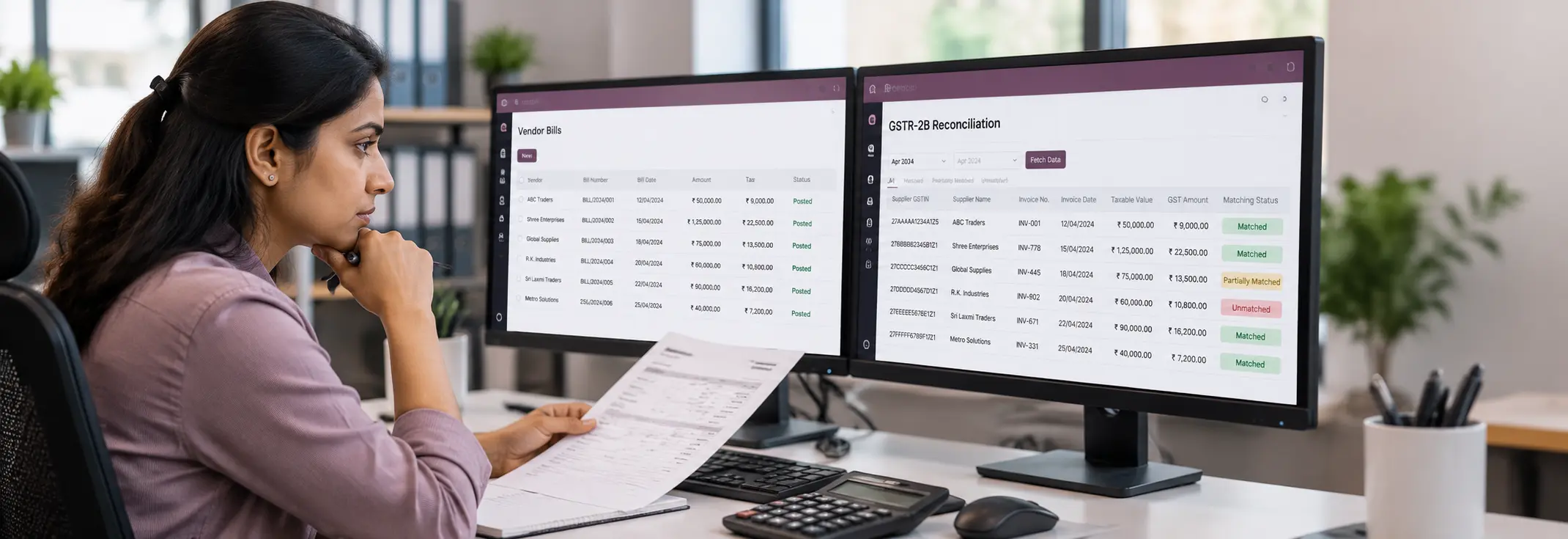
A vendor bill recorded in Odoo 19 may still remain unmatched against GSTR-2B data from the GST portal. The discrepancy may involve incorrect invoice details, missing supplier-reported data, a reporting-period difference, or incomplete data retrieval.
Before changing a vendor bill, identify exactly where the mismatch originates. Correcting the wrong record can create additional accounting discrepancies without resolving the original problem.
Odoo 19 provides a GSTR-2B reconciliation workflow to retrieve GST portal data, match invoices, and identify bills that require correction. This guide explains how to investigate missing invoices, partial matches, and data-retrieval problems, then take the appropriate corrective action.
How GSTR-2B Reconciliation Works in Odoo 19
GSTR-2B contains invoice information reported through the GST system. Odoo 19 uses this data to reconcile supplier invoices with accounting records in the database.
The reconciliation process has three stages.
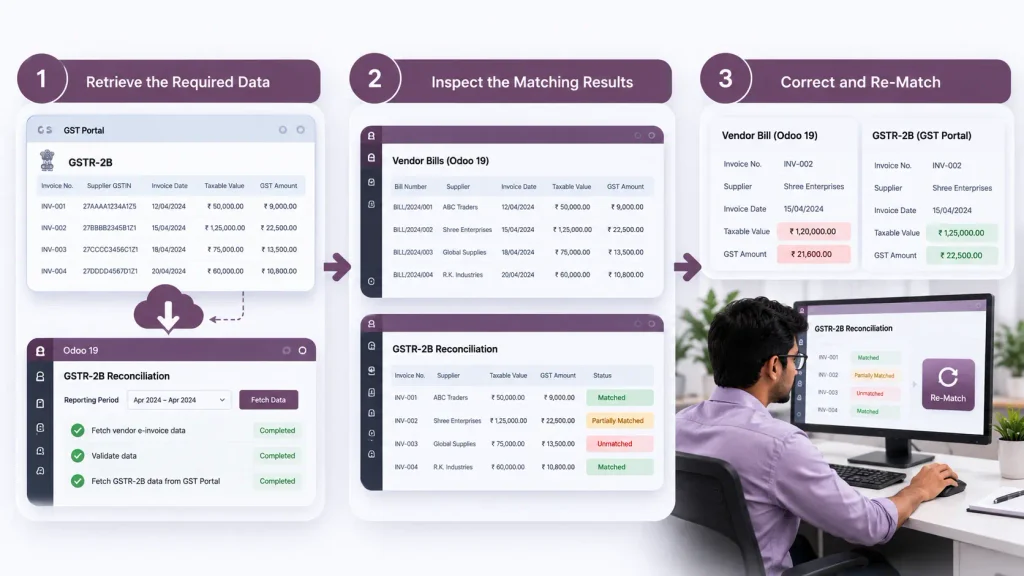
Stage 1: Retrieve the Required Data
Open the relevant GSTR-2B report for the reporting period. Odoo’s workflow includes fetching vendor e-invoice data, validating the relevant check, and fetching GSTR-2B data from the GST portal.
These operations serve different purposes. If retrieval or validation is incomplete, investigate that stage before troubleshooting individual bill mismatches.
Stage 2: Inspect the Matching Results
Odoo processes the retrieved information and matches invoices automatically. Select View Bills to inspect the detailed reconciliation results.
The Match stage indicates the reconciliation status:
- Green: All bills are fully matched.
- Orange: Some bills remain partially matched and require investigation.
A partially matched result identifies an unresolved reconciliation issue; it does not, by itself, establish whether the transaction qualifies for input tax credit.
Stage 3: Correct and Re-Match
Inspect the affected bills and compare their details with the corresponding GST portal data and supplier documents.
Correct confirmed errors in the appropriate records, then select Re-Match to run the matching process again. Review the updated results before completing reconciliation.
Identify the Type of GSTR-2B Mismatch
Before changing a vendor bill, identify what Odoo reports. The first troubleshooting step depends on whether the problem concerns data retrieval, a missing invoice, or incomplete matching.
| Observed problem | What to investigate first |
| GSTR-2B data cannot be retrieved | GST integration configuration, API access, and retrieval status |
| An invoice appears in GSTR-2B but no corresponding vendor bill exists in Odoo | Search existing bills, including draft records, and check the company and reporting period |
| A vendor bill exists in Odoo but has no corresponding GSTR-2B entry | Supplier filing status, reporting period, GSTIN, and invoice details |
| Reconciliation shows partially matched bills | Inspect the matching results and compare the supplier invoice number, date, taxable value, and tax amounts |
| An invoice appears in a different reporting period | Check the selected GSTR-2B statement and the supplier’s filing period |
| The same invoice appears more than once in Odoo | Check for duplicate bills before creating another record or attempting reconciliation again |
Important distinction: A retrieval failure is not the same as an invoice mismatch. Resolve incomplete data retrieval before diagnosing individual bills.
Similarly, an invoice missing from GSTR-2B does not automatically mean that its vendor bill is incorrect. Verify the supplier’s reporting status and the relevant statement before changing the accounting record.
Check the Most Common Causes
A. The Supplier Has Not Reported the Invoice Correctly
GSTR-2B contains supplier-reported information and is a read-only statement. If an invoice is missing or contains incorrect details, compare the supplier’s invoice with the corresponding GSTR-2B entry.
Check: Confirm whether the supplier reported the invoice and whether the GSTIN, invoice number, date, and taxable value agree.
Corrective action: Contact the supplier if the invoice is missing or incorrectly reported. Recheck the relevant statement after the supplier’s correction is reflected. Do not change a correct Odoo bill simply to force a match.
B. The Invoice Appears in a Different Reporting Period
An invoice may not appear in the GSTR-2B statement you are currently reconciling because the supplier reported it within a different filing period.
Check: Confirm the selected reporting period and review when the supplier filed the invoice. Do not rely on the invoice date alone to determine which statement contains it.
Corrective action: Identify the appropriate statement before changing the invoice date or accounting records.
C. Invoice Details Differ Between Odoo and GSTR-2B
Matching discrepancies may involve differences between the vendor bill and the supplier-reported document.
Compare these fields against the source invoice:
- Supplier GSTIN.
- Invoice number and date.
- Taxable value.
- CGST, SGST, IGST, and cess amounts, where applicable.
- Related credit or debit notes.
Corrective action: If an Odoo bill contains an error, correct it against the supporting document. If the supplier-reported information is incorrect, request a correction from the supplier.
Do not assume that every formatting difference causes a matching failure. Inspect the actual reconciliation result before deciding what to change.
D. The Vendor Bill Is Missing or Duplicated
An invoice may appear in GSTR-2B without a corresponding Odoo bill. Alternatively, a bill may already exist under another company or as a duplicate record.
Check: Search existing vendor bills, including draft records, and verify the company, supplier, invoice reference, and reporting period.
Corrective action: Create a missing bill only after confirming that no existing record represents the same transaction. Investigate duplicates before running reconciliation again.
How to Diagnose the Mismatch in Odoo 19
Follow these steps to identify whether the problem occurs during data retrieval, validation, or invoice matching.
Step 1: Open the GSTR-2B Reconciliation Report
Navigate to:
Accounting → Reporting → Tax Report
Select GSTR-2B, choose the relevant reporting period, and click Reconcile.
Verify the selected period before proceeding. Investigating the wrong reporting period can lead to incorrect conclusions about missing invoices.
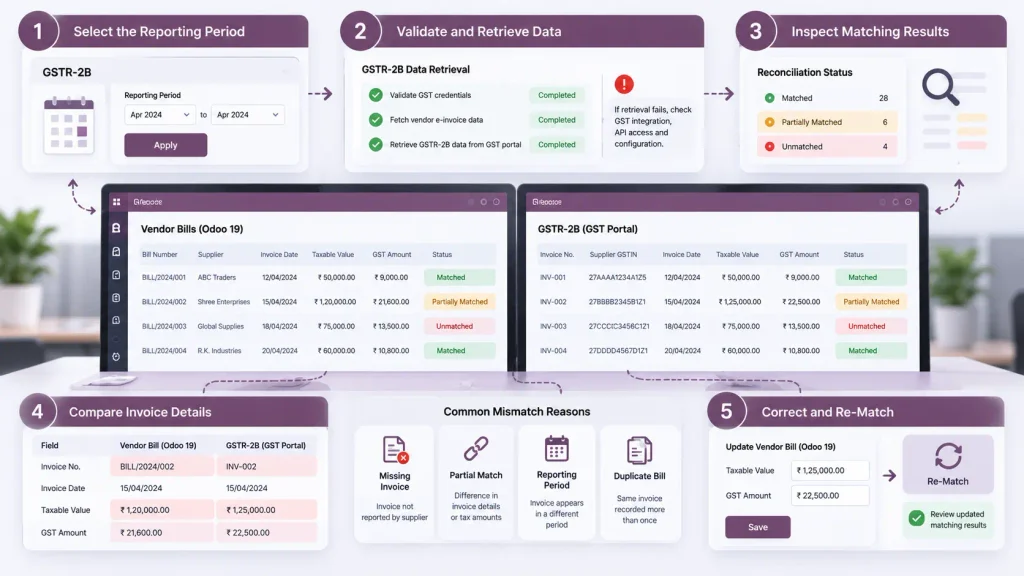
Step 2: Complete the Validation Checks
In the validation checks view, locate Fetch E-Invoice.
This check retrieves vendor e-invoice data for the reconciliation period. After fetching the data, click Validate to confirm the check.
Odoo’s documentation notes that this check only turns green when the e-invoice data is fetched two days after the end of the previous month’s reconciliation period. If the check remains incomplete, verify the retrieval timing and status before assuming the vendor bills are mismatched.
Step 3: Fetch GSTR-2B Data
Click Fetch GSTR-2B to retrieve invoice data from the GST portal.
Once retrieval completes, the Fetch stage in the progress bar turns green. To inspect the retrieved statement data, click GSTR-2B (IN).
If retrieval fails, investigate the GST integration and access configuration before diagnosing individual invoice discrepancies.
Step 4: Inspect the Matching Results
After the invoices are matched automatically, click View Bills to inspect the detailed results.
Identify the bills that remain partially matched and compare their details with the corresponding supplier invoices and retrieved GST data.
Focus on the specific discrepancies rather than changing several records simultaneously.
Step 5: Correct and Re-Match
Correct confirmed errors in the appropriate records. If the discrepancy originates in supplier-reported information, follow up with the supplier instead of altering a correct bill.
After making the necessary corrections, open the additional options menu and select Re-Match.
Review the updated results before selecting Mark as Complete. Complete reconciliation only after the outstanding discrepancies have been investigated.
Important: Do not change invoice values, tax amounts, or dates merely to obtain a fully matched status. Every correction must reflect the underlying transaction and supporting documents.
Prevent Recurring GSTR-2B Mismatches
Use these checks before and during each GSTR-2B reconciliation cycle.
Validate vendor details. Verify the supplier GSTIN and vendor identity against the supporting documents before recording the bill.
Check invoice data before posting. Review the supplier invoice number, date, taxable value, and GST amounts. Correct entry errors before reconciliation.
Confirm the reporting period. Check the selected GSTR-2B statement and investigate supplier filing delays when an expected invoice is missing.
Verify data retrieval. Confirm that GSTR-2B data has been fetched successfully before investigating individual mismatches.
Prevent duplicate bills. Search existing vendor records before creating a bill for an invoice that appears to be missing.
Retain reconciliation evidence. Keep the supporting invoices and records of identified discrepancies and corrections so that unresolved differences can be investigated during subsequent reviews.
These controls help finance teams distinguish accounting-entry errors from supplier-reporting and integration problems.
When Odoo Technical Support May Be Necessary
Seek technical support when GSTR-2B reconciliation continues to fail after the relevant invoice records, reporting period, and data retrieval status have been checked.
Support may be necessary when:
- GSTR-2B retrieval repeatedly fails: The configured GST integration cannot retrieve the required data.
- Matching remains unexplained: Multiple bills remain unmatched despite apparently consistent invoice details.
- The problem affects multiple periods or companies: The same issue occurs across different reconciliation reports.
- Customisations affect accounting: Custom modules modify vendor bills, tax fields, or reconciliation workflows.
- The problem follows an upgrade or integration change: Reconciliation worked previously but now produces errors or unexpected results.
Before requesting support, collect the affected reporting period, a sample vendor bill, its corresponding GSTR-2B entry, and any relevant retrieval errors. This helps distinguish an accounting discrepancy from an integration or processing problem. If the issue involves connected GST, accounting, and customised workflows, an Odoo ERP implementation company can help investigate the configuration and integration requirements.
Conclusion
GSTR-2B mismatches in Odoo 19 require checking invoice details, supplier reporting, and data retrieval before changing accounting records. Correct verified discrepancies, re-run reconciliation, and review the results before finalising your GST records.
Frequently Asked Questions
Common causes include missing supplier-reported invoices, incorrect invoice details, reporting-period differences, and incomplete data retrieval. Compare the vendor bill with the corresponding GSTR-2B entry to identify the discrepancy.
Open the GSTR-2B reconciliation report, select View Bills, and inspect the affected records. Correct verified errors, select Re-Match, and review the updated results before completing reconciliation.
Check the reporting period and supplier’s filing status. If the invoice was omitted or reported incorrectly, ask the supplier to review and correct their filing. Do not alter the read-only GSTR-2B statement.

