

Odoo 19 is running. Your workflow isn’t.
A feature that worked before the upgrade suddenly fails. A report does not generate, a custom module throws an error, an integration stops transferring data, or a business workflow breaks at a specific step.
The difficult part is not finding an error. It is finding what actually caused the failure.
Was it the Odoo 19 environment? A migration issue? Custom code? A third-party module? Configuration? Access rules? An integration?
Don’t change settings blindly. Find the break first.
Start with three questions:
What stopped working? → What changed before it failed? → Which layer is causing the failure?
That distinction helps separate an Odoo 19 problem from a configuration, migration, customization, module, access, or integration issue before more changes create additional problems.
If the issue is connected to a broader implementation or customized Odoo environment, see our Odoo ERP Implementation service page for the wider implementation context.
What Does “Odoo 19 Not Working” Actually Mean?
“Odoo 19 is not working” is not one problem. The symptom determines where you should investigate.
The failure may appear as:
- A specific module feature no longer works.
- A workflow stops at a particular stage.
- A custom module produces an error.
- A third-party application behaves differently or fails.
- A report does not generate correctly.
- An integration or API stops transferring data.
- A user can access Odoo but cannot perform a specific action.
- A feature that worked before an upgrade or migration now fails in Odoo 19.
These symptoms point to different investigation paths. A problem affecting one customized CRM workflow, for example, should not be investigated in the same way as a failure affecting every user across the database.
Identify the exact symptom first. Then reproduce it before changing configuration or code.
Why Can Odoo 19 Stop Working After an Upgrade or Migration?
If a feature worked before the Odoo 19 upgrade and fails afterward, check the components that changed with the upgrade before changing standard configuration.
Custom Modules
Custom code can fail when the Odoo model, field, view, method, or workflow it depends on has changed.
Check:
- Custom modules used by the affected workflow
- Custom fields and modified views
- Automated or server actions
- Custom JavaScript
- Python code connected to the affected model or workflow
Diagnostic check:
If the standard Odoo 19 workflow works but the customized workflow fails, investigate the custom module or customization layer.
Third-Party Modules
A third-party module can cause a failure when its Odoo 19 version or dependencies are not compatible with the database.
Check:
- Installed module version
- Odoo 19 compatibility
- Module dependencies
- Recent module installation or update
Diagnostic check:
If the problem appeared after installing or updating a third-party module, isolate that module before changing unrelated Odoo configuration.
Migration-Related Problems
A migrated database can retain configuration, customizations, and data relationships from the previous Odoo environment.
Compare the same operation in:
Clean Odoo 19 environment → Migrated Odoo 19 database
If the operation works in the clean environment but fails in the migrated database, investigate the migration, customizations, configuration, and database-specific dependencies.
The key comparison is not “old Odoo vs. new Odoo.” It is “standard Odoo 19 vs. the affected Odoo 19 environment.”
How Do You Find Where the Odoo 19 Problem Started?
Start with the failing action and isolate the scope before changing configuration.
Step 1: Reproduce the Exact Problem
Repeat the action that fails and record:
- Module
- Menu or workflow
- User
- Record
- Action performed
- Exact error
- Expected result
- Actual result
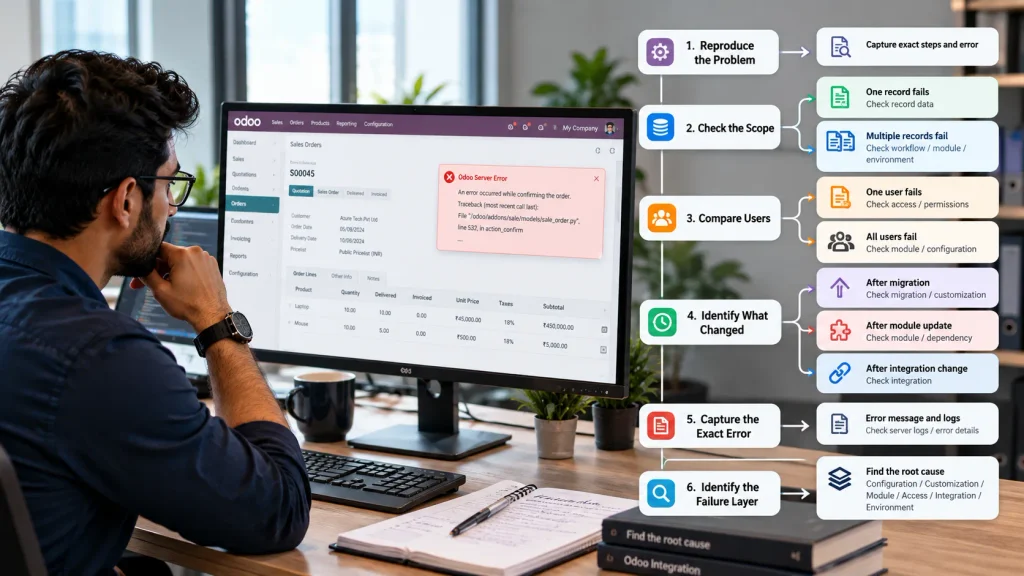
Do not change multiple settings before reproducing the failure. You need a consistent failure to compare each subsequent change.
Step 2: Check the Scope
Test another relevant record.
One record fails → check the record data and related configuration.
Multiple records fail → investigate the workflow, access, module, customization, or environment.
Step 3: Compare Users
If one user can complete the action and another cannot, compare:
- Access rights
- User groups
- Company or team assignment
- Record rules
- Permissions on custom fields
A user-specific failure points toward access or record-level conditions rather than a system-wide Odoo 19 failure.
Step 4: Identify What Changed
Check whether the failure began after:
- Odoo 19 migration
- Module installation or update
- Customization
- Configuration change
- Integration change
- Automated action
- Code deployment
The change closest to the start of the failure is the first layer to investigate.
Step 5: Capture the Exact Error
Record the complete error message and the action that triggered it.
“Odoo is not working” is not enough to diagnose the problem.
The exact error can distinguish between an access restriction, missing dependency, configuration condition, custom-code failure, or integration problem.
What Should You Check Before Changing Odoo 19 Configuration?
Before changing a setting, isolate the layer producing the failure.
| Check | Test | What the result indicates |
| User access | Run the same action with a user who can normally complete it. | Only one user fails → investigate access rights, groups, company, or record rules. |
| Record data | Repeat the action on another record of the same type. | One record fails → inspect its values, status, required fields, and related records. |
| Module configuration | Repeat the operation with the relevant standard Odoo configuration. | Multiple relevant records fail → configuration becomes a stronger candidate. |
| Custom fields / views | Test the workflow without the customized field, view, or validation where possible. | Standard workflow works → investigate the customization. |
| Automated actions | Check automated or server actions triggered by the operation. | Failure occurs after automation runs → inspect the automation and modified fields. |
| Custom modules | Repeat the operation without the custom component where a safe test environment is available. | Standard workflow works → investigate custom code. |
| Third-party modules | Check modules modifying the same model or workflow. | Failure starts after installation or update → investigate compatibility and dependencies. |
| Integration | Test the Odoo operation separately from the external API or integration. | Odoo works without the external call → investigate the integration path. |
Decision Rule
One user → Access
One record → Record data
Multiple records → Workflow, configuration, or module
Only customized workflow → Customization
Only after external communication → Integration
Do not modify unrelated Odoo 19 settings until the failing layer is identified.
How Do You Know Whether the Problem Is Odoo 19 or a Customization?
Compare the same operation in the standard Odoo 19 workflow and the affected customized workflow.
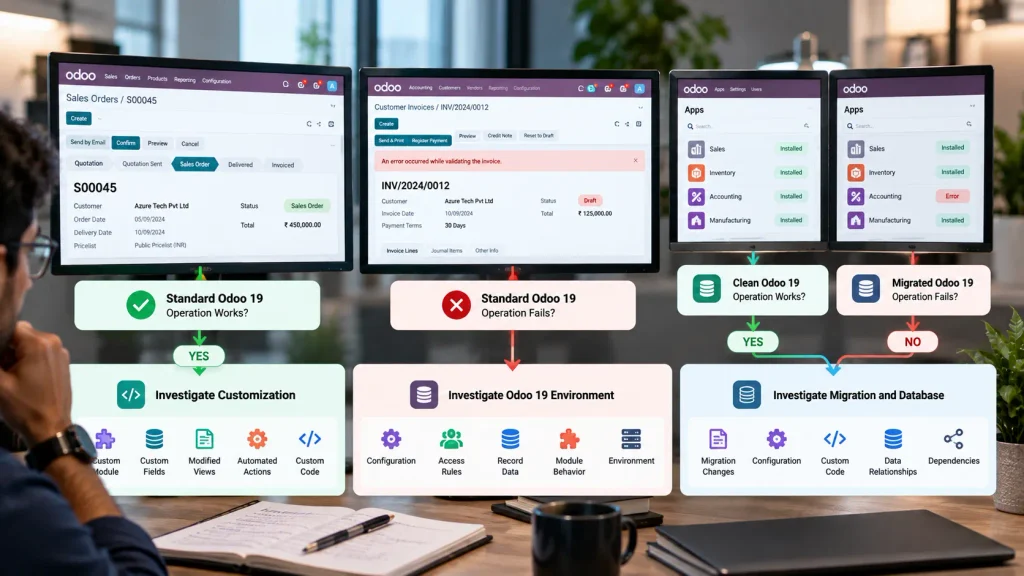
Standard Odoo 19 Works, Customized Workflow Fails
Trace the customized path:
Custom Module → Custom Field → Automation → Modified View → Access Rule → Integration
The failure is within the customized path when the same operation succeeds without the customization.
Both Standard and Customized Workflows Fail
Trace the common layers:
Configuration → Access → Record Data → Module Behavior → Environment
If both workflows produce the same failure, investigate the shared Odoo 19 environment rather than the customization alone.
Only the Migrated Database Fails
Run the same operation in:
Clean Odoo 19 → Migrated Odoo 19
Then compare:
Configuration → Installed Modules → Custom Code → Data → Dependencies
If the clean environment succeeds while the migrated database fails, focus the investigation on the differences introduced or retained during migration.
When Should You Get Odoo 19 Technical Support?
Escalate the investigation when the failure points beyond a single record, user, or configuration setting.
Technical support is justified when:
- Multiple users reproduce the same failure.
- Multiple modules or workflows are affected.
- The failure began immediately after an Odoo 19 migration.
- Custom modules fail after the upgrade.
- A third-party module generates errors or breaks an existing workflow.
- An API or integration stops transferring data.
- The same operation fails after the relevant configuration and access checks pass.
- The standard Odoo 19 workflow works, but the customized database fails.
- The error requires Python, JavaScript, database, dependency, or server-level investigation.
At this point, the useful evidence is the exact failing workflow, error, affected users or records, recent changes, installed modules, customizations, and integration path.
The next investigation layer is the component that changes the result:
Database → Custom Code → Module → Configuration → Access → Integration → Environment
Frequently Asked Questions
Identify the exact feature, reproduce the failure, and capture the error. Then check user access, record data, configuration, recent changes, custom modules, third-party modules, and integrations before changing unrelated settings.
Compare the failing operation with a controlled Odoo 19 environment. If the clean environment works but the migrated database fails, investigate migrated configuration, custom code, third-party modules, dependencies, and database-specific changes.
Yes. Custom fields, views, Python code, JavaScript, automated actions, and modified workflows can affect standard Odoo behavior. If the failure occurs only in the customized workflow, investigate the custom layer first.
Check whether the failure began after the module was installed or updated. Then test the same standard workflow without the affected module where a safe test environment is available. Also verify its Odoo 19 compatibility and dependencies.
Conclusion
An Odoo 19 failure should be traced to the specific workflow and component producing the error, not treated as a system-wide problem.
Use the diagnostic path:
Problem → Reproduce → Capture Error → Isolate Layer → Identify Root Cause
Then determine whether the failure belongs to Odoo configuration, migration, custom code, third-party modules, access rules, integrations, or the environment.
Once the failing layer is isolated, apply the relevant fix and retest the affected workflow instead of changing unrelated Odoo 19 settings.

