How to Offer Multiple Pack Sizes in Odoo 19 eCommerce
How to Offer Multiple Pack Sizes in Odoo 19
Customers purchasing through a B2B eCommerce website may need to choose how a product is sold, not just which product they want. When a business offers different pack sizes, displaying only the standard product quantity can make ordering inconvenient and create additional work for the sales team.
Odoo 19 introduces a packaging selector for eCommerce product pages. Businesses can configure multiple product packaging options and make those options available to website customers.
However, displaying packaging options is only part of the requirement. Product quantities, inventory records, pricing and sales-order information must remain consistent after checkout.
This guide explains how to configure product pack sizes in Odoo 19, display them on the website and identify the limitations that matter before using the feature in a wholesale sales workflow.
How Does Product Packaging Work in Odoo 19?
Odoo 19 allows businesses to configure multiple packaging options for an individual product. These options can be displayed on its eCommerce product page, allowing customers to see the available pack sizes before purchasing.
- Before configuring the feature, understand the difference between three related inventory concepts.
Feature
Purpose
Example
Unit of Measure (UoM)
Defines how a product quantity is measured
Units, kilograms or metres
Packaging
Groups identical products into a defined quantity
Six-pack or carton
Package
A physical container that can hold products for storage or delivery
Shipping box or pallet
- These records are not interchangeable.
Product packaging defines a fixed quantity of the same product. A package represents the physical container used to handle or move products. A unit of measure defines how the product quantity is calculated and recorded.
Where does Odoo 19 use packaging?
Product packaging is relevant to several operations:
- Sales: Select the packaging used for a sales order line.
- eCommerce: Display available packaging options on the product page.
- Inventory: Maintain product quantities and fulfilment records.
- Barcode operations: Use packaging barcodes where configured.
The important requirement is to configure the packaging against the correct product and reference unit before making it available online.
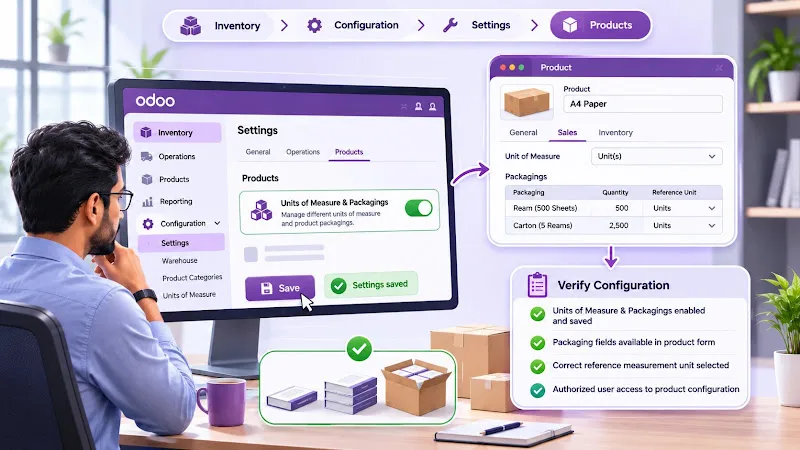
How to Enable Units of Measure and Packagings
- Before creating packaging options, enable the required inventory functionality.
Navigate to:
Inventory → Configuration → Settings → Products
Find the Units of Measure & Packagings option, enable it and save the settings.
- This activates the functionality required to configure product packaging.
What should you verify?
After enabling the setting, confirm that:
- The Units of Measure & Packagings option is saved.
- The relevant product configuration fields are available.
- The reference measurement unit is appropriate for the product.
- Users responsible for product configuration have the necessary access rights.
Do not start creating packaging records until the feature is enabled. Otherwise, the expected configuration options may not be available in the product form.
How to Configure Multiple Pack Sizes for a Product

- Odoo allows multiple packaging records to be associated with an individual product.
To configure them, navigate to:
Inventory → Products → Products
Open the product you want to sell through eCommerce and select the Sales tab.
- Under Upsell & Cross-Sell, locate the Packagings field.
Add the existing packaging options or select Create and Edit to create new ones.
Configure the packaging information
- Each packaging record contains important information.
Field
Purpose
Unit Name
Name displayed for the packaging option
Quantity
Number of product units contained in the packaging
Reference Unit
Measurement unit used to calculate the quantity
Package Type
Physical packaging type used for dimensions and limits
Barcode
Identifier used for packaging tracking where required
- The Unit Name, Quantity and Reference Unit are essential configuration fields.
Check the quantity carefully. The packaging quantity must represent the actual number of reference units contained in that packaging.
Verify the product configuration
- After creating the required packaging options, save the product.
Review every packaging record and confirm that:
- The packaging belongs to the correct product.
- The quantity represents the intended number of units.
- The reference unit is correct.
- The packaging name is understandable to customers.
- Any required barcode information is accurate.
Incorrect packaging quantities can create inconsistencies between what customers select and how the business processes the resulting order.
How to Display Pack Sizes on an Odoo 19 eCommerce Product Page
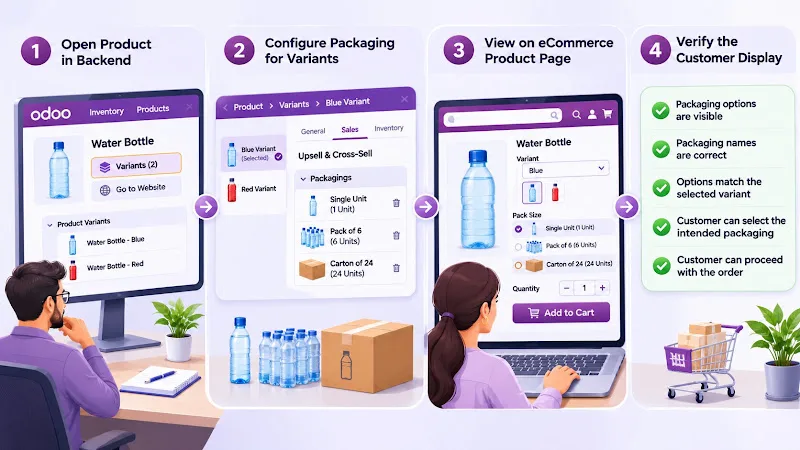
After configuring product packaging, verify that the available options appear on the website.
Open the relevant product from the backend and use the Go to Website smart button to access its eCommerce page.
Odoo 19 documentation confirms that configured packaging types are displayed on the eCommerce product page.
Assign packaging to individual variants
If the product has multiple variants and each variant requires different packaging options, configure them separately.
Follow this path:
- Open the product form.
- Select the Variants smart button.
- Open the relevant product variant.
- Navigate to its Sales tab.
- Locate the Packagings field under Upsell & Cross-Sell.
- Add the required packaging options and save.
This allows packaging availability to be managed at the individual variant level rather than assuming that every variant uses identical packaging.
Verify the customer-facing display
Open the published product page and check:
- Whether the configured packaging options appear.
- Whether the displayed packaging names are correct.
- Whether the options correspond to the selected product or variant.
- Whether the customer can proceed with the intended selection.
Do not verify the feature only through the backend. The customer-facing product page is where the packaging-selection experience must work correctly.
What Are the Limitations of Odoo 19 eCommerce Packaging?
Configuring multiple pack sizes does not automatically provide every pricing and ordering rule a wholesale business may require.
- Two limitations deserve particular attention.
Different prices for individual packaging options
Standard Odoo 19 does not provide the packaging-specific pricelist rules available in Odoo 20.
For example, a business may want the same product to have different price calculations depending on whether the customer purchases a single unit, a smaller pack or a larger carton.
In Odoo 19, adding packaging options does not itself create a separate selling price for each packaging type.
Odoo 20 introduces packaging-specific pricelist rules, allowing pricing to be configured for individual packaging options.
If your business requires different packaging prices while remaining on Odoo 19, evaluate the required customization rather than assuming the standard packaging selector supports it.
Enforcing packaging multiples during online ordering
- Another important consideration is quantity validation.
An eCommerce packaging selector should not automatically be treated as proof that customers can purchase only complete packaging multiples.
Community discussions have reported limitations involving base-unit quantities and ordering by packaging multiples in Odoo 19.
Test whether the selected packaging produces the intended quantity in your installed build. Confirm that customers cannot submit quantities that violate your business's packaging requirements if whole-pack ordering is mandatory.
Where standard functionality does not enforce the required ordering rules, a custom eCommerce validation may be necessary.
How to Troubleshoot Missing or Incorrect Packaging Options
If packaging options do not appear correctly on your Odoo 19 website, inspect the product configuration before changing the website interface.
Check 1: Verify the inventory setting
- Confirm that Units of Measure & Packagings is enabled under Inventory settings.
Check 2: Inspect the product packaging records
- Open the product's Sales tab and review the Packagings field.
- Confirm that the required packaging records are assigned to the correct product.
Check 3: Verify reference quantities
- Inspect the Quantity and Reference Unit fields.
A packaging record with an incorrect reference quantity can produce unexpected results when the product is sold or processed.
Check 4: Check product variants
If the product uses variants, inspect the packaging configuration of the selected variant.
Do not assume that packaging assigned to the product template automatically satisfies every variant-specific requirement.
Check 5: Test the complete order flow
Select a packaging option on the website and proceed through the ordering process.
Verify the selected packaging in the cart, resulting sales order and fulfilment records. Compare the recorded quantity against the configured packaging quantity.
If the packaging selection is visible but ordering behaviour is incorrect, investigate the standard eCommerce functionality and customizations separately.
Do not modify inventory quantities or duplicate product records simply to make the website display a packaging option. Identify the actual limitation before changing the product structure.
For businesses requiring custom product configuration, website ordering rules or integration between eCommerce and inventory, our Odoo ERP implementation company page explains our implementation services.
Frequently asked questions
Can Odoo 19 display multiple packaging options on an eCommerce product page?
Yes. Odoo 19 supports displaying configured product packaging options on eCommerce product pages. Add the required packaging records to the product's Sales tab under Upsell & Cross-Sell.
Can different product variants have different packaging options?
Yes. Open the product's Variants smart button, select the relevant variant and configure its Packagings field under the Sales tab.
Can I configure a different selling price for each packaging option in Odoo 19?
Not through standard packaging-specific pricelist rules in Odoo 19. Odoo 20 introduces pricing rules for individual packaging options.
Does selecting packaging automatically enforce whole-pack quantities in eCommerce?
Do not assume so. Verify the ordering behaviour in your Odoo 19 build. If your business requires customers to purchase only complete packaging multiples, additional customization may be necessary.
Conclusion
Odoo 19 makes multiple product packaging options available on eCommerce product pages, helping businesses present different pack sizes to online customers.
However, successful configuration requires more than adding packaging records. Product quantities, reference units, variants, sales orders and inventory fulfilment must remain consistent throughout the purchasing process.
Before publishing the product, test the complete customer ordering workflow and confirm that the selected packaging produces the intended result. For businesses requiring packaging-specific pricing or strict ordering multiples, identify the standard Odoo 19 limitations before planning additional development.