Odoo 19 Windows Virtual IoT: Fix HTTPS Certificate Errors
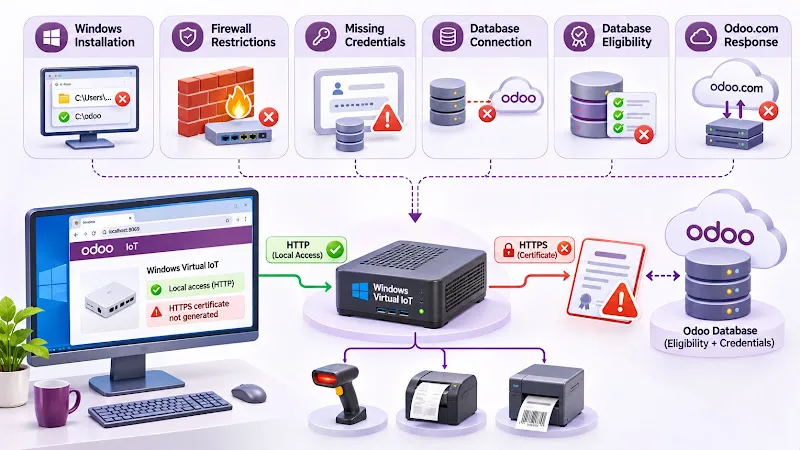
An Odoo 19 Windows Virtual IoT installation can connect to the local network and display its homepage but still fail to generate an HTTPS certificate. This prevents devices that require a secure connection from communicating reliably with the IoT gateway.
The problem is not always caused by an expired certificate. An incorrect Windows installation directory, firewall restrictions, missing Odoo credentials or an ineligible database can prevent certificate generation.
Instead of reinstalling the entire IoT application, identify the error reported on the Windows Virtual IoT homepage and check the corresponding configuration.
Why Does the Odoo 19 Windows Virtual IoT Certificate Fail?
Odoo Windows Virtual IoT uses HTTPS to establish a secure connection between the IoT gateway and connected devices.
After the gateway connects to an eligible Odoo database, it automatically requests an HTTPS certificate. Once the certificate is received, the IoT homepage switches to a secure address ending in .odoo-iot.com. If certificate generation fails, the homepage may display an HTTPS-related error.
What prevents certificate generation?
- Incorrect Windows Virtual IoT installation location.
- Firewall restrictions affecting network communication.
- Missing Odoo contract credentials or database UUID.
- An IoT gateway that is not connected to the Odoo database.
- A database that does not meet certificate eligibility requirements.
- An unexpected response from Odoo.com.
These causes belong to different parts of the connection process. A network issue requires a different correction from a missing database credential or an ineligible subscription.
Important: A working HTTP homepage does not confirm that HTTPS certificate generation has succeeded. Verify the certificate status separately.
Check the Windows Virtual IoT Installation Location
One important installation requirement is the Windows destination directory. Odoo warns against installing Windows Virtual IoT inside a Windows user directory because this can cause HTTPS certificate-generation problems.
Verify the installation directory
During installation, use C:\odoo. Avoid installing the application inside paths such as C:\Users\Username\.... The recommended installation directory avoids the Windows user-directory restriction documented by Odoo.
Restart the Windows Virtual IoT service
After installation or an installation correction, restart the Windows Virtual IoT service.
- Open the Windows Start menu.
- Search for Services.
- Open the Services application.
- Locate the Odoo service associated with Windows Virtual IoT.
- Right-click the service and select Restart.
The exact service name can depend on the installed package. After restarting, open the IoT homepage at http://localhost:8069 and check whether the HTTPS certificate status changes.
If the application was installed in an incorrect directory, do not simply move its installation folder. Follow the appropriate installation and reinstallation procedure, then reconnect the gateway to the Odoo database.
Verify Windows Firewall and Network Connectivity

The Windows Virtual IoT gateway needs network access to communicate with connected devices and retrieve its HTTPS certificate. Firewall restrictions can interfere with these operations.
Check Windows Firewall ports
Odoo's Windows Virtual IoT installation documentation identifies the following TCP ports for local-network communication:
| Port | Purpose |
|---|---|
| 8069 | Access to the Windows Virtual IoT homepage |
| 80 | HTTP communication |
| 443 | HTTPS communication |
To configure Windows Defender Firewall:
- Open the Windows Start menu.
- Search for Windows Defender Firewall with Advanced Security.
- Select Inbound Rules.
- Click New Rule.
- Select Port.
- Choose TCP.
- Enter 8069, 80, 443.
- Select Allow the connection.
- Apply the rule only to the required network profiles.
- Save the rule.
Other ports may be required depending on the connected IoT hardware. For example, Odoo documents port 9050 for certain payment terminals.
Verify internet access
Allowing incoming connections does not automatically guarantee that the IoT gateway can reach Odoo.com. Certificate generation also requires the gateway to communicate with https://www.odoo.com. Check whether:
- The Windows computer has internet access.
- A corporate firewall blocks outgoing HTTPS requests.
- A VPN or network proxy interferes with the connection.
- Router-level security rules block communication.
Odoo identifies internet connectivity, firewalls and VPN restrictions as possible causes of HTTPS certificate request failures.
Do not leave the Windows Firewall disabled as a permanent workaround. Configure the necessary network permissions and keep the IoT system restricted to the trusted local network.
Security warning: Never expose Windows Virtual IoT directly to the public internet. Odoo designs these systems for local-network device access.
Verify Odoo Database Eligibility and IoT Credentials
Even when Windows and network configuration are correct, Odoo may refuse to issue an HTTPS certificate if the connected database does not meet the eligibility requirements. This is an important check because reinstalling Windows Virtual IoT will not correct an ineligible database.
Check database eligibility
Odoo requires a production database and an ongoing Odoo subscription with In Progress status. A copied, duplicated, staging or development database is not eligible for certificate generation. Therefore, check the database connected to the IoT gateway before changing the Windows installation.
Verify the IoT database connection
Open the Odoo backend and navigate to IoT → IoT Boxes. Open the relevant Windows Virtual IoT record and verify its connection status. The gateway must be correctly associated with the intended Odoo database. If the server configuration is missing, reconnect the gateway using the available pairing-code or connection-token workflow.
Check contract credentials and database UUID
The IoT homepage also provides access to its configuration. Open the Windows Virtual IoT homepage, click the settings or gear icon and select Credentials. Verify that the required contract information and database UUID are configured. Missing credentials can prevent the gateway from requesting its HTTPS certificate successfully.
Do not manually invent or replace database identifiers. Use the values associated with the correct Odoo subscription and database.
How to Diagnose Odoo HTTPS Certificate Error Codes
Odoo displays specific error codes on the IoT homepage when certificate generation or retrieval fails. Identifying the exact code helps narrow down the problem before changing the installation or network configuration.
| Error code | What it indicates | What to check |
|---|---|---|
| ERR_IOT_HTTPS_CHECK_NO_SERVER | The IoT gateway is not connected to an Odoo database. | Server connection and database pairing. |
| ERR_IOT_HTTPS_CHECK_CERT_READ_EXCEPTION | The existing certificate could not be read. | Certificate file readability and local certificate access. |
| ERR_IOT_HTTPS_LOAD_NO_CREDENTIAL | Contract information or database UUID is missing. | IoT homepage → Settings → Credentials. |
| ERR_IOT_HTTPS_LOAD_REQUEST_EXCEPTION | The gateway encountered an unexpected error while contacting Odoo.com. | Internet connectivity, firewall, VPN and network restrictions. |
| ERR_IOT_HTTPS_LOAD_REQUEST_STATUS | Odoo.com returned an unexpected HTTP response. | The accompanying HTTP status code and Odoo.com availability. |
| ERR_IOT_HTTPS_LOAD_REQUEST_NO_RESULT | Odoo.com was reached, but the certificate was not provided. | Database eligibility and subscription status. |
What should you do when an error appears?
Start with the error code rather than applying every possible workaround. For example:
- Missing credentials: open the IoT homepage, access Credentials and verify the contract and database UUID.
- Odoo.com not reachable: check whether the Windows computer can access Odoo.com and investigate network restrictions affecting outgoing HTTPS requests.
- Certificate not provided: verify that the connected database is a production instance and that its Odoo subscription is ongoing.
- Unexpected HTTP status: record the three-digit status code. Check whether Odoo.com is available. If the website is operational and the error persists, contact Odoo support with the complete status information.
Where can developers find detailed logs?
If the homepage displays an error without enough information, enable developer mode in the Odoo backend, open the IoT application, select the relevant IoT system, open its form and click Download Logs. The IoT homepage also provides log-level configuration through its settings menu.
These logs can help administrators identify the underlying exception instead of relying only on the summary error code.
How to Verify That the HTTPS Certificate Is Working
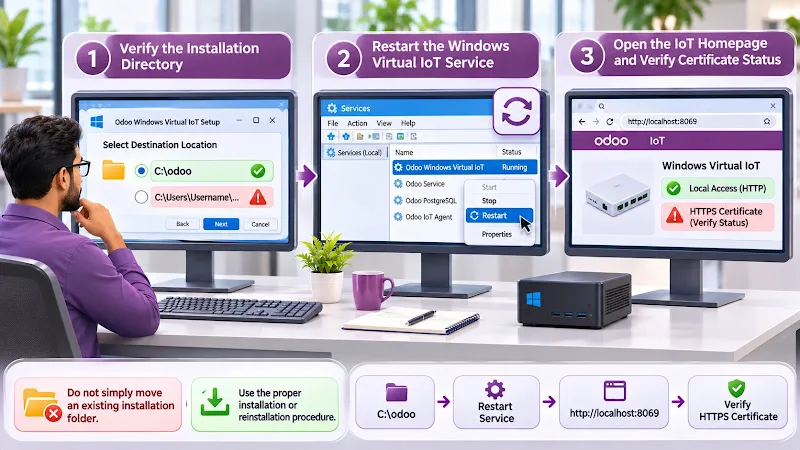
After correcting the identified issue, verify the complete connection rather than assuming that restarting the service has resolved everything.
Check the IoT homepage
Open the homepage on the Windows Virtual IoT computer at http://localhost:8069. The homepage automatically checks for a missing HTTPS certificate and attempts to generate one. If an error appears, refresh the page and check whether the certificate request succeeds.
Test local-network access
From another device connected to the same network, test the Windows Virtual IoT homepage using its IP address at http://<iot-ip-address>:8069, and test local HTTPS connectivity at https://<iot-ip-address>. Replace <iot-ip-address> with the actual IP address of the Windows Virtual IoT computer.
Confirm the certificate
Once Odoo provides the certificate, the IoT homepage should use a secure URL ending in .odoo-iot.com. You can also click the settings icon on the IoT homepage to inspect the certificate validity period.
Verify connected devices
Finally, return to the Odoo IoT application and confirm that the gateway is connected. Test the connected hardware, especially devices that require HTTPS communication. A successful certificate-generation message alone is not enough. Confirm that the devices can communicate with the gateway through the intended secure connection.
Frequently asked questions
Why is my Odoo 19 Windows Virtual IoT HTTPS certificate not generating?
Common causes include an incorrect Windows installation directory, firewall restrictions, missing IoT credentials, an ineligible database or an internet connection problem. Check the exact error code on the IoT homepage to identify the relevant cause.
Can I generate an HTTPS certificate using an Odoo staging database?
No. Odoo requires a production database for IoT HTTPS certificate generation. Copied, duplicated, staging and development databases are not eligible.
Which ports should be allowed for Windows Virtual IoT?
Odoo's Windows Virtual IoT documentation identifies TCP ports 8069, 80 and 443 for the relevant network communication. Additional ports may be required for specific connected devices.
Conclusion
Odoo 19 Windows Virtual IoT HTTPS certificate failures can originate from Windows installation paths, database eligibility, missing credentials or network restrictions.
The most effective troubleshooting approach is to identify the displayed error code, verify the installation directory, check network access and confirm the connected database's eligibility before reinstalling the software.
Once certificate generation succeeds, verify the secure .odoo-iot.com address and test the connected hardware. This ensures that the IoT gateway is not just accessible locally but also ready for devices that require HTTPS communication.