
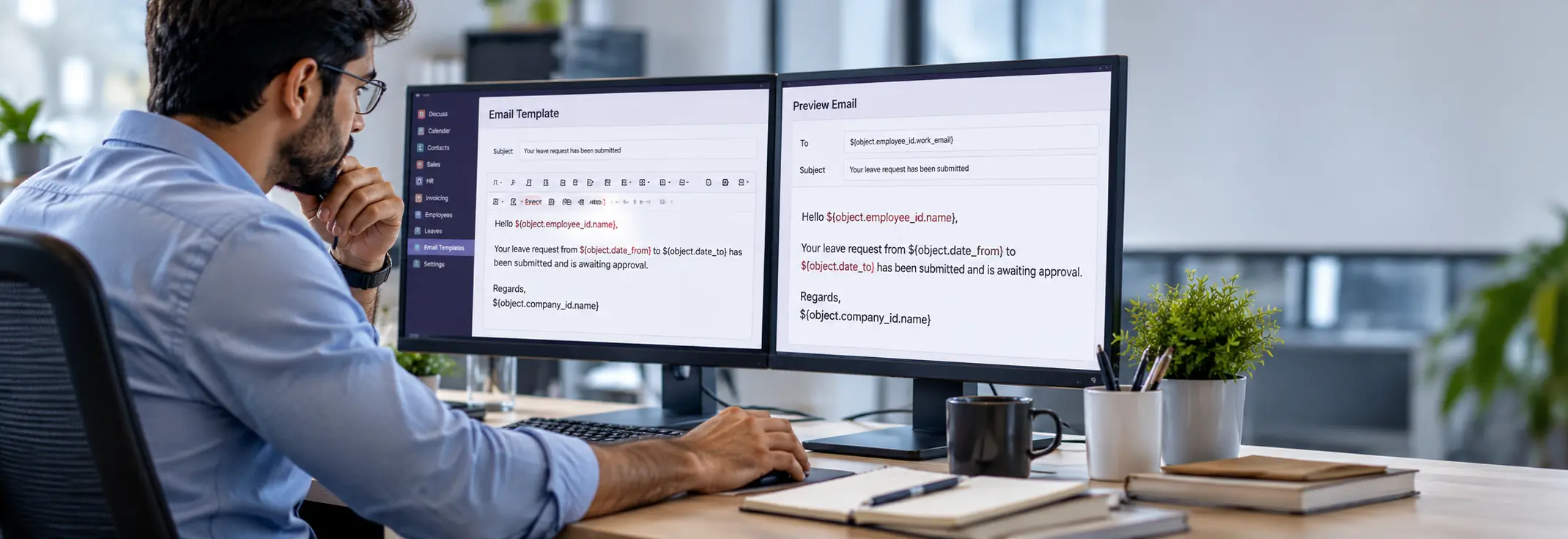
Odoo 19 email templates can fail to render dynamic values, display placeholders instead of business data, or stop working after an update—even when the template appears correct in the editor.
These failures can interrupt automated business communications, including approval notifications, customer emails, and event confirmations. The underlying problem may involve incorrect expressions, missing model fields, or customised template definitions rather than the email server itself.
After a migration or update, the important question is not simply why the email failed, but which part of the template-rendering process is causing the failure.
This guide explains how to identify the underlying cause, investigate the relevant fields and template configuration, and distinguish rendering errors from email-delivery failures before changing the existing setup.
Why Odoo 19 Email Templates Fail to Render
Odoo email templates combine static content with dynamic values generated from business records. Rendering can fail when a template references an unavailable field, uses incompatible expression syntax, or contains invalid customised XML/QWeb content.
Start by identifying the symptom and investigating the relevant part of the template or email workflow.
| Observed symptom | First area to investigate |
| ${object.field} appears literally in the email | Placeholder syntax and template implementation |
| An error reports that a field does not exist | Referenced field and associated model |
| Preview works, but the actual email fails | Rendering context, triggering record, and template selection |
| Email rendering breaks following an Odoo 19 upgrade | Field references, custom code, and template compatibility |
| Template edits do not appear in the generated email | Selected template, inherited templates, and module update behaviour |
| Email content is correct, but the message is not delivered | Email queue, outgoing-mail configuration, and delivery errors |
These symptoms narrow the investigation but do not establish the root cause. Confirm the failure at the relevant stage before changing the template or email configuration.
Dynamic Placeholders Display as Text Instead of Actual Values
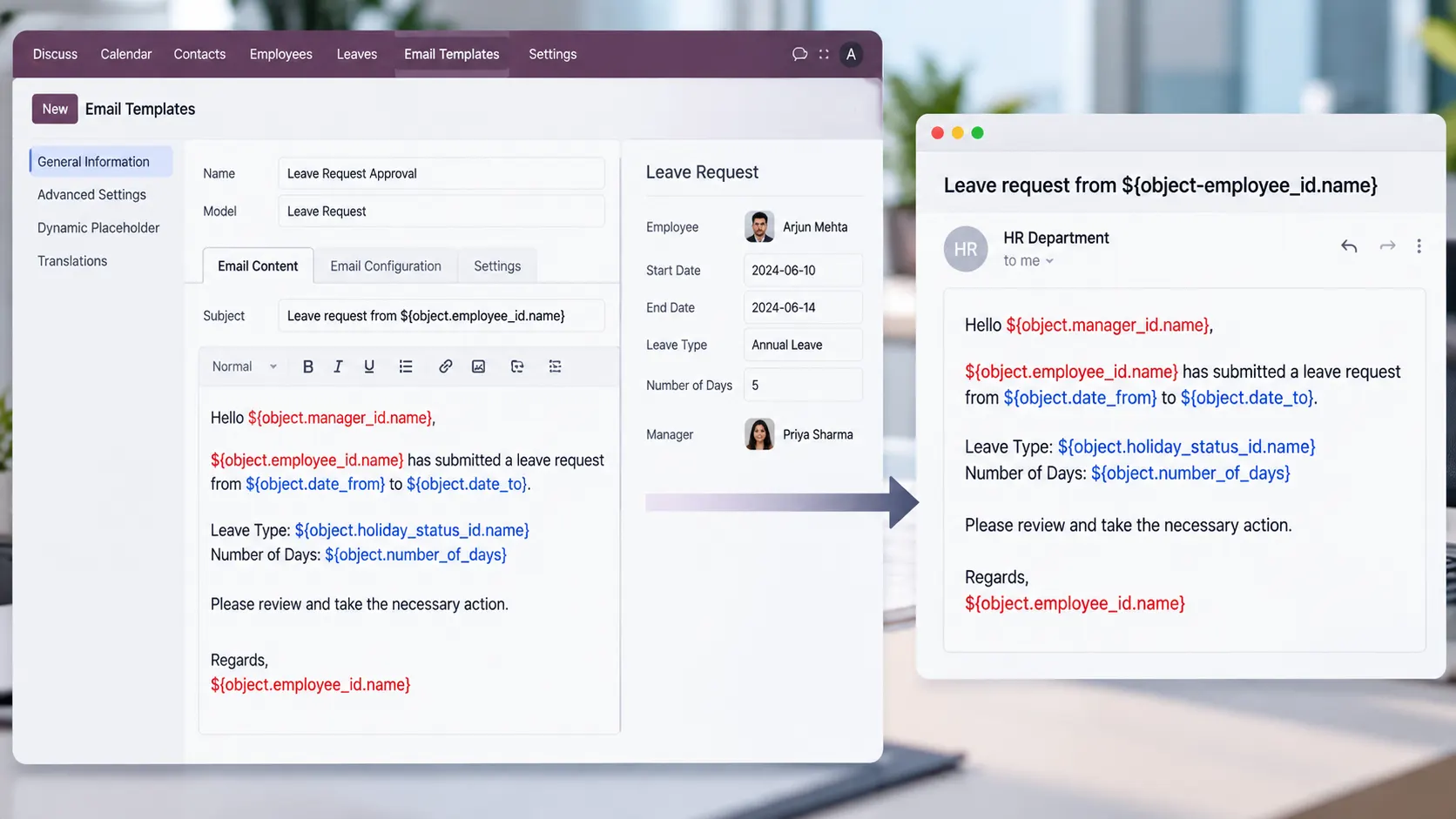
Odoo 19 email templates can display expressions such as ${object.employee_id.name} literally instead of replacing them with actual record values. This can prevent leave approvals, notifications and other automated emails from displaying the intended information.
An Odoo community discussion documents this behaviour in a leave-approval template. The reported solution uses QWeb syntax instead of the older ${…} expression format.
Check the Syntax Used by the Template
Odoo 19 supports dynamic placeholders through the email-template editor and provides an XML/HTML editor for working directly with template code. The correct syntax depends on the field and rendering mechanism being used.
For example, a QWeb-rendered HTML body can output a customer’s name using:
<t t-out=”object.partner_id.name or ””/>
- object refers to the business record used to generate the email.
- partner_id accesses the related partner record.
- name retrieves the partner’s name.
- or ” provides an empty fallback when the expression evaluates to a false value.
Do not replace every placeholder mechanically. Confirm which field you are editing and use its supported syntax. For example, the HTML body and the email subject do not necessarily use the same rendering syntax.
Troubleshooting Checklist
- Open the affected email template in developer mode.
- Identify the model associated with the template.
- Inspect the expression that appears literally.
- Verify that the referenced field exists on the model or related record.
- Check the syntax against the template field being edited.
- Preview the template using a representative business record.
- Generate a test email and inspect the rendered content.
If the expression still appears literally, inspect the underlying template definition and rendering context before making further changes.
Missing Fields Cause Template Rendering Errors
A missing-field error can occur when an Odoo email template references a field that the associated model does not provide.
An Odoo 19 issue report documents an event-registration confirmation failure following an update. The reported error was:
‘event.event’ object has no attribute ‘date_begin_located’
The failure involved a dynamic expression in the Event: Registration Confirmation template. It illustrates why template-rendering errors should be investigated at the field and model level rather than by changing unrelated template content.
How to Investigate a Missing-Field Error
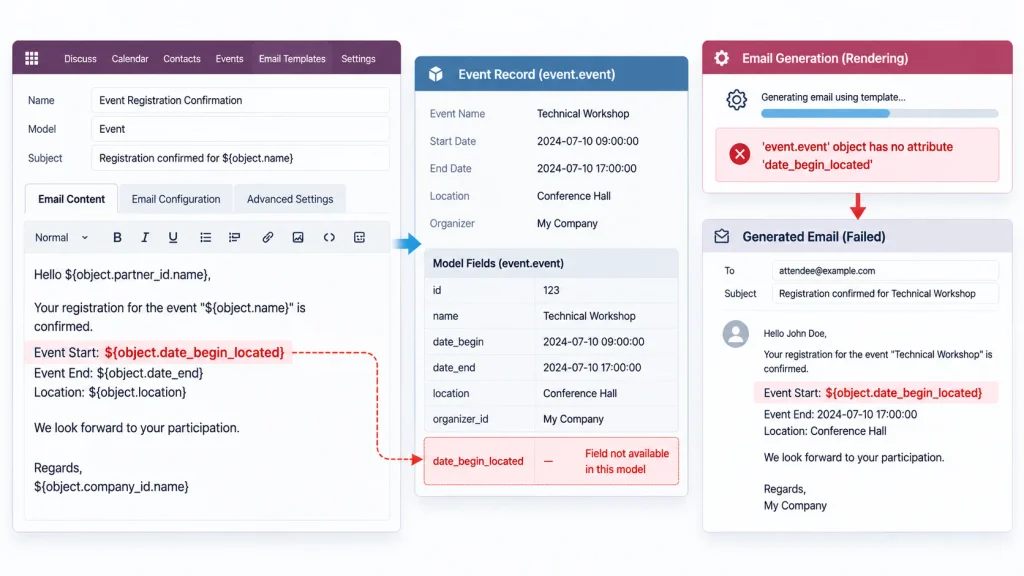
Step 1: Identify the field named in the error.
Start with the exact field mentioned in the traceback or rendering message. Avoid changing unrelated parts of the template.
Step 2: Identify the model.
Determine which model the template’s object variable represents. A field available on a related record is not automatically a direct field on the current model.
Step 3: Inspect the field reference.
Determine whether the expression references:
- A field that no longer exists or is unavailable.
- A field accessed through the wrong relationship.
- A field supplied by a custom module that is not installed or loaded correctly.
- A field affected by changes to the model or template implementation.
Step 4: Check the affected version and customisations.
If the template worked previously, compare the current configuration with the earlier version. Check the model definition, installed modules and template changes to identify the underlying dependency.
Step 5: Correct the underlying dependency.
Depending on the cause, the correction may involve fixing the field reference, restoring a required custom-module dependency, adapting the template to the current model, or applying an appropriate software fix.
Do not create a field simply to suppress the error. First establish what the field represents and whether the email workflow still requires it. The correction should address the underlying dependency without breaking the intended business logic.
If the problem involves custom code or model dependencies, an experienced Odoo developer can help investigate and implement a compatible correction.
Email Template Changes Are Not Reflected in the Generated Email
An administrator edits an Odoo email template, but the generated email continues to display the previous content. The problem may not be the edited text itself. The workflow could be using another template, loading module-managed data, or rendering content through a shared layout.
When investigating the issue, identify which component supplies the outdated content before changing the configuration.
Check Which Template Is Being Used
Confirm that the action generating the email uses the template you edited. A customised template can exist in the database without being assigned to the affected workflow.
Check the relevant:
- Business record and triggering operation.
- Automated action or workflow.
- Email template assigned to that action.
- Standard or customised template definition.
- Inherited XML template or shared notification layout, where applicable.
For organisations managing customised workflows, template behaviour should also be considered within the wider Odoo ERP implementation and customisation setup, particularly when changes involve multiple modules or automated business processes.
Check Whether Module Data Is Involved
In code-managed deployments, email-template records may be defined in XML files and loaded through module updates.
An Odoo community discussion about a customised Helpdesk confirmation template describes changes that were not reflected in the preview or sent email. The discussion identifies module data and noupdate=”1″ as areas to investigate.
This does not mean noupdate=”1″ is always the cause. Its effect depends on how the template is defined, loaded and updated.
If the template is managed through a custom module, compare the database record with the module’s XML definition and update behaviour before making further changes.
Check Shared Layouts
The individual email body may be correct while a footer, header, logo or notification layout continues to display outdated content.
Odoo email templates can use shared layouts. Editing an individual business template may therefore leave content supplied by a shared notification layout unchanged.
Identify the component responsible for the unexpected content before modifying the template or its dependencies.
Why an Odoo 19 Email Template Can Work in Preview but Fail When Sent
A preview tests the template against a particular record and rendering context. It does not establish that every record or automated process can generate the same email successfully.
For example, a quotation email might render correctly for one customer but fail for another if a referenced field or related record is unavailable.
Inspect the failing transaction
Check these details against the business operation that produces the error:
- Record type: Does the template belong to the model used by the operation?
- Record data: Which record was processed when the failure occurred?
- Field references: Can the template access every field used in its expressions?
- Related data: Are the required linked records available?
- Template used: Does the automated action select the template you modified?
- Failure details: Does the error identify a rendering problem or a later stage of email processing?
Next, repeat the original operation with a record that reproduces the problem. If another record works, compare the two records’ relevant fields, relationships, and template conditions.
This comparison helps narrow the investigation to the data or execution path associated with the failure, instead of making changes to template content that may already be correct.
What to Check When Email Templates Break After an Odoo 19 Upgrade
When a template stops working after an upgrade, the timing provides a useful starting point, but it does not prove that the upgrade itself caused the failure.
The problem may involve a changed model field, a custom module, modified template XML, or a software defect introduced by the update.
Compare these four areas
1. Template changes
Examine the current template definition for modified expressions, field references, inherited content, or XML changes.
2. Model fields
Check whether the affected fields still exist on the expected models and whether the template accesses related records correctly.
3. Custom code
Review custom modules that extend the affected model or alter the email template. Pay particular attention to Python-defined fields and XML template overrides.
4. Automated actions
Verify that the business operation still triggers the intended template and uses the expected record.
If the error appeared immediately after an upgrade, retain the complete traceback, identify the exact Odoo version, and reproduce the issue in a test environment before changing the production configuration.
For a standard Odoo template, investigate whether the same error is documented for that version. For a customised template, compare its dependencies with the current model and template definitions.
A Practical Diagnostic Sequence for Odoo 19 Email Errors
Use the following sequence to isolate the failure before modifying a template.
Step 1: Capture the failure
Record the affected business operation, the record being processed, the template involved, and the complete error message.
Step 2: Locate the template
In developer mode, open Settings → Technical → Email → Email Templates. Inspect the template’s model, subject, body, dynamic placeholders, and XML/HTML content where applicable.
Step 3: Check the failing expression
If the error names a field, verify that it belongs to the expected model or is available through a valid relationship. Check the actual field reference rather than changing unrelated content.
Step 4: Repeat the original operation
Trigger the email through the same business process that failed. A successful preview alone cannot confirm that the original workflow works.
Step 5: Compare affected records
If the error occurs only for certain records, compare their relevant field values, related records, and the conditions used by the template.
Step 6: Inspect changes and dependencies
For failures that began after an upgrade, examine changed fields, custom modules, template definitions, and automated actions. Keep the original error available for comparison.
Step 7: Identify the failing stage
Determine whether the problem occurs while rendering the content, creating the outgoing message, or delivering it. Each stage requires a different investigation.
The result should be a specific failure point—such as an unavailable field, an incorrect template selection, or an outgoing-mail error—rather than an assumption that the entire template needs to be replaced.
When an Odoo Email Is Generated but Never Arrives
A missing email in the recipient’s inbox does not necessarily indicate a rendering error.
If Odoo has generated the expected subject and body, inspect the outgoing message before editing the template again.
In developer mode, open Settings → Technical → Email → Emails and examine the affected message.
Check:
- Message status: Is the email queued, sent, or marked as failed?
- Error details: Does the message contain an SMTP or processing error?
- Mail server: Is the configured outgoing server available and correctly authenticated?
- Sender domain: Are the sender address and domain settings appropriate?
- Retry status: Can the message be retried after correcting the reported problem?
A successful connection to an SMTP server does not, by itself, establish that the recipient’s mail provider accepted or delivered the message. Sender authentication, provider restrictions, and domain configuration can also affect delivery.
For custom-domain sending, consult Odoo’s guidance on email-domain configuration, including SPF and DKIM.
The key distinction is the failure stage: incorrect generated content calls for a template investigation; correct content that fails to reach its recipient calls for a delivery investigation.
When an Odoo Developer Should Investigate the Problem
Technical investigation is appropriate when the error cannot be resolved through the template interface or when the failure involves custom code.
Examples include:
- A standard template fails after an upgrade.
- An expression references a field that the model does not provide.
- Custom XML or inherited templates interfere with rendering.
- Changes made through the interface do not affect the email being generated.
- An automated action invokes an unexpected template.
- The failure depends on a particular record or a combination of modules.
The investigation may require examining the traceback, template definition, model fields, custom module dependencies, and the code that initiates the email.
For problems spanning customisation, migration, and interconnected business workflows, an experienced implementation team may need to examine the wider Odoo ERP implementation rather than treating the email template as an isolated component.
Frequently Asked Questions
Check the expression used for the dynamic value, the model associated with the template, and the record being processed. A field that is unavailable in that context may cause an error or prevent the expected value from appearing.
Start with the exact error and compare the affected template, model fields, and custom modules against the updated environment. Check for a version-specific defect before changing a working standard template.
The preview may use different record data or a different execution path from the real business operation. Reproduce the original operation and inspect its error. If the message is generated correctly but not received, investigate delivery separately.
Conclusion
Odoo 19 email-template failures can originate in dynamic expressions, model fields, customisations, template selection, or outgoing-mail processing.
Identify the stage and cause of the failure before changing the template. This avoids unnecessary modifications and makes the next corrective step more precise.

