
When a customer replies to an email sent from Odoo 19, the response should normally appear in the related record’s Chatter. If it does not, the problem may involve incoming email delivery or message routing rather than outgoing email.
Odoo must receive the reply and associate it with the correct record. The reply-to address, catchall configuration, email aliases, and incoming mail setup can affect this process.
The first diagnostic question is: did the email reach Odoo, and could Odoo associate it with the correct record?
This guide explains how to identify the failing stage and troubleshoot it without changing unrelated email settings.
How Odoo 19 Processes Customer Email Replies
When an employee sends an email from a record’s Chatter, Odoo prepares the message and its reply address. When the customer responds, Odoo must receive the email and associate it with the correct conversation.
The process involves three stages.
Stage 1: Odoo Sends the Original Email
An employee sends an email from a record, such as a CRM opportunity or sales order.
Depending on the configuration, the reply destination may use a model-specific alias or the general catchall address. The email also contains message information that can help Odoo identify the conversation.
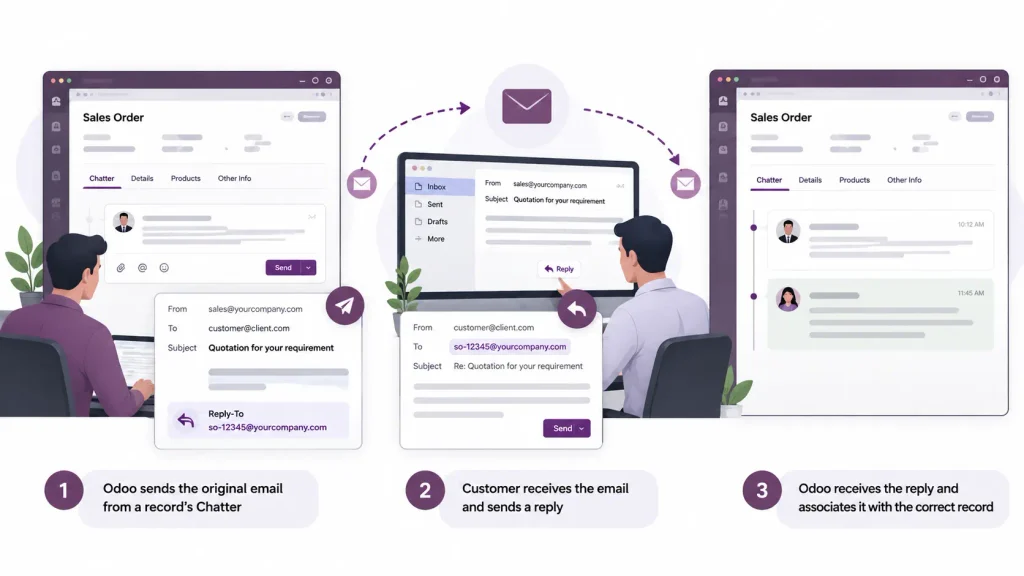
Stage 2: The Customer’s Reply Reaches Odoo
When the customer selects Reply, their email application sends the response to the address specified in the original email’s Reply-To header.
That address must lead to a configured receiving route. Depending on the hosting environment, this may involve email forwarding, redirection, or an incoming mail server.
Stage 3: Odoo Associates the Reply with the Record
Odoo processes the incoming message and attempts to associate it with the relevant record. Message references, including Message-ID, In-Reply-To, and References, can help identify the existing conversation.
If the message does not reach Odoo or cannot be associated with the expected record, the reply may not appear in the correct Chatter thread.
Identify the Exact Symptom Before Changing Settings
Before changing email settings, identify what happens when a customer replies. Different symptoms can point to different parts of the email workflow.
| Observed behaviour | What to investigate first |
| Customers receive Odoo emails, but replies never reach Odoo | Reply-to address, email delivery, forwarding, or incoming mail configuration |
| Replies work for some records but not others | Record-specific aliases and reply routing |
| Replies arrive in the mailbox but not in Odoo | Incoming mail server configuration or message retrieval |
| Replies fail after introducing a custom domain | Alias domain, forwarding, redirection, or DNS configuration |
| Replies stopped after changing email settings | Recent changes to catchall, alias domain, or forwarding rules |
| Emails sent directly to a team alias work, but replies to existing conversations fail | Distinguish new-record creation from existing conversation routing |
These symptoms are diagnostic clues, not definitive causes. For example, a missing reply does not automatically mean the catchall address is incorrect.
Run a Controlled Test
Use a record where the issue has occurred.
- Open the record in Odoo 19.
- Send an email from its Chatter to an external test mailbox.
- Inspect the received email’s Reply-To address.
- Reply directly without changing the recipient.
- Allow time for the configured receiving process to run.
- Check whether the response appears in the original record’s Chatter.
Record the result and the reply-to address.
If the test succeeds, compare its configuration with a record where replies fail. If it fails, investigate incoming email delivery and routing.
Avoid changing multiple settings simultaneously. Test the existing configuration first so you can identify the actual failure point.
Check the Reply-To Address and Catchall Configuration
When outgoing emails work but customer replies are missing, check the reply-to address and catchall configuration.
What is the catchall address?
The catchall is a general email alias used to receive replies that do not use a model-specific alias. Odoo uses message information to associate incoming replies with the relevant Chatter conversation.
The receiving route depends on the address included in the original email, so check that address before changing the configuration.
How to inspect the configuration
Enable developer mode and navigate to:
Settings → Technical → Email: Alias Domains
Review the configured alias domain and catchall settings.
Check the following:
- Does the original email contain the expected Reply-To address?
- Does the address use the intended email domain?
- Has the catchall alias or domain recently changed?
- Are incoming messages to that address reaching the correct destination?
- Are the relevant forwarding or receiving rules active?
Menu labels may vary depending on the configuration and permissions.
Why changing the catchall can cause problems
Suppose Odoo previously used catchall@company.example, but an administrator changes the alias or email domain. Previously sent emails may still contain the old reply-to address.
If that address no longer routes messages to Odoo, replies to older emails may fail even though new emails work.
Corrective action: Check the reply-to address in an affected email before changing any settings. If the alias or domain has changed, verify whether the previous address still needs to receive messages.
Avoid changing the catchall experimentally because the change can affect existing email conversations.
Verify Incoming Email Delivery
If the reply-to address is correct but the customer’s response still does not appear in Chatter, check whether the incoming email reaches Odoo.
The required configuration depends on the hosting environment and email-receiving method.
Odoo Online and Odoo.sh
If you use a custom email domain, verify that incoming messages are routed to Odoo through the configured receiving arrangement. Successful outgoing email does not confirm that incoming delivery works.
Self-hosted Odoo
Check the configured incoming email gateway, forwarding rules, and relevant mail server settings. The receiving method must match the deployment’s existing configuration.
If Odoo retrieves email from a mailbox
In developer mode, navigate to:
Settings → Technical → Email: Incoming Mail Servers
Check whether the relevant server is enabled, its connection credentials are valid, and the mailbox contains the missing replies.
If the configuration uses incoming mail server retrieval, verify that the Mail: Fetchmail Service scheduled action is running.Corrective action: Resolve any delivery, authentication, or retrieval failure, then repeat the controlled reply test from Section 2.
Check Email Aliases and Record Routing
An email alias routes incoming messages to a configured Odoo application or record workflow. However, creating a new record and associating a reply with an existing Chatter conversation are different processes.
Inspect the relevant alias
Enable developer mode and navigate to:
Settings → Technical → Aliases
Locate the alias associated with the affected application or team. Check its email address, destination model, and whether it matches the intended workflow.
Avoid changing unrelated aliases while investigating a single record.
Distinguish the two scenarios
- Reply to an existing email: The response should appear in the original record’s Chatter. Investigate incoming delivery and message association.
- New email sent directly to a CRM alias: Odoo may create a new lead or opportunity, depending on the alias configuration. Check the alias destination and associated workflow.
If direct emails create CRM leads successfully but replies to existing conversations remain missing, investigate the reply-routing process rather than assuming the alias itself is broken.
Investigate Message Headers and Email Processing
If the reply reaches the receiving destination but does not appear in Chatter, inspect its message headers and processing path.
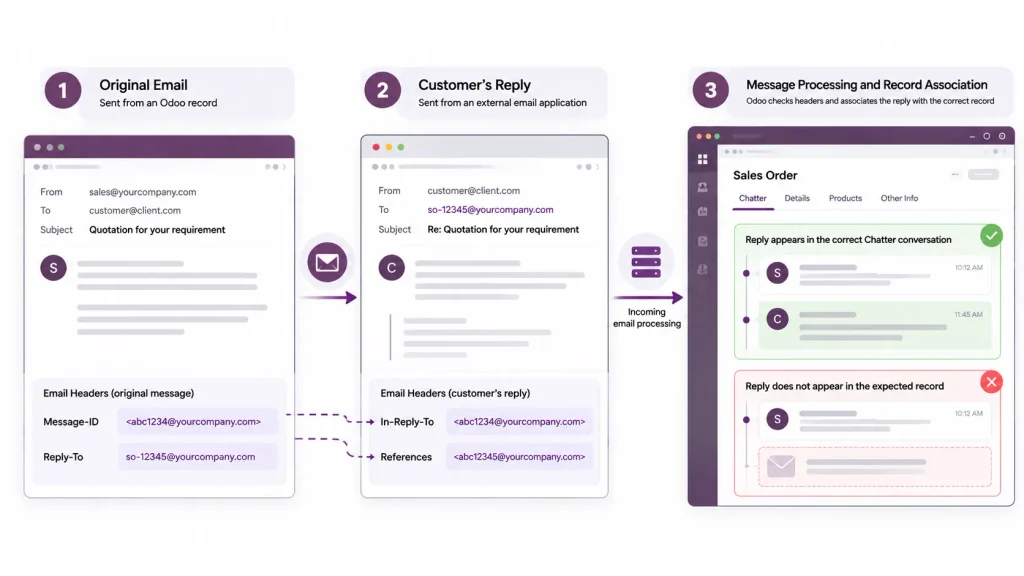
Why Message Headers Matter
Email headers help identify the original message and its conversation. Relevant headers include:
- Message-ID: Identifies an individual email.
- In-Reply-To: References the message being answered.
- References: May contain identifiers linking messages in a conversation.
- Reply-To: Specifies the address to which a reply should be sent.
Odoo can use message references to associate incoming replies with existing conversations. If an email client, forwarding service, or mail gateway changes the recipient or message information, reply handling may differ from a direct response.
How to Diagnose a Failed Reply
- Obtain the original email sent from Odoo.
- Check its Reply-To address.
- Obtain the customer’s response with its full headers, if available.
- Inspect the recipient and conversation-reference headers.
- Confirm whether the response reached the configured receiving destination.
- Compare it with a successful reply to another Odoo record.
Use the results to narrow down the failure:
- The message never reaches the receiving destination: Investigate email delivery and forwarding.
- The message reaches the destination but not Odoo: Investigate retrieval and incoming message processing.
- The message reaches Odoo but is not associated with the expected record: Investigate message references and record-specific routing.
These checks help distinguish a delivery problem from a message-association problem without assuming that the catchall configuration is responsible.
When to Involve a Technical Developer
If incoming delivery and configuration appear correct but the issue persists, a developer or Odoo technical consultant may need to inspect server logs, incoming message processing, or custom mail-routing code.
This is particularly relevant when failures affect only specific messages, records, or customised workflows.
Avoid modifying mail-processing code until the receiving path and routing configuration have been verified.
Prevent Email Replies from Disappearing Again
After resolving the issue, document the email-routing configuration and test reply handling after relevant changes.
Document the Email-Routing Configuration
Keep a record of:
- The configured alias domain and catchall address.
- Application aliases used by CRM and other teams.
- The method used to receive incoming email.
- Forwarding or redirection destinations.
- Incoming mail servers and their purposes.
This record helps identify configuration changes when email replies stop working.
Test Replies After Configuration Changes
After changing an email domain, mail provider, incoming server, or alias configuration, send an email from an Odoo record and reply from an external mailbox.
Confirm that the response appears in the expected Chatter thread. Test the applications and workflows your organisation uses; a successful CRM test does not confirm that every other workflow works correctly.
Avoid Unnecessary Changes to Shared Settings
Catchall and alias-domain changes can affect multiple applications and existing conversations. Verify the impact before modifying shared settings.
When changing email providers or domains, confirm that the required receiving and forwarding arrangements remain active. For self-hosted Odoo, document the mail gateway and incoming-processing dependencies so infrastructure changes do not interrupt email routing.
When Odoo Implementation Support May Be Necessary
Some missing-reply issues can be resolved by correcting an email address, restoring a forwarding rule, or fixing incoming mail server authentication.
Others involve dependencies across Odoo, the email provider, domain configuration, and custom modules.
Technical support may be necessary when:
- Replies fail across multiple applications or record types.
- Multiple companies or email domains complicate email routing.
- Custom mail-routing logic changes standard behaviour.
- Incoming messages reach the configured destination but fail during processing.
- The issue begins after an Odoo migration, upgrade, or infrastructure change.
The priority is to identify the failing stage before changing configuration or code.
If the problem involves interconnected Odoo workflows, email integrations, or customisations, an Odoo ERP implementation company can help assess the configuration and identify the cause.
Frequently Asked Questions
Outgoing and incoming emails use different routes. Check the original email’s Reply-To address, forwarding rules, and incoming email configuration.
Not always. The requirement depends on your hosting environment and receiving method. Check the existing configuration before adding an incoming server.
Odoo may fail to process or associate the message with the correct record. Check the message headers, alias routing, and incoming processing logs.

