

Products can exist in Odoo’s product catalogue without appearing in the Point of Sale (POS) interface. For retailers, restaurants, and other businesses, this can prevent cashiers from selecting the required items and interrupt normal sales operations.
Odoo 19 POS products not showing does not automatically indicate an inventory problem. Possible causes include disabled POS availability, incorrect POS category assignments, category restrictions, or customisations that affect product loading.
The troubleshooting approach depends on the symptoms. If one product is missing, start by checking its configuration. If several products are unavailable, investigate their shared settings and the affected POS configuration.
Identify whether the problem affects one product, a particular POS configuration, or the entire POS system before changing settings or modifying code. This helps narrow the investigation and avoids unnecessary changes.
Check Whether the Product Is Enabled for Point of Sale
A product may exist in Odoo’s product catalogue without being available in the Point of Sale interface. Check whether the product is configured for POS use before investigating more complex causes.
How to check the product configuration
- Open the Point of Sale application.
- Navigate to the product configuration area, typically through Products → Products.
- Open the product that is missing from the POS screen.
- Review its product settings and locate the Point of Sale option.
- Confirm that the option is enabled.
- Save any necessary changes.
- Refresh or reopen the POS session as appropriate and check whether the product appears.
Menu labels and navigation may vary depending on the installed configuration and customisations.
Why this setting matters
A product’s presence in the backend does not guarantee that it is configured for selection in POS. For example, a newly created product may be available in other Odoo operations but not configured for point-of-sale use.
What to check next: If the product is already enabled for POS, examine its POS category assignment and check whether the relevant POS configuration restricts that category.
Verify POS Categories and Category Restrictions
A product can be enabled for POS but remain unavailable if its POS category is missing or excluded from the active POS configuration. Check the product’s category assignment and the categories permitted by the affected POS.
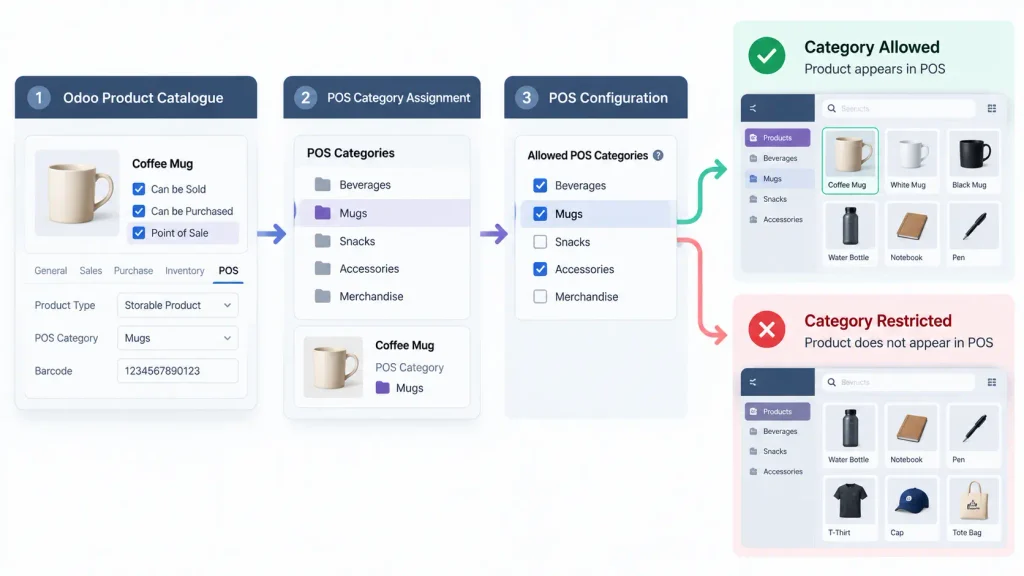
Check the Product’s POS Category
Open the affected product and review its POS category assignment.
Confirm that:
- The product has an appropriate POS category if category-based organisation is being used.
- The assigned category is correct.
- The product’s Point of Sale option is enabled.
Odoo 19’s POS documentation explains that products need an appropriate POS category when category-based product display is used.
Check Category Restrictions in the POS Configuration
A POS configuration can restrict the categories displayed to cashiers. If the product belongs to a category excluded from that configuration, it may not appear even when its individual settings are correct.
Review the affected POS configuration and determine whether category restrictions explain the missing product.
Use the following table to narrow down the investigation.
| What you observe | What to investigate |
| One product is missing | Its POS availability and category assignment |
| Several products from one category are missing | The category assignment and category restrictions |
| Products from multiple categories are missing | POS configuration and other product-loading conditions |
| Products appear in one POS but not another | Differences between the two POS configurations |
Avoid changing multiple categories at once. Identify the specific configuration issue first, then make the necessary correction and verify whether the product appears.
Important: Category restrictions are only one possible cause. If the product is correctly configured and its category is permitted, investigate other causes rather than repeatedly changing category settings.
Determine Whether the Problem Affects One POS or Every POS
Identifying how many products and POS configurations are affected helps narrow down the cause. If a product appears in one POS but not another, the difference may lie in the configurations rather than the product record itself.
Compare the Affected and Working POS Configurations
If your business operates multiple POS configurations, compare a working POS with the one where the product is missing.
Check:
- Whether both configurations permit the affected product’s category.
- Whether the product’s Point of Sale setting is enabled.
- Whether custom product-display rules differ between the configurations.
Do not duplicate or replace a working configuration immediately. Identify the specific difference that could explain the problem before making changes.
Use the Symptoms to Narrow the Investigation
| What you observe | Where to investigate first |
| One product is missing | The product’s settings and category assignment |
| Several products from one category are missing | Category assignments and POS category restrictions |
| Products are missing from only one POS | Differences between the affected and working configurations |
| Products are missing across all POS configurations | Shared product settings, recent system changes, and custom product-loading behaviour |
These observations help prioritise the investigation; they do not establish the root cause by themselves.
If several unrelated products disappear at the same time, check for recent configuration changes or customisations that could affect product visibility.
Confirm the cause before modifying the system. This avoids unnecessary configuration changes and helps preserve existing POS behaviour.
Investigate Products That Disappeared After Previously Working
If products were previously visible in Odoo POS but have suddenly disappeared, investigate what changed before the problem started. Checking the current product settings is still necessary, but recent configuration changes may provide an important clue.
Review Recent Configuration Changes
Determine whether anyone recently:
- Changed the product’s POS availability setting or category assignment.
- Modified category restrictions in the POS configuration.
- Updated product settings in bulk.
- Installed or updated a custom module affecting POS behaviour.
- Changed custom product-loading or filtering logic.
These are possible causes, not confirmed explanations. Investigate the changes that match the symptoms rather than assuming that a module update or code modification is responsible.
Compare an Affected Product With a Working Product
Choose one missing product and a similar product that still appears in POS. Compare their relevant settings and determine whether any differences explain the problem.
If their configurations are equivalent, investigate recent POS configuration changes and any custom rules affecting product visibility.
Test Changes Carefully
Test the proposed correction with one affected product before applying it across the product catalogue.
After making the change, confirm that the product appears in the intended POS and can be selected for a transaction. If the test succeeds, determine whether other missing products share the same cause before applying the correction more broadly.
This controlled approach reduces unnecessary changes and helps preserve the existing POS configuration.
Check Custom Modules and Product-Loading Logic
If the product settings, POS category, and relevant configuration are correct, investigate whether custom development affects product visibility.
Custom Odoo modules can change how products are loaded, filtered, or displayed in POS. These modifications may introduce behaviour that differs from the standard configuration.
What Can Cause Customisation-Related Visibility Problems?
Potential causes include:
- Custom filters that exclude products based on specific fields or conditions.
- Changes to the logic that loads products into POS.
- Custom fields or rules that affect product visibility.
- Module updates or dependency changes that alter POS behaviour.
- JavaScript errors that interrupt the POS interface.
These are possible investigation paths, not confirmation that custom code is responsible.
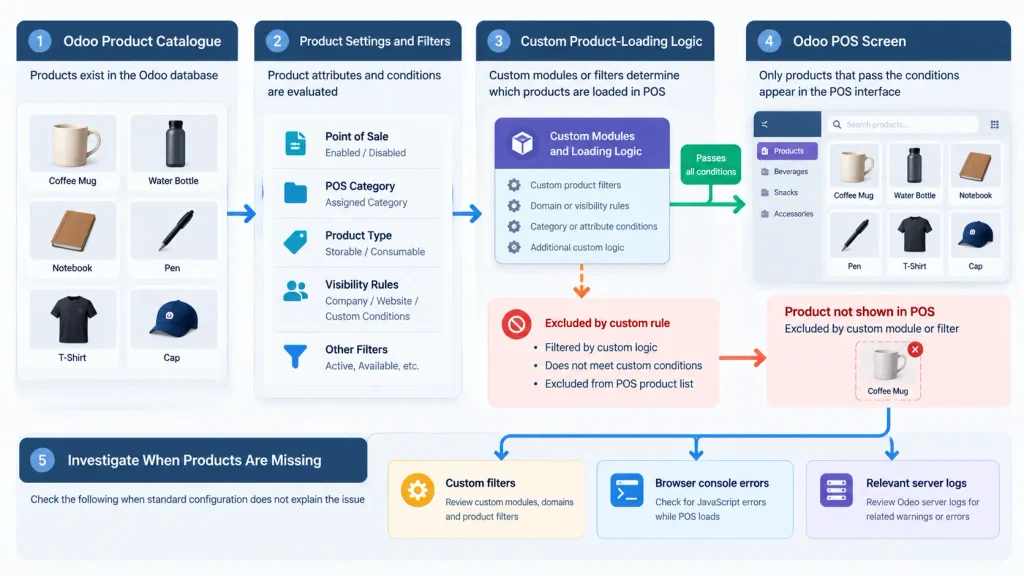
How to Investigate the Problem
First, determine whether the missing products share a particular characteristic, such as a product type, category, or custom field value.
Next, establish whether the issue began after a custom module was installed, updated, or modified. If the timing corresponds, review the changes affecting product-loading and filtering logic.
Where appropriate, a developer can inspect browser console errors and server logs for failures related to POS product loading.
Review custom code in a controlled test environment before making changes to the production system.
Do not disable or remove a custom module in a live environment simply to test whether it is responsible. Identify its dependencies and assess the effects on other business operations before testing a change.
Verify the Fix Before Returning to Normal Sales
After correcting the problem, confirm that the product appears in POS, can be selected for an order, and behaves as expected during a controlled transaction test.
Product visibility
Confirm that the product appears in the intended POS configuration and under the expected category.
Product selection
Select the product and verify that it can be added to an order.
Transaction behaviour
Perform an appropriate controlled test to confirm that the product information is displayed correctly and the transaction follows the expected workflow.
Other affected products
Check whether other products affected by the same configuration issue are now visible. Do not assume that correcting one product resolves every case.
Configuration consistency
Confirm that the correction has not unintentionally changed product availability in other POS configurations.
If the product remains missing, return to the diagnostic process instead of repeatedly changing unrelated settings. Record the affected product, POS configuration, symptoms, and changes already tested to support further investigation.
When Do You Need Odoo Technical Support?
Some missing-product problems can be resolved through standard product and POS configuration. Technical support may be necessary when these checks do not identify the cause or when custom development appears to affect product visibility.
Consider technical support when:
- Multiple products disappear without an identifiable configuration change.
- Products are missing only in a customised POS interface.
- Browser console errors occur while the POS loads.
- The problem begins after a custom module update.
- Standard product and category checks do not explain the behaviour.
- A configuration change fixes one product but causes unexpected behaviour elsewhere.
A technical investigation should identify the cause before recommending a code change. Depending on the findings, the solution may involve correcting product data, adjusting POS configuration, or fixing custom product-loading logic.
Businesses that need help investigating persistent POS issues alongside their wider ERP configuration can explore Odoo ERP implementation services to discuss relevant implementation and customisation requirements.
The objective is to restore the expected POS behaviour without introducing unnecessary changes to the existing system.
Conclusion
Products missing from Odoo 19 POS do not necessarily indicate an inventory problem. The cause may involve product settings, POS category restrictions, configuration differences, or custom product-loading logic.
Start by identifying the scope of the problem, verify the relevant settings, and investigate recent changes before modifying the system. After applying a correction, confirm that the product appears in the intended POS and can be selected for a transaction.
A systematic approach helps businesses restore expected POS behaviour while avoiding unnecessary configuration changes.
Frequently Asked Questions
Check the product’s Point of Sale setting, POS category assignment, and the categories allowed by the active POS configuration. Custom product-loading logic may also affect visibility.
The POS configurations may differ in their category restrictions or custom display rules.
Review recent changes to product settings, POS configuration, and custom modules to identify what changed before the problem started.

