

One quantity change should not turn into a repeated cycle of opening popups, updating values, and returning to the transfer form. Yet some Odoo 19 users report that once they edit a quantity on a receipt or delivery order, subsequent edits repeatedly open the Stock Moves (Detailed Operations) popup.
This behaviour can slow down routine warehouse work, particularly when several product lines require quantity corrections.
Odoo 19 may open the Stock Moves (Detailed Operations) popup repeatedly when users edit quantities on receipts or delivery orders. This can interrupt routine inventory updates and add extra steps when correcting multiple product quantities.
The cause needs to be investigated before changing inventory settings or modifying the interface. The popup may relate to how the transfer’s stock move lines are handled, but the exact cause must be verified in the affected environment.
This guide examines the reported behaviour, explains what to check, and outlines the options available before considering custom development.
What Is the Stock Moves Popup in Odoo 19?
In Odoo 19 Inventory, Detailed Operations provides access to the individual movement details associated with a receipt or delivery order. These details help define how products move between locations and how quantities are recorded.
A stock move represents the movement of a product between locations. Its detailed move lines record the specific operations used to carry out that movement. Depending on the transfer and product configuration, these details can include quantities, source and destination locations, lot or serial numbers, and package information.
Why does this matter when editing quantities?
The main transfer line and the Detailed Operations interface serve related but different purposes. The main line provides a summary of the product movement, while the detailed lines capture more specific inventory information.
When a quantity change causes Odoo to open Detailed Operations instead of allowing the user to continue editing the main line, the important question is what changed in the transfer and why Odoo is directing the user to the detailed movement records.
Understanding this distinction provides the starting point for investigating the repeated popup without assuming that the behaviour is necessarily a bug or that a particular setting will resolve it.
Why Does Odoo 19 Open the Popup After the First Quantity Change?
The reported behaviour follows a specific sequence: a user opens a receipt or delivery order, changes a product quantity, and then attempts to edit it again. The first change may be accepted directly on the transfer form, while a subsequent edit opens the Stock Moves (Detailed Operations) interface.
The role of stock move lines
A stock move represents the movement of a product between locations. Its detailed move lines record the specific movement information associated with that operation.
According to the explanation provided in the reported forum discussion, the initial quantity change may create stock move lines. Subsequent edits may then be directed to Detailed Operations so that the user can work with those detailed movement records.
This provides a possible explanation for why the interface changes after the first edit. However, the sequence alone does not prove that stock move line creation is the cause in every case. The behaviour should be reproduced and investigated in the affected Odoo 19 environment before a fix is selected.

How can this affect warehouse operations?
The impact depends on the frequency and complexity of quantity adjustments.
- Simple receipts: An additional interaction interrupts an otherwise direct quantity edit.
- Multi-line transfers: Repeatedly opening Detailed Operations can make quantity corrections more time-consuming.
- Partial receipts and deliveries: Users may need to inspect and update detailed movement information instead of editing only the summary quantity.
- High-volume processing: Repeated navigation can add friction to routine warehouse work.
The key issue is not that Detailed Operations exists. It is whether Odoo is directing users to that interface for a valid inventory-processing reason or because something in the workflow requires investigation.
The next step is to reproduce the behaviour and identify which conditions trigger it before changing settings or considering customisation.
How to Investigate the Repeated Popup
Before changing inventory settings or requesting custom development, establish when the popup appears, which operations are affected, and whether the behaviour can be reproduced consistently.
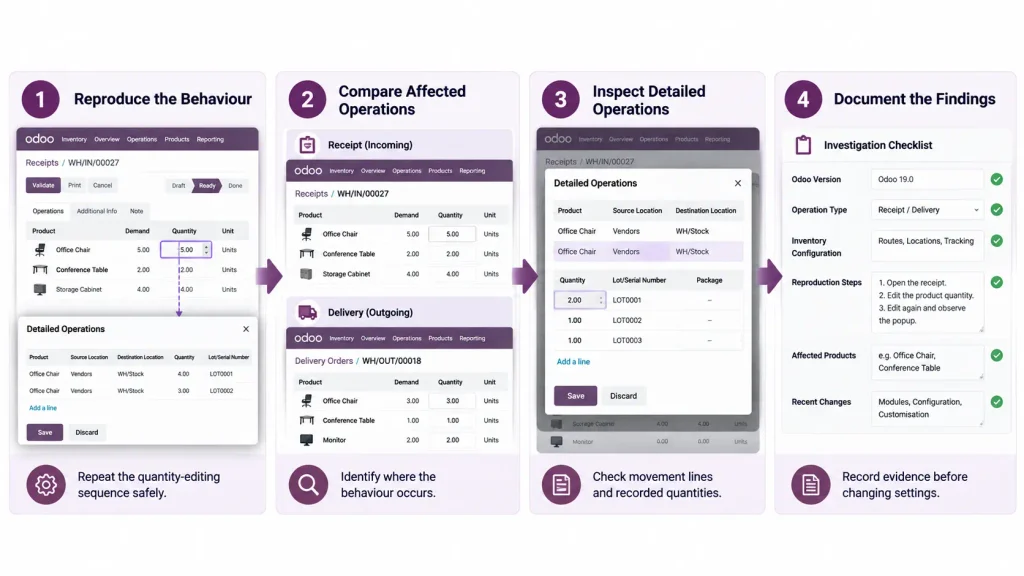
Step 1: Identify the affected operation
Open a receipt or delivery order where the behaviour occurs.
Record whether the issue affects incoming shipments, outgoing deliveries, or both. This distinction helps narrow the investigation because the workflows and processing requirements may differ.
Step 2: Reproduce the behaviour safely
Use a suitable test environment or test operation whenever possible.
- Open the affected transfer.
- Select a product line and change its quantity.
- Apply the change using the normal workflow.
- Attempt another quantity edit.
- Record whether Detailed Operations opens and at which point.
Do not validate or complete a live transfer solely to reproduce the issue. The objective is to observe the interaction without unintentionally changing actual inventory.
Step 3: Check the scope of the issue
Determine whether the behaviour affects one product, multiple product lines, or an entire operation type.
- One product: Inspect its detailed movement information and relevant product configuration.
- Multiple products in one transfer: Check whether the same interaction occurs consistently across the affected lines.
- Receipts but not deliveries: Compare the two operation types and their workflows.
- Both receipts and deliveries: Investigate the common workflow and system configuration.
These observations help narrow the investigation, but they do not establish the root cause by themselves.
Step 4: Inspect Detailed Operations
Open Detailed Operations for the affected transfer and inspect the associated movement lines.
Check whether detailed move lines already exist and compare their quantities with those displayed on the main transfer line. Determine whether the detailed information is consistent with the operation being processed.
Avoid deleting move lines or changing source and destination locations simply to prevent the popup. These details may be essential to maintaining inventory accuracy and traceability.
Step 5: Document the findings
Before changing configuration or requesting custom development, record:
- Odoo environment: Version, edition and relevant deployment details.
- Operation type: Receipt, delivery or another affected transfer.
- Inventory configuration: Whether storage locations and lot or serial number tracking are enabled.
- Reproduction sequence: The actions that cause the popup to appear.
- Affected scope: Whether the issue occurs with one product, multiple products or multiple operation types.
- Detailed movement information: Whether move lines exist before the repeated popup appears.
- Recent changes: Relevant custom modules, upgrades or configuration changes.
This information provides a more reliable starting point for determining whether the behaviour is expected, configuration-related, or potentially caused by a defect or customisation.
Can You Stop the Popup Without Customisation?
Whether the popup can be avoided through standard Odoo functionality depends on the behaviour being reproduced and the workflow involved.
The reported Odoo 19 discussion indicates that no standard setting was identified to disable the popup in the specific scenario described. However, this does not establish that every Odoo 19 installation behaves identically or that no alternative workflow is available.
Before considering custom development, assess the following options.
Review the inventory workflow
Odoo supports one-step, two-step and three-step receipt and delivery workflows. These configurations determine how products move through receiving, internal handling and storage or delivery operations.
Review whether the current workflow matches the warehouse’s actual requirements. A business that receives products directly into stock may need a different process from one that separates receiving, quality checks and storage.
Changing the number of processing steps will not necessarily resolve the popup. Make workflow changes only when the alternative fits the business’s operational requirements and preserves the necessary inventory controls.
Avoid unrelated configuration changes
Do not disable storage locations, alter product tracking or change warehouse routes solely to prevent the popup.
These settings influence inventory processing, traceability and stock movement. Changing them without a clear operational reason may introduce additional problems without addressing the original behaviour.
When might customisation be necessary?
If the behaviour is reproducible, the existing workflow is appropriate, and no suitable standard option meets the business requirement, further technical investigation may be necessary.
That investigation should establish whether the behaviour is expected in the installed Odoo version, results from configuration or custom modules, or indicates a potential defect. Consider customisation only after these possibilities have been assessed.
What Should You Check Before Requesting Custom Development?
If the existing workflow does not meet the business requirement, custom development may be worth evaluating. Before changing the inventory interface, define the required behaviour and identify the inventory controls that must remain intact.
Define the required behaviour
Specify what warehouse users need to accomplish and which parts of the current workflow prevent them from doing it efficiently.
For example:
- Users need to adjust quantities directly on transfer lines.
- Repeated popups interrupt routine quantity corrections.
- Partial receipts and deliveries must continue to work correctly.
- Inventory quantities must remain consistent throughout the operation.
- Existing location and tracking requirements must be preserved.
These are business requirements, not instructions to bypass the standard inventory workflow. The technical solution should be determined only after the requirements have been assessed.
Assess the inventory implications
Before simplifying quantity editing, establish how the proposed change would interact with stock move lines and the relevant inventory workflow.
The assessment should cover:
- Quantity handling: Whether the field represents demand, an initially recorded quantity or an actual processed quantity.
- Partial operations: How incomplete receipts and deliveries will be handled.
- Location management: Whether source and destination locations must be maintained at the detailed movement level.
- Traceability: Whether lot, serial number or package information must be preserved.
- Validation: How the change will maintain inventory accuracy and respect the transfer’s processing requirements.
The appropriate solution depends on the operation, the installed Odoo version and the business’s inventory requirements.
Evaluate maintenance and testing
A custom interface change may simplify quantity editing, but it introduces code that must be tested and maintained.
Before approving development, establish:
- Scope: Which standard behaviour will change?
- Impact: Which inventory operations could be affected?
- Testing: How will quantity accuracy and transfer validation be verified?
- Upgrades: How will the customisation be tested against future Odoo updates?
- Ownership: Who will maintain the code and resolve issues?
The objective is to simplify the warehouse workflow without compromising inventory accuracy, traceability or future maintainability.
When Should You Seek Odoo Technical Support?
Consider technical support when the repeated popup cannot be explained through routine troubleshooting or when the behaviour interferes with essential inventory operations.
Support may be appropriate when:
- The popup behaves differently across otherwise comparable transfers.
- Quantity edits produce unexpected values or inconsistent detailed movement lines.
- The behaviour began after an Odoo update or custom module change.
- The team cannot determine whether the interaction is expected in its current configuration.
- The standard workflow does not meet a clearly defined operational requirement.
- A proposed interface change could affect inventory validation, location management or traceability.
Before requesting assistance, document the steps that reproduce the issue, the affected operation types, the relevant inventory configuration and any recent system changes. This gives the technical specialist a clearer starting point for investigating the behaviour.
For businesses that need help assessing inventory workflows, custom modules or broader ERP configuration, Odoo ERP implementation services provide a starting point for discussing the technical requirements.
The objective is to identify and address the underlying problem—not simply remove the popup without understanding its role in the inventory workflow.
Conclusion
Repeated Stock Moves popups in Odoo 19 can make quantity corrections less efficient on receipts and delivery orders. The reported explanation involving stock move lines provides a starting point for investigation, but the actual cause must be verified in the affected system.
Start by reproducing the behaviour, inspecting Detailed Operations, and confirming whether the existing inventory workflow meets the business requirement.
Before changing warehouse settings or commissioning custom development, establish why the popup appears and whether the proposed solution preserves quantity accuracy, location information, and inventory controls.
Frequently Asked Questions
In the reported scenario, the initial quantity change creates stock move lines, and subsequent edits open Detailed Operations. The actual cause may differ, so reproduce the behaviour and inspect the affected transfer before deciding on a solution.
The reported discussion did not identify a standard setting to disable the popup in that specific scenario. Verify the behaviour in your Odoo 19 environment and assess whether the existing workflow meets your requirements before considering customisation.
Consider customisation only if the standard workflow cannot meet the business requirement. Before making changes, assess their impact on quantity handling, detailed movement lines, location information, and inventory validation.

