

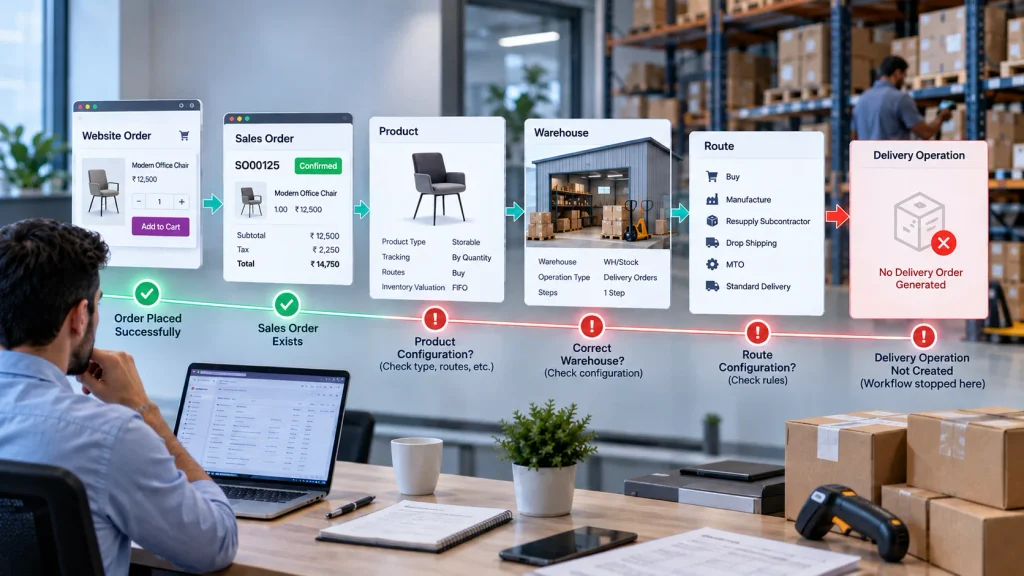
The customer has placed the order. The Sales Order exists. But there is no delivery operation for the warehouse to process.
This breaks the expected Website → Sales → Inventory workflow at the point where the customer order should become a fulfillment operation. The result is more than a missing document: the warehouse cannot process the shipment through the normal Odoo delivery workflow.
The failure can originate before the Delivery Order itself — such as Sales Order confirmation, product type, inventory configuration, warehouse assignment, routes, or delivery operation settings. Checking the Inventory screen alone will not identify which configuration stopped the process.
The critical question is:
Why did Odoo accept the website order but fail to generate the expected delivery operation?
To find the cause, trace the transaction from the website order to the Sales Order and then into Odoo Inventory, identifying the exact point where the fulfillment workflow stops.
How Does Odoo Create a Delivery Order From a Website Order?
A website order reaches Inventory through a defined Odoo fulfillment chain rather than creating a delivery operation independently.
Website Order → Sales Order → Confirmation → Delivery Operation → Stock Reservation → Delivery Order
Understanding this sequence makes it easier to identify where the delivery workflow can stop.
Website Order
The customer selects a product, completes checkout, and submits the order through the Odoo website. The transaction then enters the configured Sales workflow.
Sales Order
The website transaction is represented as an Odoo Sales Order. The order must reach the appropriate confirmed state before the fulfillment process proceeds.
Product
The product configuration determines whether Odoo should manage physical inventory for the order. Products intended for warehouse fulfillment require the appropriate inventory configuration.
Warehouse and Delivery Operation
After confirmation, Odoo uses the applicable warehouse and inventory configuration to determine the outgoing operation. Depending on the warehouse setup, fulfillment can use a one-step, two-step, or three-step delivery flow.
Delivery Order
For applicable physical products, the confirmed Sales Order generates the required delivery operation. The warehouse can then process the resulting stock operation according to its configured reservation, picking, packing, and delivery workflow.
The important point is that the Delivery Order is the result of the preceding Sales and Inventory configuration. If it is missing, the next step is to determine which stage of this chain did not produce the expected result.
Why Is Odoo Website Order Not Creating a Delivery Order?
A missing delivery order usually means that one of the conditions required by the Sales-to-Inventory fulfillment workflow has not been met. The failure can occur at the order, product, warehouse, route, operation, or customization level.
The Sales Order Is Not Confirmed
Check the related Sales Order before investigating Inventory.
If the order remains a quotation, is awaiting confirmation, or has not completed the required payment/confirmation process, the delivery workflow may not have started.
The Product Does Not Require Inventory Delivery
Not every website product requires a warehouse operation.
Service and subscription products do not generate delivery orders. If a product is intended to be physically shipped, verify that its product type and fulfillment configuration support inventory delivery.
The Product Inventory Configuration Is Incorrect
A physical product can still fail to follow the expected delivery workflow if its inventory configuration does not match the intended fulfillment process.
Check the product’s inventory settings and applicable routes rather than assuming the website order alone determines warehouse fulfillment.
The Wrong Warehouse Is Assigned
The website and order may be associated with a warehouse that does not match the intended fulfillment operation.
Check the configured warehouse and confirm that it corresponds to the location from which the product should be delivered.
The Route Does Not Match the Fulfillment Process
Routes determine how Odoo moves products through inventory operations.
An incorrect route can change the expected stock flow, particularly when the business uses standard delivery, multi-step delivery, dropshipping, or other replenishment and fulfillment methods.
The Delivery Operation Is Misconfigured
Review the warehouse’s outgoing operation type and delivery configuration.
A one-step warehouse flow may generate a direct delivery operation, while a multi-step configuration can create separate picking, packing, and delivery operations. The expected document therefore depends on the configured warehouse flow.
A Customization or Automated Workflow Is Interfering
If the standard configuration is correct but the delivery operation is still missing, investigate custom modules, automated actions, website customizations, integrations, or modified Sales and Inventory workflows.
The objective is to identify the exact stage where the expected fulfillment operation stops, rather than manually creating a delivery order without correcting the underlying cause.
How Should You Investigate a Missing Odoo Delivery Order?
Do not create a manual delivery order before identifying why the expected operation was not generated. Trace the transaction in sequence so the actual failure point can be corrected.

Step 1: Check the Website Order
Open the eCommerce order and verify:
- Customer
- Product
- Quantity
- Order status
- Payment status
- Delivery information
Confirm that the transaction completed the expected checkout process.
Step 2: Check the Related Sales Order
Open the Sales Order generated from the website transaction.
Verify:
- Sales Order status
- Confirmation status
- Product lines
- Ordered quantities
If the Sales Order has not reached the required confirmed state, investigate this stage before checking Inventory.
Step 3: Check the Product
Review the product used in the website order.
Confirm:
- Product type
- Inventory configuration
- Sales configuration
- Website availability
- Applicable routes
The objective is to confirm that the product is configured for the intended physical fulfillment workflow.
Step 4: Check the Warehouse and Delivery Flow
Verify the warehouse associated with the order and review its outgoing shipment configuration.
Determine whether the warehouse uses a direct flow such as:
Stock → Customer
or a multi-step flow such as:
Pick → Pack → Deliver
The expected delivery operation depends on this warehouse configuration.
Step 5: Check the Delivery Operation
From the Sales Order, check the Delivery smart button and review the corresponding Inventory operations.
Determine which situation applies:
- No delivery operation exists
- Delivery exists but is waiting
- Delivery exists but quantities are not reserved
- Multiple operations were generated
This distinction is important because a missing delivery operation is different from a delivery operation that exists but cannot be processed.
Step 6: Trace Customizations
If the standard configuration is correct but the expected operation is still missing, investigate:
- Custom modules
- Automated actions
- Website customizations
- Integrations
- Modified Sales workflows
The objective is to identify the exact stage where the expected delivery operation stops being generated, rather than bypassing the problem with a manual transfer.
How Can You Fix the Missing Delivery Order?
The correct fix depends on where the fulfillment workflow stopped. Correct the configuration that prevented the expected operation from being generated rather than creating a manual delivery order to bypass the problem.
If the Sales Order Is Not Confirmed
Correct the payment or confirmation workflow so the website transaction reaches the required confirmed Sales Order state.
Once the order reaches the expected state, the applicable fulfillment process should be triggered without manually creating the delivery operation.
If the Product Configuration Is Incorrect
Correct the product type and inventory configuration so the product is treated according to the intended fulfillment process.
For a physical product, the corrected configuration should allow Odoo to include it in the appropriate inventory delivery workflow.
If the Warehouse Is Incorrect
Align the website/order configuration with the warehouse responsible for fulfillment.
The corrected warehouse assignment should cause the delivery operation to be generated against the intended warehouse and stock flow.
If the Route Is Incorrect
Review the product and warehouse routes and configure the route that matches the required fulfillment process.
The expected result is that Odoo follows the configured stock movement path instead of applying an unrelated or incomplete delivery flow.
If the Delivery Operation Is Misconfigured
Correct the warehouse’s outgoing operation configuration.
For a one-step delivery process, the expected operation should move stock directly toward the customer. For a multi-step process, Odoo should generate the required sequence of picking, packing, and delivery operations.
If Customization Is Causing the Failure
Review custom modules, automated actions, integrations, or modified Sales and Inventory workflows that affect delivery generation.
If the standard configuration is correct, the customization should be isolated and tested to determine whether it is preventing the standard delivery operation from being created.
Retest the Complete Workflow
After correcting the identified issue, do not test only the Delivery Order screen.
Run a new transaction through the complete process:
Website Order → Sales Order → Confirmation → Inventory Operation → Delivery Order
The expected result is not simply that a delivery document appears. The correct product, quantity, warehouse, route, and operation should be generated from the original website order without manual intervention.
How Do You Verify That Odoo Creates the Expected Delivery Order?
After correcting the identified configuration, test a new website order and verify that each stage produces the expected result.
| Configuration Check | What to Verify | Expected Result |
| Website Order | Order and payment status | Order reaches the expected state |
| Sales Order | Confirmation status | Sales Order is confirmed |
| Product | Product and inventory configuration | Product follows the intended fulfillment flow |
| Warehouse | Assigned warehouse | Correct warehouse handles fulfillment |
| Route | Product/warehouse route | Expected stock flow is applied |
| Delivery Operation | Operation type | Correct outgoing operation is generated |
| Stock | Availability and reservation | Required quantities can be processed |
| Delivery Order | Picking/transfer | Expected delivery document exists |
| Warehouse Flow | One-step or multi-step process | Expected operations are generated |
The verification should confirm more than the existence of a Delivery Order.
Check that the generated operation contains the correct product, quantity, warehouse, route, and stock operation corresponding to the original website order.
Also verify the reservation status and any required picking, packing, or delivery steps according to the warehouse configuration.
The complete result should be:
Website Order → Confirmed Sales Order → Expected Inventory Operation → Correct Delivery Order
If the Delivery Order exists but contains the wrong product, quantity, warehouse, route, or operation, the workflow is not fully corrected. The underlying configuration still requires investigation.
When Should You Get Odoo ERP Implementation Support?
If one website order fails to generate a delivery order, the cause may be limited to its product, warehouse, route, or delivery configuration.
Broader support is needed when the same failure continues across multiple products, warehouses, or website orders, even after the standard configuration has been verified.
This is particularly relevant when confirmed Sales Orders consistently fail to generate delivery operations, or when the problem begins after a customization, automated action, or integration is introduced.
In such cases, the Website → Sales → Inventory → Delivery workflow needs to be reviewed as a whole to identify what is preventing the expected delivery operation from being generated.
An Odoo ERP Implementation Company can investigate and correct that underlying workflow.
Frequently Asked Questions
First check whether the Sales Order is confirmed and whether the product requires physical delivery. Then review the product, warehouse, route, and delivery operation configuration.
For applicable physical products, once the related Sales Order is confirmed, Odoo automatically creates the delivery order. It can be accessed through the Delivery smart button on the Sales Order.
Yes. Product type and inventory configuration affect whether Odoo follows a warehouse fulfillment workflow. Service products do not require delivery operations, while subscription products can generate deliveries when configured for physical goods.
Start with the website order and Sales Order status. Then check the product, warehouse, routes, delivery operation, stock flow, and any customization or automation affecting the Sales-to-Inventory workflow.
Conclusion
When an Odoo website order does not create the expected delivery order, the missing document is usually a symptom of a workflow or configuration issue, not an isolated Inventory problem.
Trace the transaction through Website Order → Sales Order → Confirmation → Inventory Operation → Delivery Order. Identify where the fulfillment process stops, correct the underlying configuration, and retest the complete workflow with a new website order.

