

Your business data is in Odoo. So why does preparing a single management report still require manual work?
When sales, accounting and inventory information sits across different applications, managers may need to export records, combine spreadsheets and filter reports before they can compare business performance. This slows reporting and makes it harder to identify important changes.
Odoo 19 Spreadsheets and Dashboards help bring connected business data into a single reporting interface. You can build charts, pivot tables and interactive filters to examine the metrics relevant to your business.
However, a dashboard is only useful when its data, calculations and filters answer the right business questions. This guide focuses on building a dashboard that supports practical reporting—not simply displaying charts.
What Is Odoo Spreadsheet and Dashboard?
Odoo Spreadsheet is an integrated spreadsheet application that lets users organize, calculate, analyze, and visualize data from Odoo. It supports connected data sources, formulas, pivot tables, and charts.
Odoo Dashboard presents selected business information through a reporting interface built from a spreadsheet.
| Feature | Purpose |
| Odoo Spreadsheet | Organize and analyze business data using formulas, pivot tables, and charts. |
| Odoo Dashboard | Present relevant information through an interactive reporting interface. |
When a spreadsheet is added to a dashboard, its first tab serves as the dashboard’s front end. This allows users to present selected charts and reporting elements without displaying the entire working spreadsheet.
Important: Available data sources and fields depend on the installed Odoo applications, user access rights, and database configuration. Confirm these requirements before designing the dashboard.
Identify What Your Dashboard Needs to Show
A dashboard becomes difficult to use when it displays metrics without answering a specific business question. Before building one, identify what users need to measure, which data supports that measurement, and what decisions the results should inform.
Start with the intended audience.
- Sales managers: Revenue trends, sales by product category, and salesperson performance.
- Finance teams: Customer invoices, outstanding amounts, and financial results for a defined accounting period.
- Inventory managers: Stock quantities by location, low-stock products, and inventory valuation.
These metrics require different data sources and calculations. For example, an operational sales total should not automatically be treated as recognized accounting revenue. Likewise, available stock quantity and inventory value represent different measures.
Define the reporting requirements
Before adding a chart or pivot table, identify:
- Business question: What must the user understand?
- Data source: Which Odoo application or model contains the relevant records?
- Measure: Which field, calculation, or aggregation is required?
- Reporting scope: Which dates, companies, locations, or other conditions apply?
- Intended user: Who needs the information, and what decision will it support?
Defining these requirements first helps prevent inaccurate metrics, unnecessary charts, and dashboards that look informative but provide little practical value.
Create an Odoo Spreadsheet and Connect Business Data
Once the reporting requirements are defined, create a spreadsheet and connect the relevant Odoo data. This avoids relying entirely on manually exported records.
Step 1: Create a spreadsheet
In Odoo 19:
- Open the Documents application.
- Navigate to the folder where you want to store the spreadsheet.
- Click New → Spreadsheet.
- Choose Blank spreadsheet or an appropriate template.
- Click Create and give the spreadsheet a descriptive name.
You can also create spreadsheets directly from supported list, pivot, or graph views.

Step 2: Insert data from Odoo applications
Odoo allows you to insert lists, pivot tables, and charts from applications such as Sales, Inventory, and Accounting.
To insert a list:
- Open the relevant application and its list view.
- Open the Actions menu beside the view name.
- Select Spreadsheet → Insert list in spreadsheet.
- Choose the destination spreadsheet or create a new one.
To insert a pivot table or chart:
- Open the relevant pivot or graph view.
- Click Insert in Spreadsheet.
- Select the destination spreadsheet.
The inserted elements use connected Odoo data sources rather than relying solely on manually copied values. You can combine data from different applications in one spreadsheet, provided the selected sources and reporting definitions support the intended analysis.
Build the Dashboard Using Pivot Tables and Charts
Configure pivot tables and charts to present connected Odoo data in a format that supports business reporting.
Use pivot tables to summarize business data
Pivot tables organize records by selected dimensions and aggregate measures for comparison.
A sales performance pivot table can use the following configuration:
| Pivot table element | Configuration |
| Rows | Salesperson |
| Columns | Sales month |
| Measure | Sales amount |
This configuration supports comparisons of sales performance across salespeople and reporting periods.
For inventory reporting, rows can represent product categories, with stock quantities or inventory values as measures. Select the measure that matches the reporting objective, as quantities and monetary values represent different metrics.
Choose charts that fit the reporting objective
Select a visualization based on the information users need to understand.
| Visualization | Reporting purpose |
| Line chart | Track changes over time |
| Bar chart | Compare products, salespeople, or categories |
| Pie chart | Show proportions across a small number of categories |
| Data table | Display exact values or detailed information |
A line chart is suitable for monthly sales trends, while a bar chart supports comparisons across product categories. Avoid displaying multiple charts that communicate the same information.
Organize the dashboard for quick analysis
Arrange reporting elements according to their importance.
- Top: Key performance indicators and reporting period.
- Middle: Sales trends and comparisons by category or salesperson.
- Bottom: Supporting tables or links to relevant Odoo records.
Use descriptive chart titles such as Monthly Sales Trend and Sales by Category to make each visualization easy to interpret.
Keep the dashboard focused on metrics that support specific business decisions.
Configure Global Filters for Interactive Reporting
Global filters allow users to refine connected dashboard data using shared conditions, such as reporting periods, customers, or salespeople.
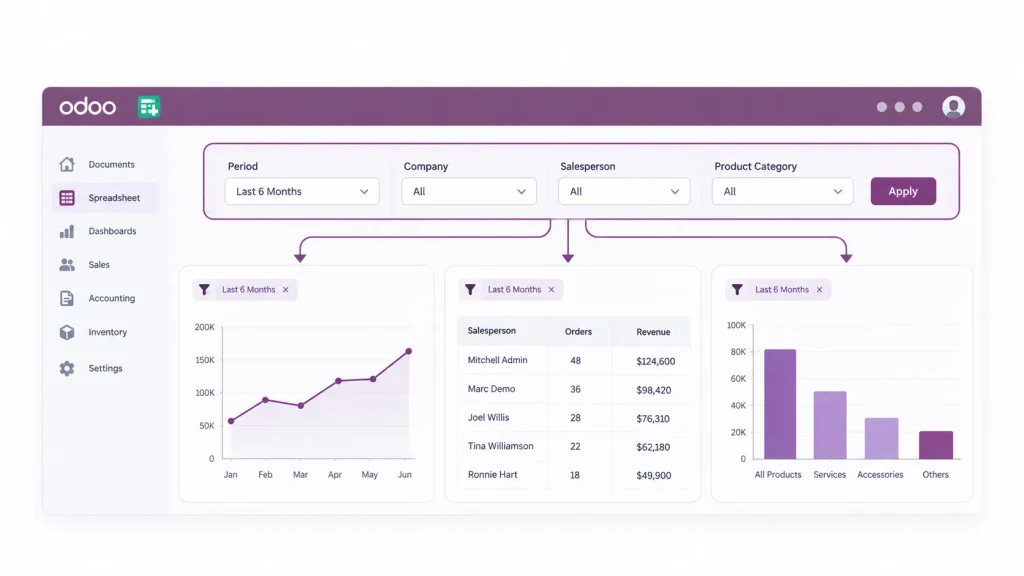
Configure a global filter
- Open the spreadsheet.
- Click Filters in the top-right corner.
- Create a global filter and select its type.
- Configure the filter properties.
- Map the filter to the appropriate fields in the connected data sources.
- Save the configuration.
Common filter types include date, text, relation, selection, Boolean (Yes/No), and numeric filters. Choose the type according to the field users need to filter.
Map filters to the correct fields
A date filter must use the field that matches the reporting objective. In the Sales Order model, order date and expected delivery date represent different events. Mapping a sales-period filter to the wrong field can produce misleading results.
Also, review existing restrictions on pivot tables and charts. A source already limited to a particular period may conflict with a global filter for a different period.
Correct field mapping and consistent filter conditions are essential for reliable interactive reporting.
Convert the Spreadsheet into an Odoo Dashboard
Before publishing, verify that the first spreadsheet tab contains the intended dashboard elements, the data is accurate, global filters work correctly, and access permissions are appropriate.
Create the dashboard
In the spreadsheet:
- Click File → Add to dashboard.
- Enter a dashboard name.
- Select an existing dashboard section or create a new one.
- Configure the access groups.
- Click Create.
The spreadsheet becomes available through the Odoo Dashboards application.
Customize an existing dashboard
An existing standard dashboard may already cover some reporting requirements. Its underlying spreadsheet can be customized to add charts, tables, filters, or links.
Before modifying a standard dashboard, consider duplicating it and customizing the copy. This helps separate business-specific reporting from the standard dashboard and reduces the risk of losing customizations during maintenance or upgrades.
For ongoing business reporting, maintain a clear distinction between standard dashboards and customized reporting assets.
Common Odoo Dashboard Problems and How to Diagnose Them
An Odoo dashboard may display incorrect totals, omit records, or show outdated information. Diagnose the underlying data, reporting logic, filters, and access permissions before changing the visualizations.
dashboard shows incorrect totals
Check the selected measure, aggregation method, reporting period, and source records. Confirm that records are not duplicated or excluded by existing conditions.
For financial reporting, verify that the selected amount represents the intended accounting or operational measure.
Global filters do not update every chart
Check whether the global filter is correctly mapped to the relevant field in each connected data source. Differences between source fields or missing mappings can prevent the filter from affecting every reporting element.
Dashboard does not display expected information
Inspect the underlying spreadsheet, connected data sources, and active filter values. Confirm that the required records are included and that the user has permission to access the relevant information.
Dashboard customizations disappear after an upgrade
Customizations made directly to standard dashboards may be affected when those dashboards are reinstalled. Consider duplicating a standard dashboard before making business-specific changes, and maintain the customized version separately.
Spreadsheet data appears outdated
Use Data → Refresh all data to refresh connected data sources. If the information remains outdated, investigate the source records and refresh behavior.
Before using financial or operational dashboards for decisions, confirm that the displayed information reflects the intended reporting period and the latest available data.
When Does Your Business Need Custom Odoo Dashboard Development?
Standard Odoo dashboards and spreadsheets can support reporting requirements involving available data sources, standard fields, and straightforward calculations. Custom development may be necessary when existing reporting capabilities cannot meet specific business requirements.
Consider custom dashboard development when:
- Cross-application reporting: Multiple customized applications or business workflows require connected reporting.
- Specialized calculations: Business-specific metrics require custom logic and validation.
- Reporting limitations: Standard dashboards cannot provide the required measures, detail, or level of analysis.
- Growing complexity: Increasing reporting requirements make existing dashboards difficult to maintain.
Before commissioning development, assess whether standard Odoo configuration, spreadsheet functionality, or existing reporting features can meet the requirement. Customization should address a defined reporting limitation rather than add unnecessary complexity.
Businesses evaluating broader ERP reporting and customization requirements can explore Odoobots’ Odoo ERP Implementation Company services.
Conclusion
Odoo 19 Spreadsheets and Dashboards help businesses organize connected operational data into interactive reports that support everyday decisions.
Dashboard quality depends on accurate data, appropriate measures, relevant filters, and clear visualizations—not the number of charts displayed. Reporting elements must reflect the business requirements they are intended to support.
The goal is to make business information easier to understand and act on, without adding unnecessary reporting complexity.
Frequently Asked Questions
Yes. Users with the appropriate access rights can create spreadsheets, connect Odoo data, build charts and pivot tables, and convert spreadsheets into dashboards. Advanced requirements may need custom development.
Yes. Odoo Spreadsheet supports data from multiple applications and models within the same spreadsheet. The reporting elements must use appropriate data sources and definitions to produce meaningful results.
Yes. Standard dashboards can be customized through their underlying spreadsheets. Duplicating a standard dashboard before making changes helps protect customizations from potential changes during upgrades.

