

Upgrading Odoo does not automatically make custom modules compatible with the target version. Custom code may depend on Python methods, ORM behaviour, XML views, JavaScript components, external integrations, or data structures that have changed.
These incompatibilities can cause module installation failures, missing fields, invalid views, and broken business workflows.
To resolve these issues, identify the failing component, verify the compatibility problem, update the affected code or migration logic, and test the fix against an upgraded database before production deployment.
Why Do Custom Modules Fail After an Odoo Upgrade?
Custom Odoo modules extend standard functionality through Python models, ORM methods, XML views, JavaScript components, and external integrations. An upgrade can expose incompatibilities when these customizations depend on code or structures that have changed in the target version.
Common failures involve outdated method references, invalid inherited views, missing dependencies, and frontend components that no longer work as expected.
Python and ORM Incompatibilities
Custom modules may fail when methods, field definitions, or ORM interactions no longer match the target version’s implementation.
How to investigate:
- Identify the first relevant exception in the server traceback.
- Locate the affected custom method, model, or field.
- Compare its implementation with the corresponding Odoo 19 code.
- Verify method arguments, return values, inheritance, and field definitions.
- Test the correction against the affected business workflow.
Confirm the incompatible dependency before changing the code; not every Python exception results from an upgrade.
XML View Incompatibilities
Inherited views can fail when an XPath expression references an element that no longer exists in the parent view. Missing fields and incompatible view definitions can also prevent module installation or validation.
How to investigate:
- Identify the failing view from the error message or server log.
- Inspect its inherit_id and XPath expressions.
- Compare the inherited view with the parent view in Odoo 19.
- Verify that the referenced fields and elements exist.
- Correct the view and test the affected screen.
Module Dependency and Manifest Problems
A custom module may fail to install if a required addon is unavailable, incompatible, or incorrectly declared.
Check the module’s __manifest__.py file and verify that:
- Required dependencies are declared and available.
- Python imports reference valid modules.
- XML and CSV data files are correctly listed.
- Security files and access-control records load successfully.
Resolve dependency problems before upgrading dependent modules. Removing a dependency simply to bypass an error can leave the customization incomplete.
JavaScript and OWL Incompatibilities
Custom interfaces can break when JavaScript components depend on incompatible APIs, outdated imports, changed templates, or incorrect asset declarations. These problems may occur even when the server starts successfully.
How to investigate:
- Inspect JavaScript exceptions in the browser console.
- Check failed network requests and asset loading.
- Verify component imports, registrations, services, and templates.
- Correct the affected frontend code and test the relevant interactions.
Identify the failing component before changing the frontend implementation.
How to Identify the Root Cause
Identify the failing component before changing code. This reduces unnecessary modifications and makes the correction easier to validate.
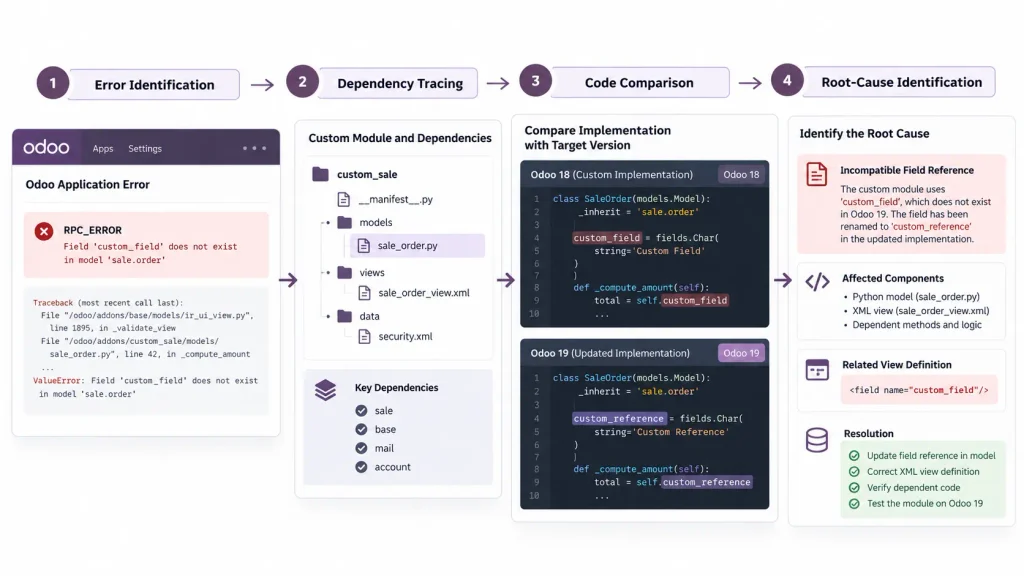
Step 1: Capture the Error
Record the operation that fails, the affected module, and the conditions that trigger the problem.
- Review the server traceback to identify the first relevant exception.
- Inspect the browser console and network requests for frontend failures.
- Record the affected model, field, method, view, or component.
Step 2: Trace the Dependency
Determine whether the failure originates in a custom module, third-party addon, or standard Odoo component.
Inspect the module’s __manifest__.py, Python imports, inherited models, views, and declared dependencies. If other modules use the same model or method, identify those dependencies before modifying shared code.
Step 3: Compare the Implementations
Compare the affected code with its equivalent in the previous and target Odoo versions.
Check whether the relevant method, field, model, or view has changed. For a missing field, verify whether it was renamed, removed, moved, or supplied by an unavailable dependency.
This comparison helps establish whether the upgrade introduced the incompatibility.
Step 4: Reproduce the Failure in a Test Environment
Reproduce the issue in a development or staging environment before applying the fix to production.
Use an upgraded database copy when the problem depends on existing records, configuration, or migrated data. A clean database is useful for testing installation but cannot validate every migration-related issue.
How to Fix Common Odoo 19 Compatibility Problems
The fix depends on the affected component. Use the error details and target-version code to determine the appropriate correction.
| Problem | What to inspect | Appropriate correction |
| Missing field or model | Python definitions and module dependencies | Correct the reference or restore the required dependency after verifying the intended implementation. |
| Invalid inherited view | Parent view, XPath expression, and field availability | Update the inheritance expression to match the target view. |
| Python method error | Traceback, method signature, and inheritance chain | Adapt the custom implementation to the target API while preserving its business logic. |
| Module installation failure | Manifest, imports, dependencies, and data files | Correct the dependency or loading issue and retry the installation in a test environment. |
| Broken JavaScript component | Browser console, imports, templates, and assets | Correct the incompatible frontend code and test the affected interactions. |
| Incorrect data after upgrade | Migration logs, field mappings, and existing records | Implement and validate the required data migration. |
Correct Python and ORM References
If a custom module references a missing field or method, verify whether the target version changed or removed it.
Update the implementation to use the supported functionality. Check method arguments, return values, field definitions, and inheritance behaviour. Test the correction against representative records and relevant user permissions.
Repair Inherited Views
Inspect the target parent view before changing an XPath expression. Confirm that the referenced elements and fields exist and that the modified view preserves the intended layout and behaviour.
After updating the XML, upgrade the module in a test database and verify that the view loads correctly, required controls appear, and the affected workflow functions as expected.
Resolve Module Dependencies
Check the manifest’s depends declaration and verify that required addons, imported models, and referenced XML identifiers are available in the target environment.
Do not remove dependencies merely to bypass installation errors. Doing so can leave the module without required functionality or security rules.
Update JavaScript and OWL Components
For frontend failures, inspect the browser console and verify component imports, registrations, templates, services, and asset declarations.
Correct the incompatible implementation, then test rendering, user interactions, data updates, and relevant error-handling behaviour.
How to Handle Data Migration and Database Compatibility
A custom module may install correctly on an empty database but fail against an upgraded production database.
An existing database contains business records, custom fields, external identifiers, configuration data, and relationships created under the previous version. These must remain consistent after the upgrade.
Odoo’s upgrade process distinguishes between making custom modules installable and validating them against an upgraded database. Upgrade scripts can help migrate data and update technical references when the implementation changes.
Check Renamed and Removed Fields
If a custom field is renamed or its implementation changes, updating the Python reference alone may not preserve existing values. The migration must account for the source field, destination field, and affected records.
Before applying a migration, determine:
- Which records contain the existing values.
- Whether the destination field has compatible data types and meaning.
- Whether the values require transformation.
- Whether reports, computed fields, or integrations reference the old field.
- How the migrated data will be validated.
Do not delete or recreate data simply to make the module install. Confirm that the migration preserves the information required by the business.
Use Upgrade Scripts When Necessary
Odoo supports upgrade scripts that execute during module updates. These scripts can handle data transformations and changes to technical references, such as field names, model names, and external identifiers.
Use a migration script when existing data must be adjusted to match the updated implementation. Test the script against a representative database copy and verify that it handles the affected records correctly.
Validate Access Rights and Business Records
After the upgrade, verify that users can access the records and perform the operations required for their roles.
Check:
- Model access permissions and record rules.
- Existing records and their relationships.
- Required fields and computed values.
- Automated actions and scheduled operations.
- Reports and integrations that depend on migrated data.
A successful module upgrade does not, by itself, establish that business data and workflows remain correct.
How to Test Custom Modules Before Production Deployment
Testing should cover both technical compatibility and the business operations supported by the customization.
A module that installs successfully may still fail when users perform specific actions or process existing records.
Test Installation and Module Updates
Install the corrected module in a clean test database to identify missing dependencies, invalid views, and installation problems.
Then test it against a representative upgraded database to identify issues involving existing data or previous configuration.
Review server logs and resolve relevant errors before proceeding.

Run Functional and Regression Tests
Test the workflows affected by the customization and any related standard functionality.
For example, a customized sales workflow may require testing order confirmation, approval conditions, record creation, access permissions, and dependent operations.
Define test cases according to the module’s actual business purpose. Regression testing is particularly important when custom methods override standard behaviour or multiple modules depend on the same model.
Validate Integrations and Scheduled Operations
For modules connected to external services, verify authentication, request and response handling, field mappings, and failure recovery.
Test scheduled actions and automated processes separately. A workflow that succeeds manually may fail when executed by a scheduled job or under a different user context.
Confirm that expected records are created or updated and that failures are logged appropriately.
Rehearse the Deployment
Before production deployment, document the code changes, test results, dependencies, and rollback procedure.
Use a controlled deployment window and ensure that the production database and relevant code can be recovered if a serious problem occurs.
Do not run untested migration scripts or experimental fixes directly against the production database.
When Should You Involve an Odoo Developer?
Some compatibility issues require straightforward configuration changes. Others need a deeper review of custom code, database migration, or interactions between modules.
Consider specialist development assistance when:
- Several custom modules fail during the upgrade.
- A critical business workflow stops functioning.
- Errors involve complex model inheritance or overridden methods.
- Existing records require a non-trivial data migration.
- Custom integrations fail because of changed APIs or data structures.
- Fixing one module repeatedly breaks another.
- The root cause remains unclear after reviewing logs and code.
Before requesting assistance, collect the source and target Odoo versions, affected module names, error tracebacks, reproduction steps, and details of the affected business workflow. This information helps the developer investigate the issue more efficiently.
If your business needs help with compatibility fixes, custom-module changes, or upgrade-related development, discuss your requirements with the Odoobots development team.
Conclusion
Odoo 19 custom-module compatibility problems require identifying the failing dependency, comparing the affected implementation with the target version, correcting the underlying code or migration logic, and testing the result against representative business data.
Successful installation is only the first validation step. Custom modules must also preserve business rules, maintain data integrity, respect access permissions, and support the workflows they were designed to handle.

